
Last Updated: September 28, 2026
Today‘s workspace demands more than simply a laptop and a desk. Smart monitor and display accessories can enhance multitasking, provide comfort from too much screen time, facilitate remote collaboration, and help create a more organized, productive office environment.
The range of display technology is more diverse and flexible than it has ever been, from large 4K professional monitors to micro portable monitors for mobile working. Alternatively, they can be upgraded using monitor arms, docks, glare filters, cameras, dual screens, etc.
Across the board, whether you‘re in a home office, on the road, or ‘anywhere’ making the right display setup can make your day-to-day experience more productive.
“For the overarching strategy, read our complete guide on Smart Office Gadgets.
What Are Smart Monitors?
Smart monitors are displays that offer capabilities beyond traditional computer monitors. Depending on the model, they may include built-in operating systems, wireless connectivity, streaming applications, cloud services, Bluetooth, voice controls, and remote collaboration features.
Unlike a standard monitor that depends entirely on a connected computer, a smart monitor may allow users to access selected applications and services directly.
Common Smart Monitor Features
| Feature | Benefit for Work |
| Built-in apps | Access selected services without a computer |
| Wi-Fi connectivity | Supports wireless features and cloud access |
| Screen sharing | Makes presentations and collaboration easier |
| Bluetooth | Connect keyboards, mice, and audio devices |
| USB-C | Supports modern laptops with fewer cables |
| Multi-device support | Switch between work devices easily |
| Smart operating system | Provides standalone functionality |
| Picture-by-picture | View multiple sources simultaneously |
The features that most benefit office users are flexible connectivity, charger USB-C, multiple screen support and multiple device support.
Best Smart Monitors 2026
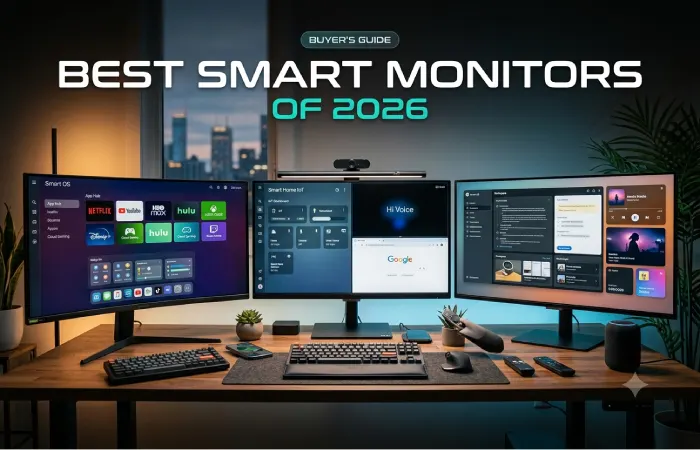
The best smart monitors 2026 should have a good display quality, productivity features, connectivity and ergonomics.
Various professionals require various screens specifications. It might be a color-sensitive graphic designer or a business professional who utilizes a lot of screen space.
Smart Monitor Comparison
| Monitor Type | Best For | Recommended Resolution | Key Features |
| Smart 4K Monitor | General productivity | 4K | Apps, USB-C, multitasking |
| Ultrawide Monitor | Multitasking | QHD/4K | Wide workspace |
| Curved Monitor | Immersive work | QHD/4K | Comfortable viewing |
| Portable Monitor | Remote work | Full HD/4K | Lightweight and mobile |
| Business Monitor | Office professionals | QHD/4K | USB-C and ergonomic features |
| Creative Monitor | Designers | 4K | High color accuracy |
Features to Look for in a Smart Monitor
Before buying a smart monitor, consider:
Resolution: office documents can be viewed effectively with a resolution of 1080p. (Used wide definition. 1440p or 2160p would be much better for reading text on the screen.)
Screen size: Small desks will fit a 24 in monitor. The no-fuss 27 in screen is a popular size for productivity (and a color deep enough to hide a multitude of sins!), but if you want the luxury of space there are 32 in models too!
USB-C connectivity: USB-C offers the possibility of eliminating many cables (depends on the monitor) from the laptop to the monitor for charging and display.
More inputs: HDMI, DisplayPort, and USB-C allow for greater flexibility.
Ergonomic adjustment: Height, tilt, swivel and rotation. For a more comfortable place to work.
Why Smart Displays Matter in Modern Offices
Agencies rely more on digital collaboration systems than ever before. Employees might be collaborating in multiple applications, on a video call, working in the cloud, and communicating with remote staff over the course of the day.
A larger and better-organized display setup can help reduce constant window switching.
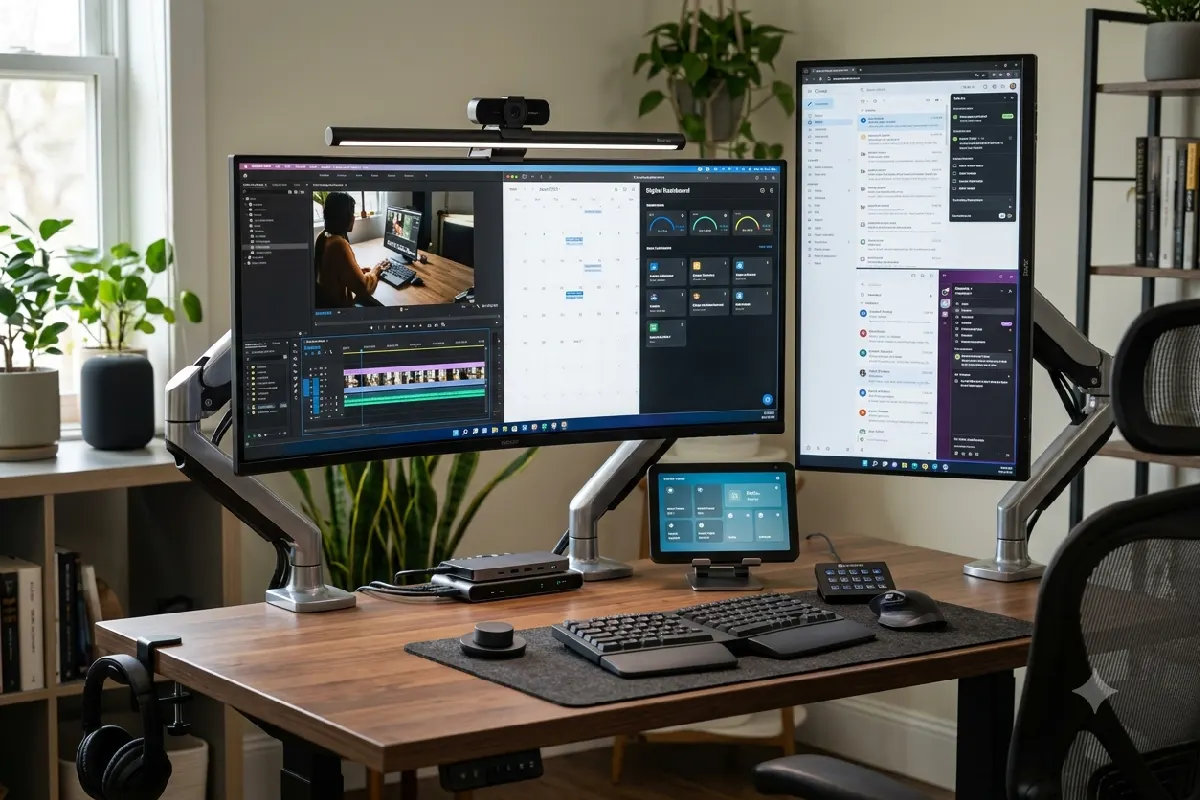
For example, a professional can use:
- One display for communication.
- One display for documents.
- A laptop for meetings or monitoring tasks.
This type of workspace can make multitasking easier while keeping important applications visible.
Smart displays are particularly useful for:
- Remote workers.
- Content creators.
- Software developers.
- Financial professionals.
- Designers.
- Digital marketers.
- Business owners.
- Customer support teams.
Dual Monitor Setup Accessories
A dual-monitor workspace can also lead to better organization, but accessories can really make or break a dual-monitor setup.
Top dual monitor setup accessories for linking, positioning, and managing two screens.
Essential Accessories for Dual Monitors
1. Dual Monitor Arms
Using a dual monitor arm allows a user to set up two monitors at a comfortable height and viewing angle.
They can help:
- Free up desk space.
- Improve posture.
- Reduce neck movement.
- Support flexible screen positioning.
- Create a cleaner workspace.
Certain monitor arms enable users to place screens side by side, at various heights or vertically.
2. Docking Stations
For example, a laptop with multiple monitor support can be easier to use with a docking station.
Alternatively, several cables can be linked directly to the laptop via a compatible dock to which they are connected.
A docking station can support:
| Accessory | Possible Function |
| Monitor | Video output |
| Keyboard | USB connection |
| Mouse | USB or wireless connection |
| Ethernet | Wired internet |
| External storage | File access |
| Webcam | Video meetings |
| Speakers | Audio |
It is always best to check for compatibility, as support for display differ from one other laptop, dock, port and system.
3. Cable Management Systems
A productive workspace should never be overflowing with thousands of cables.
Useful cable accessories include:
- Cable clips.
- Cable sleeves.
- Under-desk trays.
- Cable boxes.
- Desk grommets.
Cable management is also useful for cleaning and making the office look more professional.
4. Display Adapters
Some laptops may require adapters for:
- USB-C to HDMI.
- USB-C to DisplayPort.
- HDMI to DisplayPort.
- USB to external display solutions.
Always verify resolution and refresh-rate support prior to a purchase of the adapter.
Portable Monitors for Remote Work
Portable monitor remote work Portable monitors also make sense for business people who could use extra screen real estate, but don’t necessarily need to take along a whole desktop display.
Most portable monitors are very portable. They are minimal at best and just plug into the computer via a USB-C or HDMI.
Benefits of Portable Monitors
A portable monitor can help remote workers:
- View documents while writing.
- Join meetings on one screen.
- Keep communication apps visible.
- Compare spreadsheets.
- Work from hotels or coworking spaces.
- Create a temporary dual-screen setup.
Portable Monitor Sizes
| Screen Size | Best For |
| 13–14 inches | Maximum portability |
| 15–16 inches | General remote work |
| 17 inches+ | Larger mobile workspace |
Most people would be happy with a 15 or 16 inch portable monitor.
What to Look for When Choosing a Portable Monitor
Lightweight Design
Remote workers should consider the monitor’s weight and thickness, especially if it will be carried frequently.
USB-C Connectivity
USB-C can simplify the setup when compatible devices support video and power through the connection.
Built-In Stand
A stable stand is important when working from different locations.
Brightness
Allow users to work more effectively in bright rooms.
Protective Cover
Using a protective case or cover can prevent scratches while traveling.
Monitor Arms and Mounts
Arm mounts, and arms are the most useful display accessories for ergonomic benefits in the office.
Having the display mounted too low or too high can result in an awkward viewing position. The use of adjustable arms lets users bring the display closer to a suitable eye height.
Types of Monitor Mounts
Desk Clamp Mounts
These attach directly to the edge of a desk.
Best for: Most home and office workspaces.
Grommet Mounts
These attach through a hole in the desk.
Best for: Permanent office installations.
Wall Mounts
These attach the display to a wall.
Best for: Small desks and meeting rooms.
Freestanding Monitor Stands
These sit directly on the desk.
Best for: Users who cannot clamp or drill into their workspace.
Monitor Mount Comparison
| Mount Type | Flexibility | Desk Space | Installation |
| Desk Clamp | High | Excellent | Easy |
| Grommet | High | Excellent | Moderate |
| Wall Mount | Medium | Maximum | Moderate |
| Freestanding | Medium | Limited | Very Easy |
Important Monitor Arm Features
Check:
- Maximum weight capacity.
- Supported screen size.
- VESA compatibility.
- Height adjustment.
- Tilt range.
- Rotation support.
- Cable management.
Never assume that every monitor is compatible with every mount.
Anti-Glare Screen Filters
Bright lights and reflections may be annoying when trying to see the monitor. Ideally, anti-glare screen filters are used to reduce the reflections and glare and improve view of the monitor.
They can be useful in offices with:
- Large windows.
- Bright overhead lighting.
- Open workspaces.
- Shared desks.
- Frequently changing lighting conditions.
Benefits of Anti-Glare Filters
An anti-glare filter may help:
- Reduce distracting reflections.
- Improve visibility.
- Protect the screen surface.
- Provide additional privacy options on selected models.
However, users should choose carefully because some filters can affect image brightness and visual clarity.
Types of Screen Filters
| Filter Type | Primary Purpose |
| Anti-glare | Reduces reflections |
| Privacy filter | Limits side viewing |
| Blue-light filter | Adjusts light transmission |
| Screen protector | Protects against scratches |
| Combination filter | Offers multiple features |
Smart Monitor vs Traditional Monitor
| Feature | Smart Monitor | Traditional Monitor |
| Built-in apps | Often available | Usually unavailable |
| Wi-Fi | Often available | Usually unavailable |
| USB-C | Common | Model dependent |
| Computer-free features | Available on some models | Rare |
| Streaming support | Often available | Requires external device |
| Productivity features | Advanced on some models | Depends on connected computer |
| Price | Can be higher | Wide price range |
A traditional monitor may still be the better choice for users who only need a display for a desktop or laptop.
A smart monitor can be more useful for users who want additional standalone features and flexible connectivity.
Choosing the Right Screen Size for Work
Screen size directly affects how much information you can comfortably view.
24-Inch Monitors
Best for:
- Small desks.
- Basic office work.
- Single-monitor setups.
- Budget workspaces.
27-Inch Monitors
Best for:
- General productivity.
- Remote work.
- Professional offices.
- QHD and 4K displays.
For many professionals, 27 inches offers a practical balance between workspace and desk space.
32-Inch Monitors
Best for:
- Large spreadsheets.
- Creative work.
- Multitasking.
- Business dashboards.
Ultrawide Displays
Best for:
- Advanced multitasking.
- Video editing.
- Development.
- Large workspace requirements.
An ultrawide monitor can replace a traditional dual-monitor setup for some users.
Display Resolution for Productive Work
Resolution affects image detail and available workspace.
Full HD
1920 × 1080
Best for:
- Basic office work.
- Budget monitors.
- Portable displays.
QHD
2560 × 1440
Best for:
- General productivity.
- Multitasking.
- Professional workspaces.
4K
3840 × 2160
Best for:
- Large displays.
- Creative professionals.
- Detailed spreadsheets.
- High-resolution content.
More pixels do not necessarily translate into productivity increase. The following factors also influence the screen‘s impact:
Essential Smart Monitor Accessories
A monitor becomes more useful when combined with the right accessories.
1. Monitor Light Bars
A monitor light bar provides focused desk lighting without taking up additional desk space.
It may be useful for:
- Evening work.
- Reading documents.
- Keyboard visibility.
- Reducing extreme contrast between the screen and surrounding environment.
2. Webcams
A dedicated webcam can improve video quality for remote meetings.
Look for:
- Full HD or higher resolution.
- Adjustable positioning.
- Privacy shutter.
- Good low-light performance.
- Compatible mounting options.
3. External Speakers
Integrated monitor speakers are handy, but not always top quality.
External speakers can improve:
- Video meetings.
- Presentations.
- Media playback.
- Audio editing.
4. Wireless Keyboard and Mouse
The use of wireless accessories can help to eliminate visible wires and clutter.
Multi-device keyboards and mice are especially handy for professionals who toggle among laptops and desktops.
5. Monitor Cleaning Kits
Regular cleaning helps maintain display visibility.
Use materials specifically designed for screens and avoid harsh cleaning chemicals.
“To take the next step, see our detailed guide on Smart Office Organization Gadgets.”
Building a Productive Dual Monitor Setup
A good dual-monitor setup is one that concentrates on workflow, not just “multiple screens”.
Step 1: Identify Your Primary Screen
Your primary monitor should usually display the application you use most frequently.
Examples:
- Main document.
- Development environment.
- Design software.
- Spreadsheet.
- Dashboard.
Step 2: Use the Second Screen Strategically
The second display can show:
- Email.
- Chat applications.
- Research.
- Reference documents.
- Video meetings.
- Analytics dashboards.
Step 3: Position Screens Correctly
Place the two monitors of equal size at a comfortable viewing angle.
In the case that one screen is in higher use, position that more central screen directly in front and lag the secondary screen slightly to the side.
Step 4: Adjust Display Settings
Configure:
- Resolution.
- Scaling.
- Brightness.
- Text size.
- Screen arrangement.
Correct software settings are just as important as physical monitor placement.
Best Smart Monitor Setup for Different Professionals
Remote Workers
Recommended setup:
- 27-inch primary monitor.
- Portable secondary monitor.
- USB-C docking station.
- Adjustable monitor arm.
- Webcam.
Software Developers
Recommended setup:
- Dual 27-inch monitors or ultrawide display.
- Adjustable monitor arms.
- High-resolution screen.
- Docking station.
- Cable management.
Designers and Creators
Recommended setup:
- Color-accurate 4K monitor.
- Secondary display.
- Adjustable monitor arm.
- External storage.
- High-quality webcam.
Business Professionals
Recommended setup:
- QHD or 4K monitor.
- USB-C connectivity.
- Webcam.
- Wireless keyboard and mouse.
- Monitor light.
Frequent Travelers
Recommended setup:
- Lightweight laptop.
- Portable monitor.
- Compact keyboard.
- USB-C hub.
- Protective monitor case.
Common Display Setup Mistakes
Even expensive monitors may not improve productivity if the setup is poorly configured.
Buying the Wrong Resolution
A very high-resolution display may not always be necessary for basic office tasks.
Choose a resolution based on:
- Screen size.
- Work type.
- Viewing distance.
- Computer capability.
Ignoring Ergonomics
A monitor should be positioned to support a comfortable working posture.
Avoid placing screens:
- Too low.
- Too high.
- Too far away.
- At uncomfortable angles.
Forgetting Connectivity
Before buying a monitor, check:
- Laptop ports.
- Desktop graphics support.
- USB-C capabilities.
- Dock compatibility.
- Cable requirements.
Buying an Incompatible Monitor Arm
Check monitor weight and VESA support before purchasing a mount.
Creating Cable Clutter
Plan cables before setting up the workspace.
How to Improve Monitor Ergonomics
You also need a physically comfortable display for sittings that last all day.
Maintain a Comfortable Height for the Display
The optimal position is user–and workstation-dependent, but the screen should not make you have to bend your neck unduly.
Maintain a Comfortable Viewing Distance
A screen that is nearer may cause too much eye movement, whereas to screen that is away may cause leaning forward.
Reduce Excessive Reflections
Position the monitor to minimize reflections from:
- Windows.
- Ceiling lights.
- Desk lamps.
Adjust Brightness for Your Environment
Very bright or very dark screens can be unpleasant.
Set display brightness in accordance with the ambient light.
Smart Office Display Trends in 2026
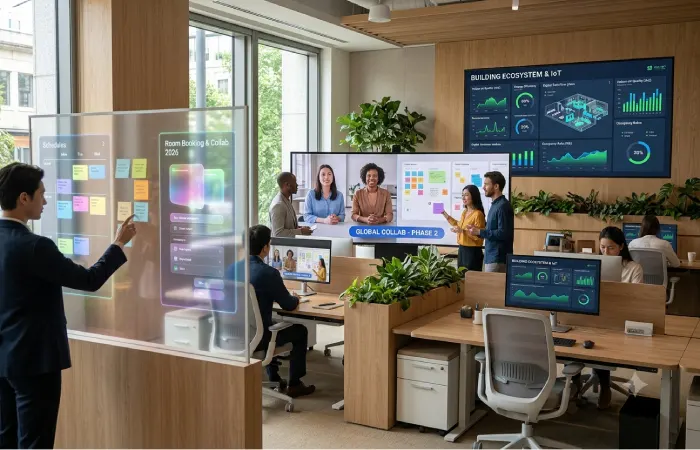
Display technology continues to evolve as offices become more flexible and connected.
USB-C Workspaces
USB-C continues to simplify desk setups by allowing compatible devices to connect through fewer cables.
Larger Productivity Screens
Many professionals are moving toward:
- 27-inch displays.
- 32-inch displays.
- Ultrawide monitors.
- Dual-screen workspaces.
Portable Workstations
Remote and hybrid work are increasing demand for lightweight display accessories that can be used in different locations.
Better Multitasking Features
Modern monitors increasingly support features such as:
- Picture-by-picture.
- Picture-in-picture.
- Multiple input sources.
- Screen splitting.
- Wireless display connectivity.
Cleaner Desk Design
Monitor arms, wireless accessories, and docking stations are helping users create more organized workspaces.
Smart Monitor Buying Checklist
Before purchasing a smart monitor, ask these questions:
| Question | Why It Matters |
| What is my main use? | Determines required specifications |
| How much desk space do I have? | Helps select screen size |
| Do I need 4K? | Affects price and hardware requirements |
| Does my laptop support USB-C video? | Determines compatibility |
| Do I need two monitors? | Helps plan the workspace |
| Can my desk support a monitor arm? | Important for mounting |
| Do I travel frequently? | Determines whether portability matters |
| Is glare a problem? | Helps select filters and screen finishes |
Frequently Asked Questions
What are smart monitors?
Smart monitors are monitors with features other than traditional monitors. With some having built-in apps, Wi-Fi, wireless connectivity, standalone, screen sharing, etc.
What are the top smart monitors to use in 2026?
The ideal smart monitor will be up to your needs, so which characteristics must you pursue? Appropriate dimension, resolution, USB-C port, sustain for many gadgets, ergonomic adjustments and productiveness features.
Are dual monitors more productive?
Having dual monitors can help make multitasking an easier task by keeping several programs open at once. The optimal configuration will depend on what is being done and how much space is available on the desk.
Isn’t using portable monitors all around a great option with respect to work from home?
Yes. Portable monitors are ways for remote workers, travelers and people who work outside of an office setting to expand the amount of actual screen they have at their disposal.
Why something to consider However, if you have always wanted an extra level of flexibility to your workspace, then a monitor arm is definitely worth considering.
Monitor arm, while not necessary, may help with desk organization and enable the monitor to be positioned in a more flexible way.
Do anti-glare screen filters actually work?
Anti-glare filters are effective in environments with bright lights or reflective surfaces. As with all anti-reflective coatings, the quality of the filter and lighting conditions impact their effectiveness.
Is a 27-inch monitor good for office work?
Yes. A 27-inch monitor is a commonly used monitor size since it provides a relatively large screen without taking up too much desk space.
Final Thoughts
Looking for the best smart monitor and display accessories? Getting the right monitor and display accessories for your workwill balance your time and work, bring technology and style to your workspace and can even turn out to be the best mind-blowing accessory.
An entry-level with a home office single 27 ’’ display paired with a flexible monitor stand. A a remote business traveler might be looked for a portable display with a USB-C dock. A power user may be looking for two monitors, a monitor arms, a docking station along with multitasking.
Use your accessories not only in technical but in design way, design the environment of your display according to your workflow. Think about your ergonomics, your connection, your desk surface you have at hand, the applications you often need:
A good monitor setup enables better multitasking, a cleaner desk area and a more modern flexible office.