
Last Updated: September 28, 2026
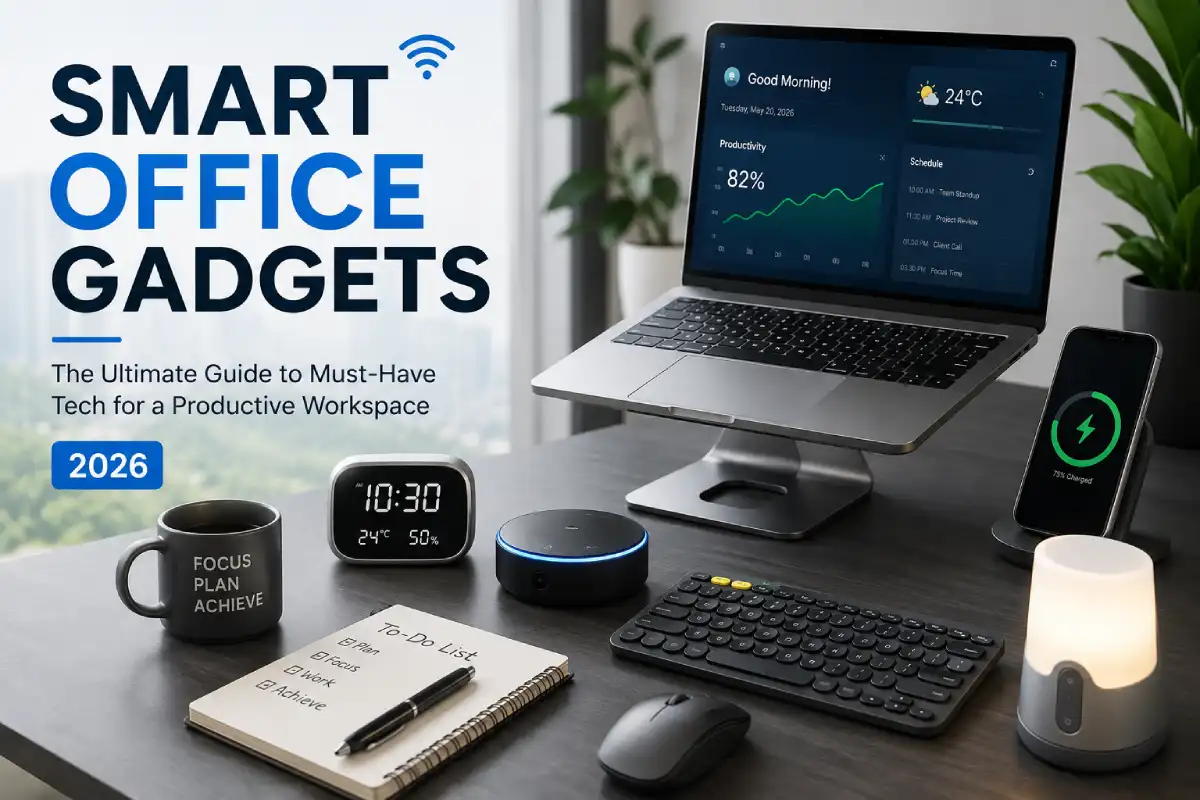
No longer are Smart Office Devices limited to just voice-enabled assistants, intelligent lighting, or high-tech standing desks. In 2026, the concept of a smart office will be considered that of a networked office environment where technology will make work interesting, ergonomic, easy to discuss, energy-efficient, and focused.
The best smart office setup does not necessarily contain the most devices. It contains the right devices working together.
A USB-C hub converts your notebook computer into a desktop computer. A smart display could serve as many other devices at once. A programmable control pad can automate repetitive actions. A monitor light can improve desk illumination without taking up valuable space, while noise-canceling headphones can make an open office or busy home environment more suitable for focused work.
This guide talks about some of the best smart office gadgets, essential office gadgets in 2026, smart office accessories, cool gadgets for your office, and some practical smart gadgets that you can use in your home office. It tells what to buy and what not to buy, how to create your system within various budgets, and how to handle common issues.
Editor’s Note: Specifications may vary from time to time depending upon the manufacturer. Therefore, always confirm the specifications and other details of the products before purchasing.
Explore comprehensive guides on this topic:
What are Smart Office Gadgets?
A smart office gadget is a device or accessory that uses connectivity, automation, programmability, sensors, intelligent controls or multifunctional technology to make work easier.
That definition is intentionally broader than “internet-connected device.”
A wireless keyboard that is able to switch devices may be a useful tool for any office, as it will let you switch your computer without buying new hardware. A USB-C dock may cleverly merge displays, network capabilities, charge your devices, and connect peripherals. A control deck may help you automate any chain of actions you usually do with one press of a button.
In other words, smart means useful automation or improved workflow—not simply having an app.
Current 2026 coverage in the sphere of smart office recommendations pays much attention to productivity and utility. Now we pay less attention to innovations and more to practicality.
Smart Office vs. Traditional Office
| Feature | Traditional Workspace | Smart Workspace |
| Lighting | Manually adjusted | Automated or controllable |
| Displays | Separate monitor and peripherals | USB-C/Thunderbolt hub displays |
| Charging | Multiple adapters | Centralized charging |
| Meetings | Basic webcam/headset | AI-capable webcam, microphone and audio |
| Input | Single keyboard/mouse | Multi-device peripherals |
| Workflow | Manual repetitive actions | Programmable shortcuts and automation |
| Ergonomics | Fixed equipment | Adjustable and sensor-assisted equipment |
| Organization | Physical cable management | Integrated cable and power management |
| Energy management | Devices left powered | Smart plugs, schedules and automation |
| Security | Basic Wi-Fi setup | Segmented, updated and controlled connected devices |
The goal is not to automate everything. The goal is to remove friction from the work you already do.
Why Smart Office Gadgets Matter in 2026
The modern workstation has become increasingly dependent on multiple devices.
During a normal working day a typical professional might use a laptop, external screen, webcam, microphone, keyboard, mouse, phone, ear buds, chargeer, and a variety of cloud services. Without a good system this can cause cable clutter, unplugging and plugging in devices all day long, inundation of notifications, and juggling between devices.
Smart office technology addresses these problems at the physical layer.
A good docking station reduces cable switching. Multi-device peripherals reduce input-device duplication. A programmable controller reduces repetitive clicks. Better lighting reduces glare. Ergonomic accessories ensure better positioning. Good quality webcam and microphone make a remote meeting more easier.
Office-gadget guidance at present tabled by Dell continues to include compatibility, ergonomics, connectivity, robustness and wireless capability and multifunctional ability as crucial considerations in office gadgets.’
The important distinction is between technology that removes friction and technology that merely adds another screen or app.
The Smart Office Value Test
Before buying any gadget, ask:
- Does it solve a recurring problem?
- Will I use it several times each week?
- Does it reduce the number of steps in a common task?
- Does it improve comfort or ergonomics?
- Does it work with my existing hardware?
- Does it require a subscription?
- Does it create another device that needs maintenance?
- Does it provide enough value to justify its price?
If the answer to most of these questions is no, it probably is not a must-have gadget.
Smart Office Accessories
Below is a list of categories that will contain the most useful items in upgrading your connected office.
USB-C and Thunderbolt Docking Stations
For those who use a laptop as their primary workstation, a docking station can be among the most useful smart office accessories.
Without having to connect your laptop to a monitor, Ethernet, keyboard, mouse, camera, storage drive and charger individually, one cable does the job.
This accessory comes in handy for hybrid workers who take their laptops back and forth between their home and office.
What to Look For
Look for:
- USB-C or Thunderbolt compatibility
- Power Delivery appropriate for your laptop
- Display output matching your monitor
- Multiple USB ports
- Ethernet if you need wired networking
- SD or microSD if you handle media
- Support for your operating system
- Enough bandwidth for your monitors
Don’t make an assumption that all USB-C ports have similar functionality. USB-C is about the type of connector, but not about its abilities.
The docking station is probably one of the best purchases for a smart office as it will completely change the workflow, and not improve just one specific thing.
Best For
For hybrid workers, content creators, programmers, analysts and other professionals connecting their laptops to multiple devices.
Smart Monitors
A conventional monitor displays an image. A smart or hub-oriented monitor can also become the central connection point for the workstation.
One such product, the Dell UltraSharp 40 Curved Thunderbolt Hub Monitor U4025QW, offers a 39.7-inch 5120 x 2160 panel that operates at 120 Hz along with connectivity via Thunderbolt 4 port, USB ports, Ethernet, KVM features, built-in speakers, and up to 140W power delivery.
That’s what is going to be the case with monitors in 2026 – monitors are turning into workstations hubs.
There’s no need to purchase separate monitors, USB hubs, Ethernet ports, speakers, and power supplies for your laptop.
Smart Monitor Buying Checklist
Prioritize:
- Resolution
- Screen size
- USB-C/Thunderbolt connectivity
- Power delivery
- Built-in KVM
- Height adjustment
- Display quality
- Refresh rate
- Number of downstream ports
- Compatibility with your laptop
For productivity, do not automatically assume that the largest monitor is best. The size of the desk, viewing distance and ergonomic considerations are important.
OSHA advises placing the computer monitor directly in front of the individual, typically a minimum of 20 inches from the viewer, with the top of the monitor being at eye level.
Wireless Multi-Device Keyboards
A multi-device keyboard is one of the simplest smart office upgrades.
Rather than keeping individual keyboards for each of your devices such as your work laptop, personal computer, and tablet, a multi-device option could be used.
One of the examples is Logitech MX Keys S that comes with Bluetooth or Logi Bolt technology and works with up to three different devices. Battery life of Logitech keyboard is up to ten days with pre-configured settings or five months with backlight off.
Why It Is Useful
A multi-device keyboard is particularly useful if your workflow involves:
- Work laptop + personal computer
- Laptop + tablet
- Desktop + laptop
- Multiple operating systems
- Frequent device switching
It also decreases the clutter on your desk.
The keyboard should be positioned in front of the user where he can sit with his shoulders relaxed, his elbows close to his body, and his wrists in line with his forearms.
Wireless Ergonomic Mouse or Trackball
While selecting hardware for our smart office, people do not give much attention to the mouse.
A premium mouse can provide customizable buttons, multi-device switching, improved tracking and ergonomic positioning.
For those individuals who spend hours navigating through various documents, spreadsheets, or browsers, programmed buttons save from going through all these menus repeatedly.
According to OSHA, the pointing device should be placed such that the wrist remains straight and neutral.
Choose Based on Your Work
| User | Recommended Mouse Type |
| General office work | Ergonomic wireless mouse |
| Spreadsheet-heavy work | Mouse with programmable buttons |
| Creative work | High-precision mouse |
| Small desk | Compact wireless mouse |
| Wrist-sensitive users | Ergonomic vertical or alternative mouse |
| Multi-device worker | Multi-device Bluetooth mouse |
| Long navigation sessions | Trackball or ergonomic mouse |
The clever mouse doesn’t need to have the highest DPI. The clever mouse should make things easy for you without any reduction in comfort.
AI Webcams for Better Meetings
Video calls have become an integral part of the work processes for many professionals.
An AI-enabled webcam can offer features like:
- Auto-framing
- Face tracking
- Gesture control
- Automatic exposure
- Subject tracking
- Background effects
- High-resolution video
Digital Magazine’s 2026 smart home office articles emphasize AI webcams like the Insta360 Link and the OBSBOT Tiny for their capabilities of auto-tracking, auto-framing, and 4K videos.
For a professional that participates in several meetings each week, an AI webcam can prove to be more practical than yet another gadget to decorate the desk.
What Matters More Than 4K
Do not buy a webcam based solely on resolution.
Also consider:
- Low-light performance
- Autofocus
- Microphone quality
- Framing
- Software support
- Privacy shutter
- Mounting flexibility
- Compatibility with your meeting software
A well-positioned 1080p camera with perfect lighting might appear more professional than an ill-positioned 4K camera.
Noise-Canceling Headphones
Noise reduction is among the most useful upgrades in a smart office.
Home offices can contain household noise, traffic, construction, conversations and appliances. Corporate offices may have conversations, phone calls and movement around the desk.
Noise cancelling headphones can produce a better controlled environment.
In the 2026 smart office market, noise cancellation is becoming more of a productivity aid than entertainment. Modern suggestions often combine ANC headphones with artificial intelligence stations and remote working arrangements.
Look For
- Active noise cancellation
- Transparency mode
- Comfortable ear cushions
- Good microphone performance
- Multipoint Bluetooth
- Long battery life
- USB-C charging
- Wired fallback
Multipoint support is especially useful when you need to stay connected to both a phone and computer.
Smart Desk Lighting and Monitor Light Bars
Lighting is an aspect that is underestimated in terms of upgrading.
Inadequate lighting may cause glare and difficulty in viewing the information on the computer screen. The OSHA specifically states that proper lighting should reduce glare and excessive light which causes eyestrain and headaches.
Monitor light bars provide lighting above the monitor instead of using valuable desk space.
BenQ’s ScreenBar Halo 2, for example, uses front illumination combined with rear-facing light and an asymmetrical optical design intended to provide more balanced, glare-free lighting around the workstation.
Smart Lighting Features Worth Paying For
- Brightness adjustment
- Color-temperature adjustment
- Automatic ambient-light response
- App control
- Physical controls
- Presets
- Low-glare design
You do not need RGB lighting to have a smart workspace.
For most professionals, comfortable, adjustable white light is more valuable than decorative lighting effects.
Smart Plugs and Power Management
Although smart plugs are cheaper than the more expensive hardware used in computer workstations, smart plugs can still offer automation functionalities that will help.
The smart plug is capable of programming and controlling other compatible devices like:
- Desk lamps
- Fans
- Chargers
- Coffee equipment
- Decorative lighting
- Certain monitors or accessories
However, smart plugs should not be used indiscriminately with high-load devices unless the plug is specifically rated for the electrical load.
Useful Automation Examples
Morning: Turn on desk lighting.
Start of work: Activate the desk setup.
End of work: Turn off selected accessories.
Weekend: Keep nonessential equipment powered down.
The purpose is not to automate every electrical outlet. It is to make repeated routines simpler.
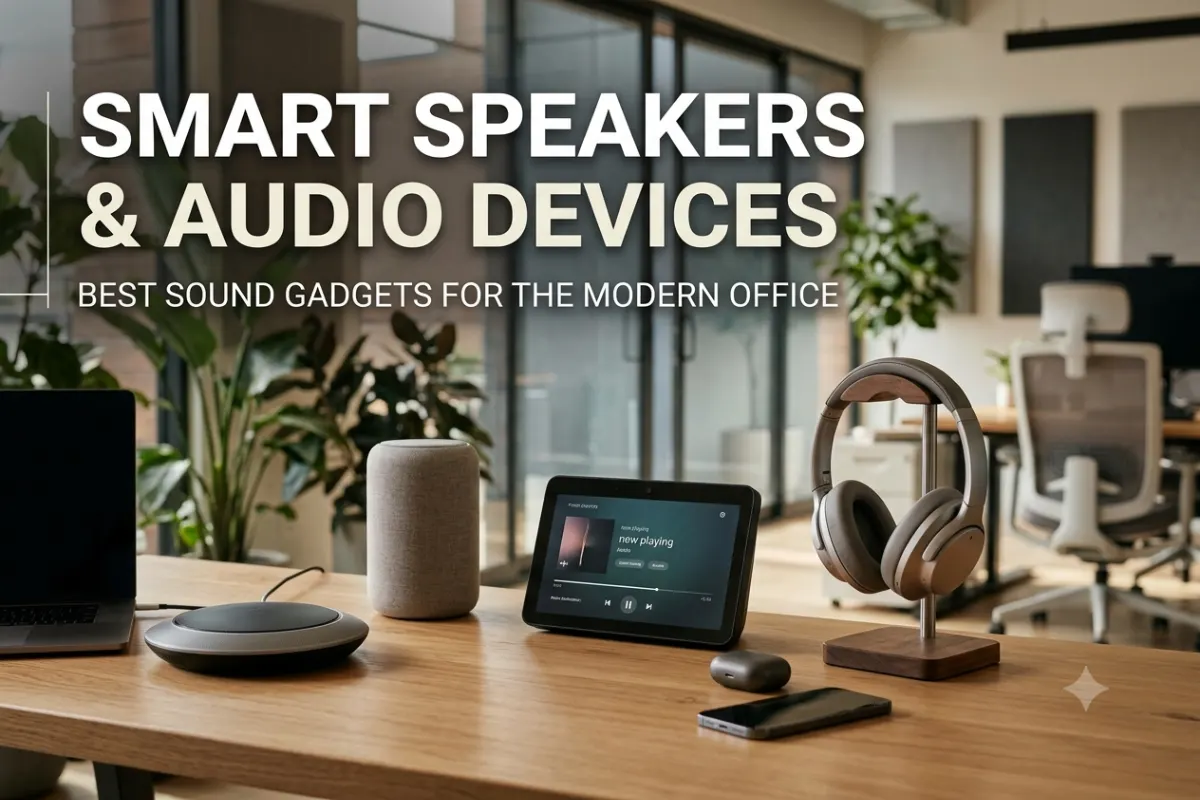
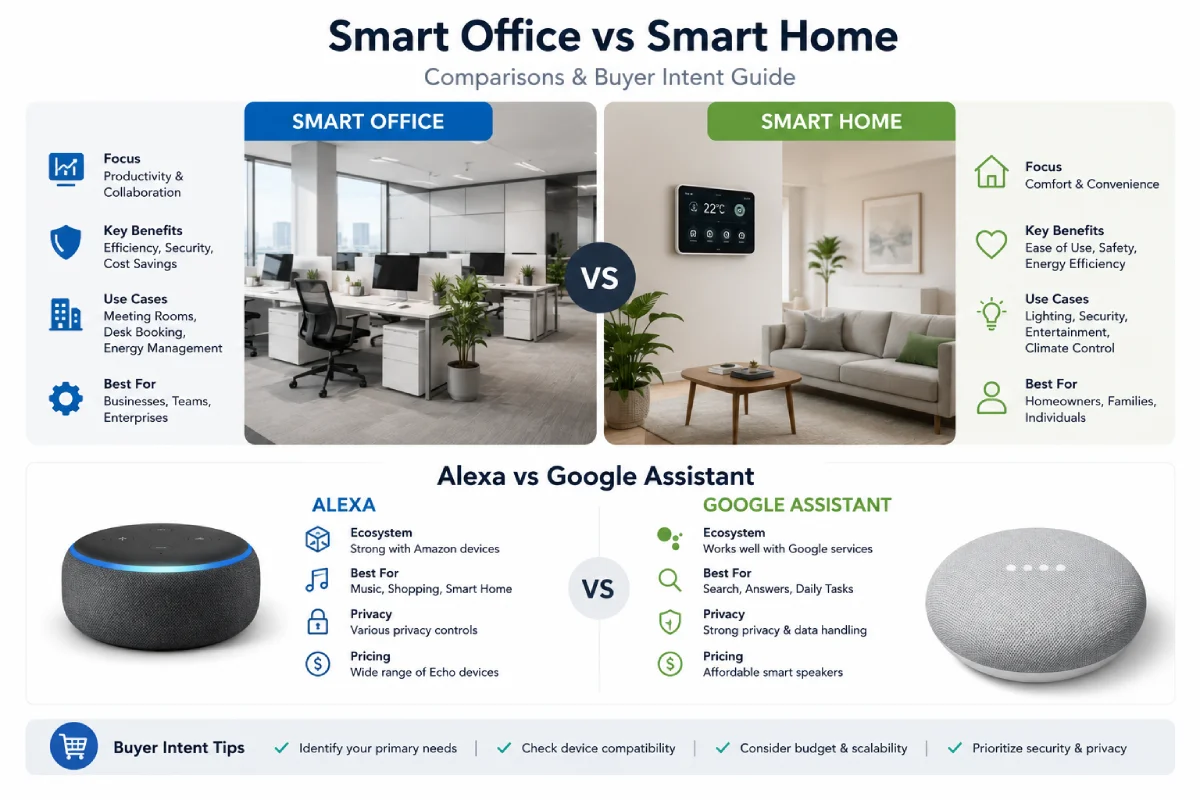
Smart Speakers and Smart Assistants
The smart speaker serves as a frictionless tool to accomplish some tasks.
Using the right ecosystem, you may use voice commands for:
- Timers
- Reminders
- Calendar tasks
- Music
- Lighting
- Smart plugs
- Weather
- Basic information
- Routine automation
This type can be helpful, but overbuying is quite common.
When you are already able to do all that faster by using keyboard shortcuts or through your phone, then using a smart speaker won’t help you at all.
Best Use Case
Smart speakers become really helpful when your hands are busy or when operating several compatible smart devices.
Cool Tech Gadgets for Office
Programmable Control Pads
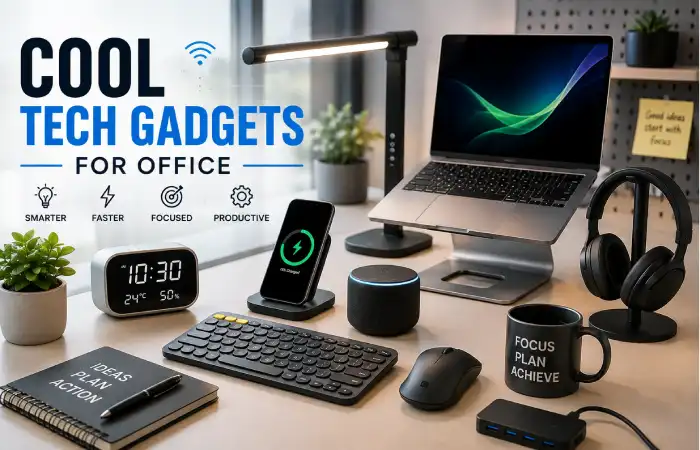
Programmable control pads are among the more interesting cool tech gadgets for office use.
A physical button can be assigned to:
- Launch an application
- Open a folder
- Start a meeting
- Mute a microphone
- Trigger a macro
- Change lighting
- Open a frequently used website
- Run a workflow
The value increases when the user performs repetitive tasks.
For example, a content creator could create one button that opens a writing application, research browser, analytics dashboard and communication app.
A programmer could create shortcuts for development tools.
A video editor could map frequently used commands to physical buttons.
The main idea is quite obvious:
If you do something dozens of times per week, then automation will pay off.
Smart Standing Desks
Height-adjustable desks have moved from premium office equipment toward mainstream workstation hardware.
A smart standing desk can add:
- Programmable height presets
- Electric adjustment
- Anti-collision protection
- Sitting/standing reminders
- App connectivity
- Usage tracking
Current 2026 smart-office coverage highlights connected standing desks as a core category rather than a novelty.
However, the “smart” features should not distract from the actual purpose of the desk.
The most important characteristics are:
- Stable construction
- Suitable height range
- Adequate desktop depth
- Weight capacity
- Reliable adjustment
- Good cable management
OSHA also recommends adjustable-height work surfaces where possible and emphasizes adequate workspace for monitors, keyboards and pointing devices.
Smart Office Accessories
Not every useful smart office accessory needs AI or Wi-Fi.
Some of the best improvements are simple accessories that eliminate recurring friction.
USB-C Charging Station
One can charge several gadgets without spreading the adapters all over the desk.
Wireless Charging Stand
Can be helpful if one uses his mobile device for identification purposes, calls, messages, etc.
Cable Management System
Cable clips, under-desk trays and cable sleeves are not glamorous, but they can dramatically improve workstation organization.
Laptop Stand
A laptop stand will allow the computer to be set at a higher level when using an external keyboard and mouse.
Headphone Stand
A headphone stand provides a consistent storage location and can reduce desk clutter.
Desk Mat
A large desk mat creates a defined working area and can improve the feel of keyboard and mouse movement.
USB Hub
Useful when your laptop has limited ports, but choose one with sufficient bandwidth for your actual peripherals.
Portable SSD
Especially handy for people in creative professions, photographers, video editors and those working with big files.
E-Ink or Secondary Information Display
An additional display with low distraction can have calendars, notes or even dashboards without cluttering the main display.
Comparison of Smart Office Gadgets
The following comparison focuses on workflow impact rather than novelty.
| Gadget Category | Productivity Impact | Comfort Impact | Automation | Best For | Priority |
| USB-C/Thunderbolt dock | High | Medium | High | Laptop users | Essential |
| External monitor | High | High | Medium | Most professionals | Essential |
| Ergonomic mouse | High | High | Medium | Daily computer users | Essential |
| Multi-device keyboard | High | High | High | Multi-device users | Essential |
| Monitor light bar | Medium | High | Medium | Long screen sessions | High |
| ANC headphones | High | Medium | Medium | Noisy environments | High |
| AI webcam | Medium | Low | High | Remote workers | High |
| Smart standing desk | Medium | High | High | Long desk sessions | High |
| Programmable controller | High | Low | Very high | Power users | Medium |
| Smart plug | Low | Low | High | Automation enthusiasts | Medium |
| Smart speaker | Medium | Low | High | Voice workflows | Medium |
| Wireless charger | Medium | Low | Low | Phone-heavy workflows | Medium |
| Desk organizer | Low | Medium | Low | Cluttered desks | Medium |
This is an editorial prioritization, not a laboratory measurement. It is designed to help readers determine where a limited budget is likely to produce the largest practical improvement.
Smart Office Gadgets According to Their Purpose
Rather than replicating somebody else’s solution, make sure that the equipment is suited to your needs.
Best Smart Office Equipment for Telecommuters
Prioritize:
- External monitor
- USB-C dock
- Wireless keyboard and mouse
- AI webcam
- Noise Canceling Headphones
- Monitor light
- Smart power management
This combination improves the major parts of remote work: screen space, connectivity, communication, audio and environment.
Best Setup for Content Creators
Creators generally benefit from:
- High-quality monitor
- Fast external storage
- Dock with USB-C / Thunderbolt
- High-Quality Microphone
- AI webcam
- Programmable controller
- Ergonomic mouse
- Color-accurate display
A creator’s setup should prioritize bandwidth, storage, display quality and workflow shortcuts.
Best Setup for Developers
Developers can prioritize:
- Large high-resolution monitor
- Mechanical or low-profile keyboard
- Programmable mouse
- Docking station
- Ethernet
- Secondary display
- Noise Canceling Headphones
- Programmable control pad
For development, screen real estate often provides more value than decorative smart-home features.
Best Setup for Students
Students generally do not need expensive smart office equipment.
A practical setup can include:
- Laptop stand
- External keyboard
- Wireless mouse
- Monitor or tablet
- Desk lamp
- Headphones
- USB-C hub
- Cable organizer
The goal should be flexibility rather than expensive automation.
Smart Office Gadgets for Home
It is not necessary for you to spend several thousand dollars in order to make your workplace smart.
Budget Tier
Start with:
- Laptop stand
- Wireless mouse
- Desk light
- Cable-management accessories
- USB hub
Mid-Range Tier
Add:
- External monitor
- Wireless keyboard
- Better mouse
- USB-C dock
- Monitor light
- ANC headphones
Premium Tier
Then consider:
- Thunderbolt monitor
- Smart standing desk
- AI webcam
- Professional microphone
- Programmable controller
- Premium ANC headphones
- Advanced lighting
- Networked automation
The best way out would be upgrading those places which form bottleneck, instead of purchasing everything at one time.
Must-Have Office Gadget 2026
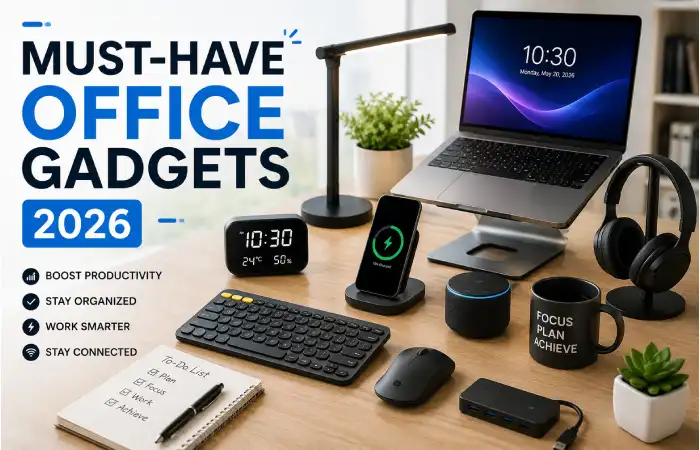
If you are starting from scratch, use this priority order.
First: Fix Connectivity
Buy a USB-C dock or hub if you constantly connect and disconnect devices.
Second: Fix Your Display
Extend your screens by adding an external monitor. If your laptop screen is not large enough to run several applications simultaneously, connect an external monitor.
Third: Fix Input
Upgrade the keyboard and mouse if you spend most of the day typing and navigating.
Fourth: Fix Lighting
A good desk lamp or an additional monitor light should be added if you have glare or poor lighting.
Fifth: Fix Audio
Choose the ANC headphones (if meetings and focus are more key, then go for a high quality mic instead)
Sixth: Add Automation
Only when the base setup is operational, then you add the smart plugs, control pads and upgrades to the automation.
It avoids us from doing an all too common mistake: making automation to a workspace that is structurally not efficient.
Product Comparison: What Matters More Than the Brand
When making comparisons across smart office gadgets, specs should be read in context:
| Feature | Why It Matters | Common Mistake |
| USB-C | Simplifies modern connectivity | Assuming all USB-C ports are identical |
| Thunderbolt | High bandwidth and advanced connectivity | Paying for it without needing the bandwidth |
| Bluetooth | Wireless convenience | Ignoring multipoint support |
| Power Delivery | One-cable laptop charging | Choosing insufficient wattage |
| KVM | Easy control of multiple computers | Assuming every USB-C monitor includes it |
| AI features | Automation and framing | Buying AI hardware without a real use case |
| App support | Customization | Buying products with poor software support |
| Battery life | Less charging | Trusting maximum figures without checking usage conditions |
| Ergonomic adjustment | Better workstation positioning | Focusing only on aesthetics |
| Firmware updates | Security and functionality | Buying devices with poor long-term support |
How to Build a Smart Office Setup
A smart office works best when devices are designed as a system.
Start With the Work Surface
Assess the surface area you got at home before you buy any gadgets.
Your desk should hold the monitor, keyboard, mouse and other items you use regularly with a comfortable amount of room.
OSHA advises of keeping frequently used components such as monitor, keyboard and mouse in the front of the user and providing ample space for adequate positioning.
Position the Monitor Correctly
The monitor should be about straight ahead of you and between 20–40 inches(50 to 100cm) away, a choice that is dependent on the type of display and size of text. OSHA states that the top of the screen should be at or below eye level.
Add the Keyboard and Mouse
The keyboard and mouse should be close enough that your elbows remain near your body and your wrists remain neutral.
Do not place the mouse several inches away simply because the desk is crowded.
Add Lighting
Hang the lights for your position to fall on your work without glare on the display.
Consolidate Connections
Where possible, consider the use of a docking station or monitor hub.
Automate Repetitive Tasks
Only after the hardware layout is comfortable should you introduce programmable buttons, smart plugs or voice controls.
Example Smart Office Setup
Laptop → Thunderbolt/USB-C dock → Monitor
Dock → Keyboard + Mouse + Ethernet
Monitor → Webcam
Desk → Monitor light + smart plug
User → ANC headphones
This configuration creates a relatively clean workflow.
One laptop connection can establish the majority of the workstation, while wireless peripherals reduce cable clutter.
A 2026 Smart Office Productivity Scorecard
To compare categories consistently, we can score them against five practical factors:
- Workflow impact
- Time savings
- Comfort
- Automation
- Long-term usefulness
The important pattern is that infrastructure tends to outperform novelty.
A docking station, monitor, keyboard, mouse and lighting can improve nearly every workday. A novelty gadget may be impressive for five minutes but provide little long-term value.
How AI Is Changing Smart Office Gadgets
AI is increasingly appearing at the hardware level.
Instead of AI existing only inside software, devices can now use AI-assisted functions such as:
- Automatic camera framing
- Voice transcription
- Meeting capture
- Noise suppression
- Gesture recognition
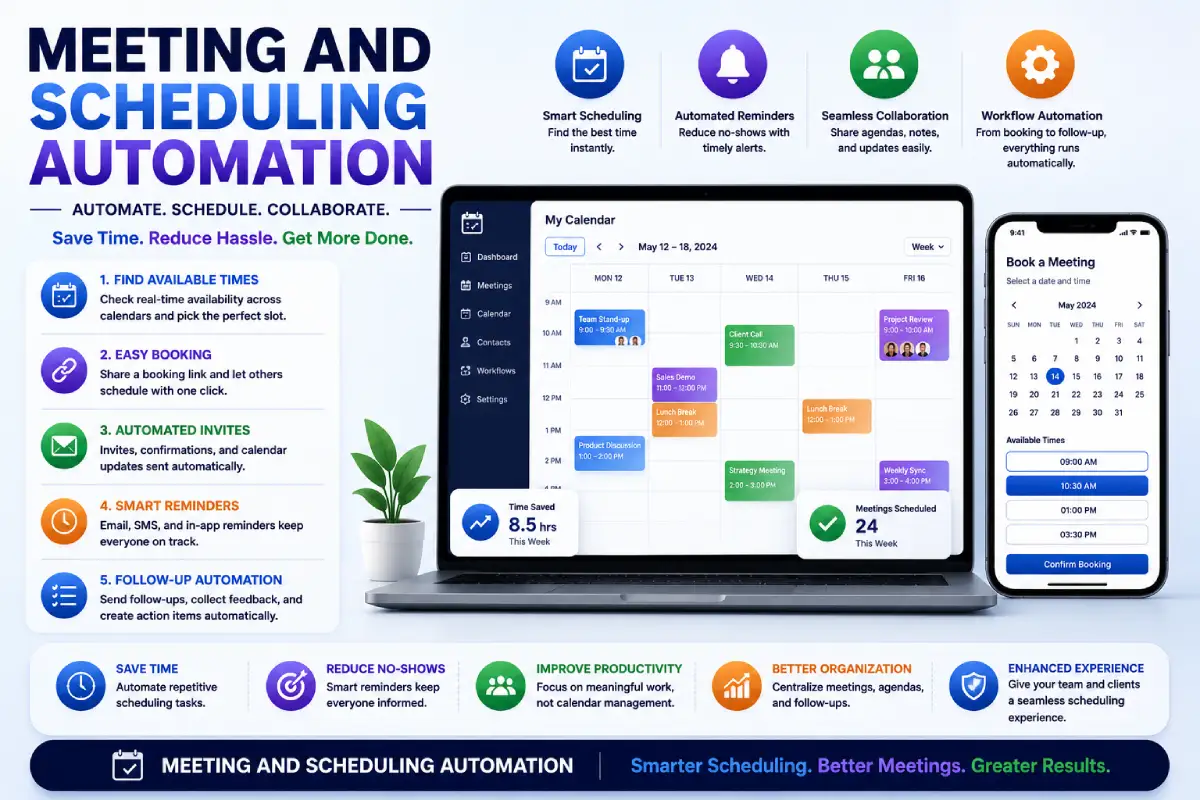
- Smart scheduling
- Contextual controls
- Automated device adjustments
This creates a new category of AI-enhanced office hardware.
But buyers should remain skeptical of marketing claims.
A gadget does not become useful simply because the product page contains the word “AI.”
Ask:
What exactly is the AI doing?
Make sure that it has the potential to save time, be more accurate, eliminate routine or repetitive tasks or address a genuine workflow issue.
If it is just adding a chatbot to a device that didn’t need one, it could just be marketing.
Smart Office Gadgets and Ergonomics
When is technology too cumbersome? Physical comfort must be considered.
A workstation can contain the newest monitor, webcam and AI assistant while still being poorly configured.
OSHA workstation guidelines focus on a neutral position during work with colleagues pages highlighting monitor height, shoulder relaxation, supporting the lower back, naturally curved wrists and positioning of the mouse and keyboard.
This is why ergonomics plays a significant role in designing a smart-office.
A Smart Workspace Should Help You:
- Maintain a neutral posture
- Keep the monitor correctly positioned
- Avoid excessive reaching
- Adjust desk height
- Reduce glare
- Keep frequently used items within reach
- Change working posture throughout the day
Smart technology should support good workstation design, not compensate for a poor one.
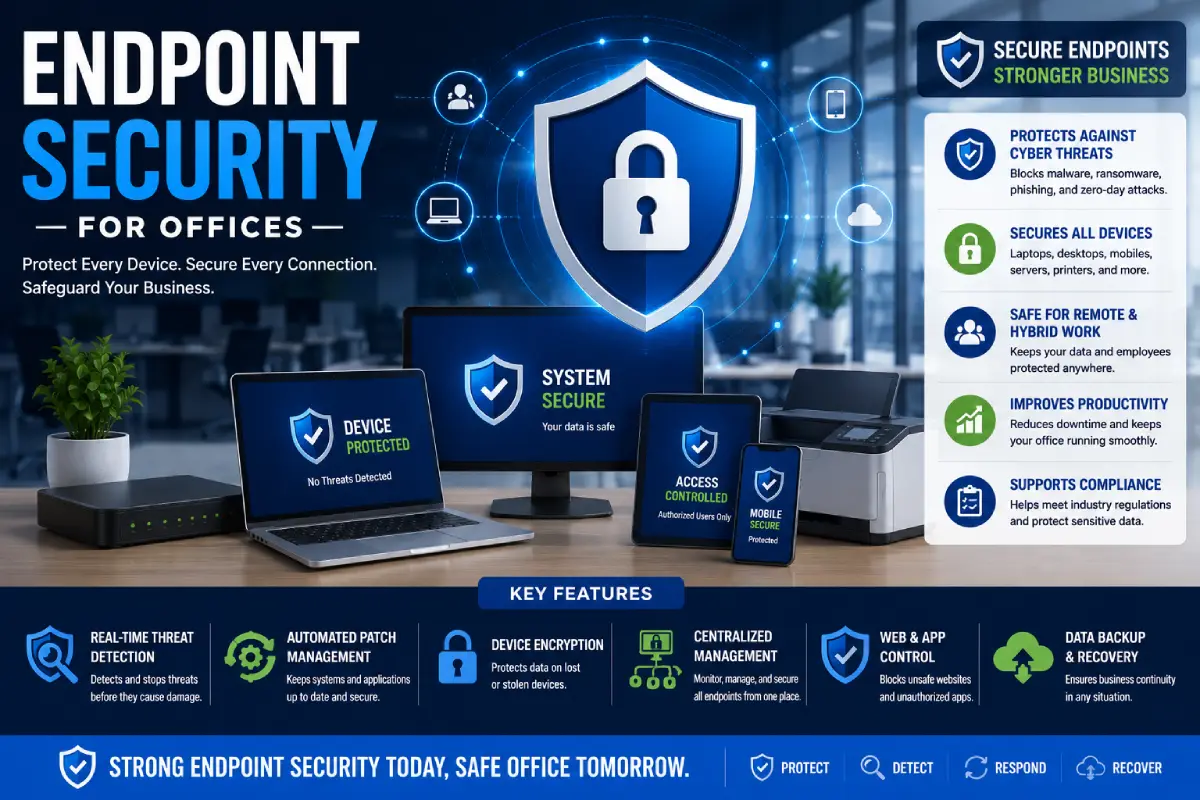
Smart Office Security: An Often-Ignored Issue
The more connected devices you introduce, the more important security becomes.
A smart office may contain:
- Smart plugs
- Smart lights
- Cameras
- Speakers
- Wireless peripherals
- Networked displays
- IoT sensors
- Connected printers
- Smart desks
Each connected device can introduce another software, firmware or network dependency.
NIST’s IoT cybersecurity guidance emphasizes device identification, configuration, protection of device data, secure software updates and other foundational capabilities when organizations acquire and manage connected devices.
NIST also published an updated foundational IoT cybersecurity report in April 2026, emphasizing manufacturers’ responsibility to provide securable products and the information customers need to manage cybersecurity risk.
Smart Office Security Checklist
Use:
- Strong, unique passwords
- Multi-factor authentication where available
- Current firmware
- Current companion apps
- Secure Wi-Fi
- Separate IoT network when appropriate
- Privacy shutters for cameras
- Minimal unnecessary permissions
- Reputable manufacturers
- Devices that receive security updates
Do not connect an inexpensive unknown-brand IoT device to your primary network simply because it has an attractive price.
Common Smart Office Gadget Buying Mistakes
Buying Too Many Devices
More gadgets do not automatically mean a smarter workspace.
Every device requires charging, updates, troubleshooting and maintenance.
Ignoring Compatibility
Check:
- Operating system
- USB standards
- Display protocols
- Power requirements
- Bluetooth support
- Software availability
Choosing Novelty Over Utility
A gadget can look futuristic and still be useless.
Ignoring Ergonomics
Do not sacrifice positioning for aesthetics.
Buying Based Only on Reviews
Reviews can help, but your workflow determines whether a product is actually appropriate.
Forgetting Software Support
Hardware can remain functional while its software becomes outdated.
Ignoring Privacy
Cameras, microphones and cloud-connected devices deserve additional scrutiny.
Troubleshooting Smart Office Gadgets
Smart devices are convenient until something stops working.
USB-C Dock Is Not Detecting the Monitor
Check:
- Whether the laptop’s USB-C port supports video output.
- Whether the dock supports your display resolution.
- Whether the correct cable is being used.
- Whether the dock requires its own power adapter.
- Whether firmware or drivers need updating.
Keep in mind that USB-C does not equal DisplayPort or Thunderbolt.
Monitor Is Charging Slowly
Compare the monitor‘s Power Delivery rating and what power your laptop takes.
A monitor might feature USB-C charging but deliver 3A less than your laptop pulls at 20V.
Bluetooth Keyboard Keeps Disconnecting
Try:
- Recharging the keyboard.
- Moving the receiver closer.
- Removing unused Bluetooth pairings.
- Updating firmware.
- Switching between Bluetooth and the manufacturer’s receiver where supported.
Webcam Looks Bad Despite High Resolution
Check lighting before replacing the webcam.
A camera pointed toward a bright window can produce poor exposure even if it supports 4K.
Add front-facing light and position the camera near eye level.
Smart Plug Goes Offline
Check:
- Wi-Fi signal
- App permissions
- Router settings
- Firmware
- Device power
- 2.4 GHz requirements where applicable
Avoid placing smart devices in areas with weak wireless coverage.
Smart Desk Stops Moving
Check:
- Power connection
- Control panel connection
- Obstructions
- Reset procedure
- Anti-collision activation
- Manufacturer instructions
Do not repeatedly force the desk if the motor or controller reports an error.
How Much Should You Spend on a Smart Office?
The correct budget depends on the bottleneck.
| Budget | Recommended Focus | Ideal User |
| Under $100 | Lighting, mouse, keyboard, cable management | Student/basic user |
| $100–$300 | Monitor, hub, peripherals, lighting | Home-office beginner |
| $300–$700 | Monitor, dock, keyboard/mouse, audio | Professional |
| $700–$1,500 | Premium display, dock, audio, webcam, desk | Power user |
| $1,500+ | Premium workstation and automation | Creator/executive/power user |
These are broad equipment-budget bands rather than fixed market prices because regional pricing, sales, taxes and product generations vary substantially.
For Indian buyers, pricing should be checked locally before publication or purchase because imported technology can experience significant price differences.
Are Smart Office Gadgets Worth It?
Yes—but only when they solve a real problem.
A smart gadget is worth buying when it:
- Saves time
- Reduces repetitive work
- Improves comfort
- Simplifies connectivity
- Reduces clutter
- Improves communication
- Provides useful automation
- Works reliably
It is usually not worth buying when:
- You cannot identify a recurring problem it solves.
- It requires a subscription for basic functionality.
- It duplicates a device you already own.
- Its smart features are rarely used.
- It introduces unnecessary privacy or security risks.
- It requires more maintenance than the time it saves.
The best smart office is therefore not the most technologically advanced one.
It is the one that makes your specific workflow easier.
Frequently Asked Questions About Smart Office Gadgets
What are intelligent office appliances?
Smart office gadgets are technological goods that utilize connectivity, automation, programmability, sensors or multi-functionality to enhance productivity, comfort, organization or workflow. Common smart office devices are smart lighting, intelligent USB-C docks, multi-device keyboards, AI webcams, intelligent desks and programmable controllers.
What are the top smart office gadgets in the year 2026?
For most people, the top–tier options are a decent external monitor, dock with USB-C or Thunderbolt, ergonomic keyboard and mouse, quality lighting, noise-canceling headphones, and a solid webcam. extra automation should be tailored to the individual‘s workflow.
What are the most appropriate and efficient smart devices for setting up a home office?
Suggested office equipment one could install at home is an external monitor, the USB-C dock, a wireless keyboard and mouse, a monitor light, a webcam, the headphones, and the smart power management system. In loud working environment, active noise cancellation could be particularly helpful.
Are high tech office gadgets worth the
They can be, especially if they remove redundant actions or alleviate a laborious aspect of your work. Just because it’s costly doesn’t mean it’s a better buy. The most appropriate buy is the one that fixes your greatest bottleneck.
Absolutely, why not, what are some example of business electronics?
Examples of great modern office tech include programmable control pads, webcam-enabled AI, connected standing desks, light bar monitor displays, multi-device keyboards, wireless charging stations, and so on.
Which office gadgets are essential in 2026?
For a general professional work station, the biggest priorities are connectivity, display quality, comfortable input devices, lighting, audio and reliable power. AI and automation should be a second order.
Can smart office gadgets improve productivity?
Can eliminate much of the effort associated with suppressing friction and repetition, but no device has been shown to lead to an increase in productivity. The greatest likely advantage is in reduction of distraction, streamlining processes and resting the workstation.
Are smart office gadgets secure?
Security varies by manufacturer and device. Connected office gadgets should use strong authentication, current firmware, secure Wi-Fi and reputable software. Organizations should evaluate IoT security capabilities before deploying connected equipment. NIST provides IoT cybersecurity guidance for this purpose.
Do I need a smart standing desk?
No. A conventional desk can work well if it is appropriately sized and positioned. A standing desk becomes more useful if you want frequent height adjustment or sit-stand flexibility.
Final Verdict
The best Smart Office Gadgets in 2026 are not necessarily the most futuristic products.
They are the devices that quietly make work easier.
A good monitor gives you more usable workspace. A docking station eliminates cable switching. A multi-device keyboard lets you move between computers. A quality mouse improves daily navigation. A monitor light creates a more controlled visual environment. Noise cancellation reduces distractions. An AI webcam improves meetings. A programmable controller can remove repetitive actions from your workflow.
The smartest approach is to build your workspace in layers.
Start with ergonomics and connectivity. Then improve display, input, lighting and audio. Finally, introduce automation and AI where they provide measurable convenience.
Do not buy technology simply because it is marketed as smart.
Buy it because it makes your work simpler, more comfortable, faster or more reliable.
That is what makes a genuinely smart office.