
Last Updated: July 6, 2026
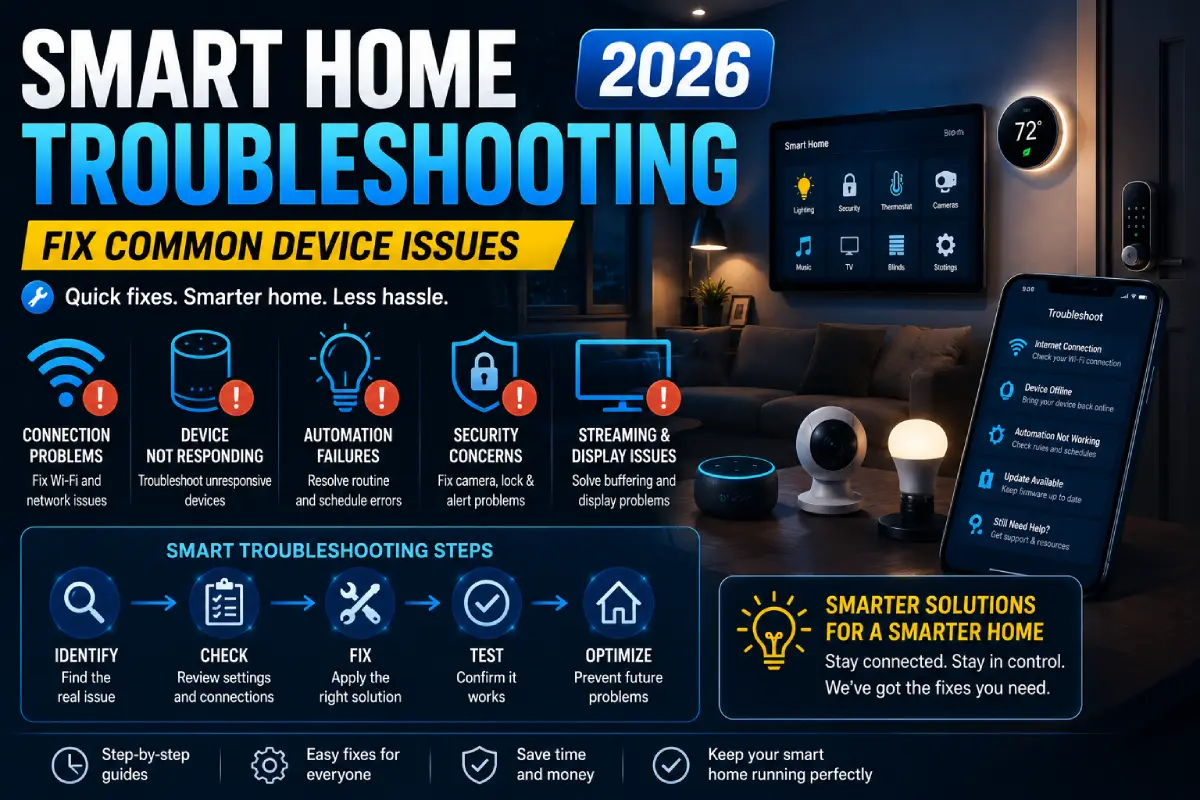
Maybe your smart bulb randomly stopped working; perhaps your thermostat is now stuck at a certain number; or Alexa just doesn‘t hear you smack in the middle of a sentence. If any of these sound familiar, you‘re not alone and you haven‘t been forsaken. Troubleshooting your smart home in 2026 mostly boils down to one of five issues: a bad Wi Finternet connection, an obsolete app or firmware, an account sync problem, a overloaded hub, or a dead object.
Smart homes have inadvertently become the norm in millions of homes. Light switches that illuminate on entry, thermostats that adapt to your routine, plugs that switch off appliances you‘ve left running it‘s all quite magical until it stops working. Suddenly the interconnected system feels a little fragile, and it isn‘t always clear whether the reason is a fault with your router, an issue with your app, bug in your account or the device…
The road map that‘s what this is. Consider this the map of your entire smart home system the common hiccups, common causes, and common “fix it now” impulse. Instead of trying to pack each specific brand‘s “fix it now” into one page, we‘ll give you the big picture so you can quickly assess what is and isn‘t going on and send you to the appropriate detailed “step by step” guide for your specific product.
Why Smart Homes Break Down (The Real Reasons)
Before you begin unplugging things or calling 50 tech supports, it helps if you understand what actually isn‘t working on the inside. Most “random” smart home screw ups are actually anything but random. If you can spot the pattern, troubleshooting quickly becomes a matter of solving a puzzle instead of a game of trial and error.
Smart devices depend on a longer chain than people realize. One voice activation to turn on the light, from your speaker, the cloud, back down again to your hub (or router), and then to the device. Any weak link in that chain — a dropped Wi‑Fi packet, a delayed cloud response, an expired authentication token — can make a perfectly healthy bulb look “broken.”
Key takeaways:
- Network instability is the single most common root cause of smart device issues, by a wide margin
- Firmware and app updates are the second most common culprit — devices often break right after an update, not before one
- Cloud outages (on the manufacturer’s servers, not your home) can look identical to a broken device, and there’s nothing you can do locally to fix them
- Power fluctuations and brief outages can silently disconnect low-power IoT devices without triggering any visible alert
Practical example: If every device in your house stops responding at the same time — not just one bulb or plug — that’s almost never a hardware problem. This is a network or cloud-service issue, and the solution begins with your router not the device. Alternatively, if just a single device on otherwise-healthy estate misbehaves, it‘s much more likely to be a local issue with that device or its app integration.
Here is a quick rule of thumb: if you see broad failures then look towards the infrastructure; narrow failures show you‘d better look toward the devices. Remember this when you begin troubleshooting and you‘ll save yourself 20 minutes of needless restarts.
Mini summary: Isolate the problem first. Is it one device, one brand, or your whole system? That answer decides your next step.
A 5-Minute Diagnostic Framework You Can Use Right Now
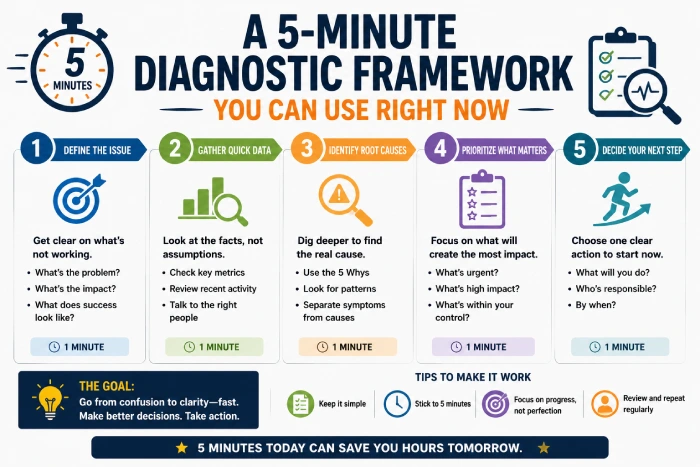
Before jumping to any single device’s troubleshooting guide, run through this quick framework. It takes about five minutes and will point you toward the right section of this hub — or the right cluster guide — almost every time.
Step 1: Check the scope. Is it one device, one brand/ecosystem (all your Alexa-linked devices, for example), or literally everything? A single device points to hardware or app-specific issues. Everything at once points to your network or a cloud outage.
Step 2: Check the app status against reality. Does the app say “offline” while the device is clearly powered and its indicator light suggests otherwise? That mismatch usually means a sync delay, not a real disconnection.
Step 3. Check recent changes. Were you updating something in the last 24–48 hours? Did you change your router, change your Wi‑Fi password, update an application or add a new device? Most sudden failures have a recent change associated with them.
Step 4. Look at the manufacturer‘s status page. An easy way to determine that the problem isn‘t on your end is to do a search for ”[brand name] status” or ”[brand name] outage”.
Step 5: Try one fix, then reassess. Reboot the router, or power-cycle the single affected device — whichever matches what Steps 1–3 pointed to. Wait a few minutes before trying a second fix, since some devices take time to reconnect after a network change.
Mini Summary: It isn‘t a perfect solution, but this will let you know in 5-10 minutes whether you are experiencing a network problem, an account/ application issue or a real hardware problem the crucia fork in the road this document is designed to address. So go through it before you start diving into the device-specific guides…you will save yourself hours of effort.
Wi-Fi and Network Troubleshooting
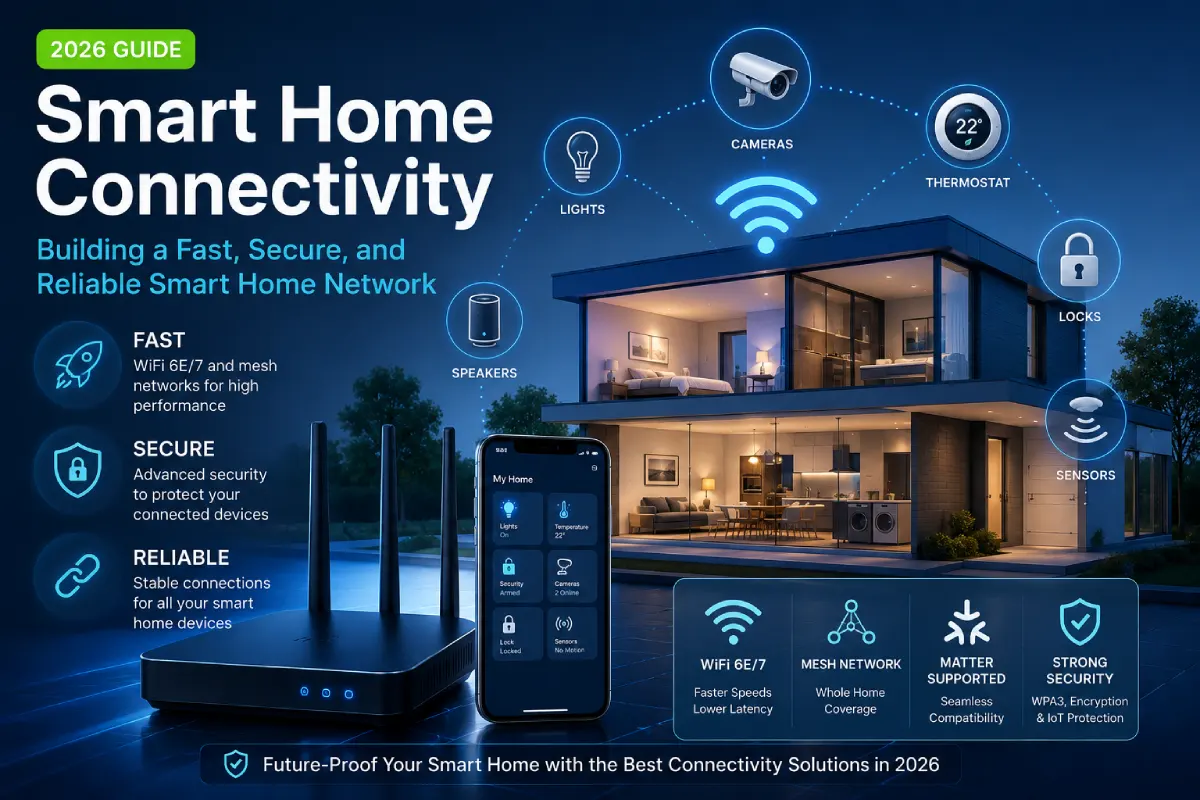
Your smart home runs on your network. If the network hiccups, everything connected to it can look “broken” even when it’s perfectly fine. This is why network troubleshooting is almost always the correct first stop, regardless of which device is technically misbehaving.
Modern routers juggle dozens of connected devices, many of which — like smart plugs and sensors — are designed to sip very little power and, as a side effect, tolerate very little network instability. A momentary hiccup on the Wi‑Fi network that the laptop or mobile can recover from will be a permanent offline status for the low power IoT device until it‘s been re‑connected manually.
Key takeaways:
- Smart gadgets are particular about band (2.4GHz or 5GHz) and silently drop off if your router redirects bands automatically
- Sometimes, “dead zones” can appear for low power IoT devices, due to mesh routers and range extenders, especially in homes with thick walls and many floors.
- One surprisingly common fix for device OFFLINE problems is simply to reboot a router, since it will clear out any bad DHCP leases and re-establish the link.
- Router firmware updates can alter defaults (like band steering) that break working devices unnoticed.
Practical example: A smart plug three rooms away from the router may connect fine during setup but drop out days later as household Wi‑Fi traffic increases. Moving it closer, or adding a mesh node, often fixes it permanently. Similarly, a household that upgrades to a new mesh router system sometimes finds that older 2.4GHz-only devices stop working entirely — not because the devices failed, but because the new router defaulted to a band-steering setting that hides the 2.4GHz network from older hardware.
Mini summary: When more than one device acts up, check your network before touching any device settings.
For the full diagnostic checklist — router settings, band separation, mesh placement, and more — see our complete network troubleshooting guide.
Alexa Not Responding: Voice Assistant Troubleshooting
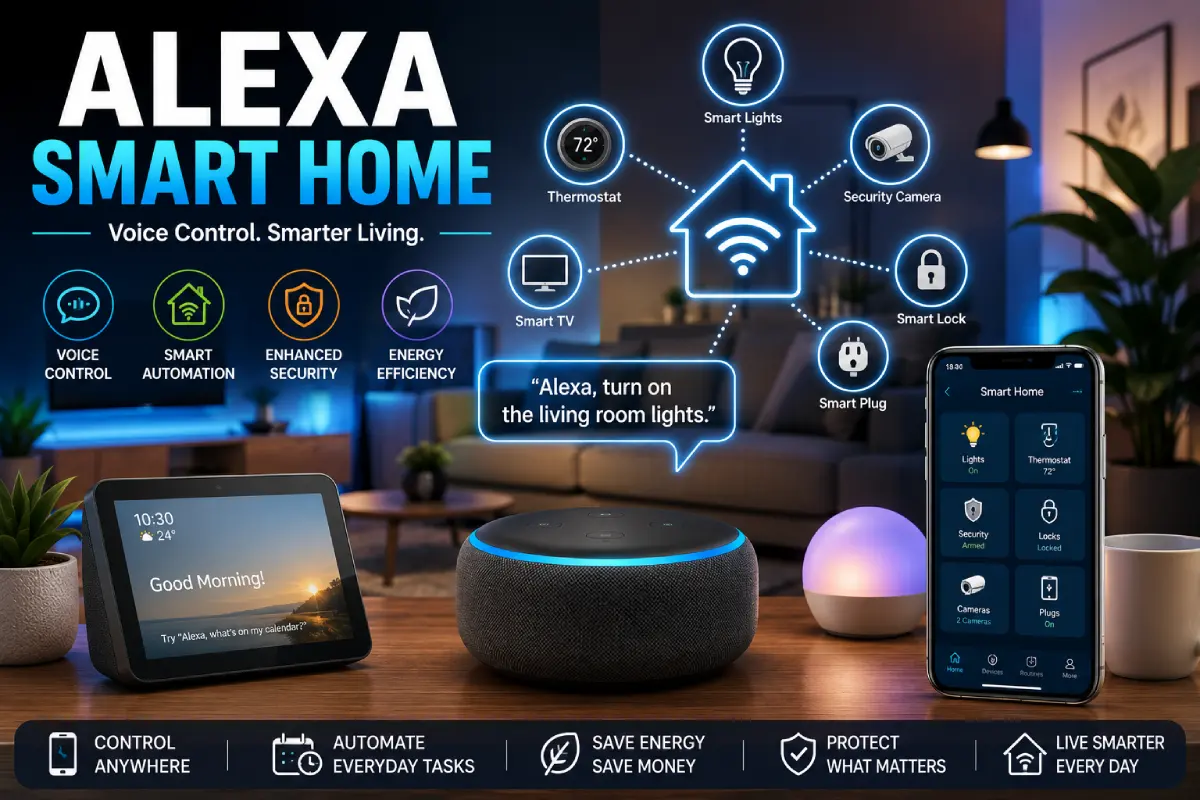
Few things are more frustrating than a voice assistant that suddenly goes quiet mid-request. Alexa issues are usually tied to microphone status, app permissions, or account sync — not the actual Echo hardware, which tends to be fairly reliable on its own.
It helps to understand that “Alexa isn’t responding” actually covers several distinct problems that just look the same from the outside: the device not hearing you at all, the device hearing you but failing to execute the command, and the device executing the command but failing to control the connected smart home device.
Key takeaways:
- A solid blue light with no response usually means Alexa heard you but the skill or command failed somewhere downstream
- Muted microphone (a lit red ring) is the most overlooked cause of “Alexa isn’t responding” — it’s easy to bump the mute button without noticing
- App-side account glitches can silence a device that’s otherwise online and healthy, especially after a recent Alexa app update
- Having several Echo devices in the same room can lead to “wake word collision” with not recognizing “which device” should respond, or the wrong device responds.
Hands-on example: If Alexa reliably answers. what‘s the weather’ but refuses to successfully process smart home commands specifically, then the most likely cause is a broken device link in the Alexa app rather than a problem with the Echo. This type of isolated failure is one of the most obvious indicators that you are seeing an integration rather than an Echo hardware problem and is generally fixed by unlinking and relinking the affected skill rather than resetting the device.
Mini-Summary: Do not lump “Alexa won‘t respond at all” with “Alexa won‘t control my devices” they will require different fixes.
Get the full breakdown in our Alexa not responding troubleshooting guide.
Google Home Troubleshooting
Google Home and Nest device have their own idiosyncrasies, in particular for app updates that can take forever and multi-user households sharing a single Google Home architecture. Given that Google Home is largely predicated on account-based permissions and cloud-synched device states, most of its most common issues are not to do with the device at all.
Key takeaways:
- “Offline” errors in the Google Home app often lag behind the device’s actual status by several minutes, causing unnecessary panic
- Shared households can lose device control if permissions aren’t synced across accounts, particularly after adding a new family member to the home
- Nest hardware occasionally needs a manual firmware check, since auto-updates can silently fail without any user-facing notification
- Miswarped (a device thought to be entered in the wrong “room” in the app) and room can both cause voice commands to work when the devices are actually working fine.
Real world example: If a Nest thermostat appears as ‘offline’ in the app but is still working from a physical control then in 99% of cases the failure was in the sync from the app/ cloud rather than the connection of the device with the Nest servers. The same is true if one person in a house can control from their phone but another can‘t.
Mini summary: Don’t trust the app status alone — check the physical device behavior too.
Find out how to easily the fix common issues with Google Home in our step-by-step troubleshooting guide.
Smart Bulb Troubleshooting
While smart bulbs are easy to understand, they can be tricky devices to get right flickering, slow response, ghost on/off are regular issues in every smart home. As the very last device in the chain (Voice Assistant→hub→Wi-Fi→bulb), bulbs often exhibit fast-fail symptoms of upstream issues even when they are working perfectly.
Key takeaways:
- Flickering is frequently a dimmer-switch compatibility issue, not a bulb defect — most smart bulbs are not designed to work with traditional dimmer switches
- Bulbs that “forget” their Wi‑Fi after a power outage need a manual re-pair, not a replacement, since the bulb’s memory can be wiped by a hard power interruption
- Group/scene settings can cause bulbs to behave differently than expected when controlled individually, especially if a bulb was added to a group after the scene was created
- Bulbs installed in enclosed fixtures can overheat and throttle their own Wi‑Fi radio to protect internal components, causing intermittent drops
Practical example: A bulb that turns on with a slight delay after a voice command is usually just catching up after a router reconnect — not malfunctioning. In contrast, a bulb that changes color or brightness on its own, without any command, is more often a sign of a stuck scheduled scene than a hardware fault.
Mini summary: Isolate whether the issue happens with voice control, app control, or the physical switch — each points to a different cause.
Full fixes are in our smart bulb troubleshooting guide.
Smart Plug Troubleshooting
Smart plugs are the workhorses of a smart home — quietly automating everything from coffee makers to holiday lights — and also the most likely to get overlooked when something goes wrong, since they’re often tucked behind furniture.
Key takeaways:
- Plugs pulling more wattage than rated can trip a safety cutoff that mimics a “broken” plug, especially with high-draw appliances like space heaters
- App-based schedules can silently override manual on/off commands, making a plug appear to have a mind of its own
- A plug that won’t pair usually needs a full factory reset, not repeated pairing attempts, since a half-completed previous setup can block new connections
- Physical placement matters more than people expect — plugs behind metal appliances or inside cabinets often have measurably weaker signal strength
Practical example: If a plug turns off on its own at the same time each day, check your schedules before assuming it’s defective — this is one of the most common “false alarm” issues homeowners run into, and it’s an easy one to fix once you know where to look in the app.
Mini summary: Rules out scheduling and load problems before troubleshooting connectivity.
Follow the step-by-step solution provided in the entire troubleshooting guide for your smart plug.
Smart Thermostat Troubleshooting
The thermostat has a unique position where it straddles Wi‑Fi, HVAC cabling and app control… this is a great mix of technologies for failures to occur so the potential number of failures on a Thermostat exceeds almost all home smart devices. It can also indicate a more fundamental electrical or HVAC failure rather than simply a digital fault, unlike a bulb or a plug.
Key takeaways:
- Wi‑Fi Add meter won‘t come online during setup is frequently a router band issue, rather than a thermostat issue as many thermostats only support 2.4GHz networks.
- HVAC compatibility problems can look identical to software bugs — short-cycling, incorrect temperature readings, or a furnace that won’t turn on
- C-wire (power) issues are a leading cause of “thermostat keeps restarting” complaints, since many smart thermostats need continuous power that older HVAC systems weren’t wired to provide
- Sensor placement (too close to a vent, in direct sunlight, or near a drafty window) can cause a thermostat to “correctly” report inaccurate temperatures
Practical example: A thermostat display that resets every few hours frequently points to insufficient power (a missing or improperly installed C-wire), which no software fix will resolve — this is one of the clearest cases in this guide where the fix is electrical, not digital.
Mini summary: If your thermostat has any physical or electrical symptoms alongside connectivity ones, treat it as an HVAC issue first.
Get the full guide: smart thermostat troubleshooting.
Pairing and Setup Issues
A device that won’t pair during initial setup is a fundamentally different problem than one that stops working after months of reliable use — and it deserves a different troubleshooting approach entirely.
Key takeaways:
- Most pairing failures happen because Bluetooth setup mode times out before Wi‑Fi credentials are entered, especially on slower home networks
- Devices already paired to another account (secondhand devices bought used or inherited) need a manual unlink first before they’ll accept a new owner
- Home hub apps sometimes need to be fully closed and reopened mid-setup, not just refreshed, because setup wizards can get stuck in a background state
- Setting up multiple devices of the same type back-to-back can confuse the app into misidentifying which physical device it’s currently configuring
Practical example: is your secondhand smart device not accepting setup mode? Is it still registered to the previous owners account? you will need to perform a reset before it will accept to be paired with you. this is one of the most common support quiver on secondhand smart home. part.
Mini summary: Almost all new-setup failures are account- or mode-related, rather than for hardware-related reasons.
When to Reset vs. When to Replace
Not every problem is worth troubleshooting forever. Some issues are genuinely five minutes from being fixed; others are a sign that a device has reached the end of its practical lifespan. Here‘s how to distinguish which is which before you invest another hour into a device that cannot be recovered.
Key takeaways:
- If a factory reset does not work, and the device is less than 2 years old, it is most likely a firmware or compatibility issue so one more support ticket is worth a chance.
- Devices with physical damage, swollen batteries, or persistent overheating should be replaced, not reset — these are safety issues, not software issues
- If the total troubleshooting time starts to exceed what the device would cost to simply replace, it’s usually more efficient (and less frustrating) to replace it
- Devices that no longer receive app or firmware updates from the manufacturer will only become harder to troubleshoot over time, not easier
| Symptom | Try Reset | Consider Replacing |
| Won’t connect after router change | Yes | No |
| Overheats or smells burnt | No | Yes |
| Works but responds slowly | Yes | No |
| Repeated failures after 3+ resets | No | Yes |
| Discontinued app support | No | Yes |
Practical example: A three-year-old smart plug that’s already been reset twice for the same “won’t stay connected” issue is a strong candidate for replacement, especially if newer, Matter-certified alternatives are inexpensive and widely available. Compare that to a six-month-old thermostat with a single connectivity hiccup right after a router upgrade — that’s a textbook reset case, not a replacement case.
Mini summary: One clean factory reset is worth trying. A second and third attempt on the same issue usually means it’s time to replace.
It also helps to think in terms of total cost, not just purchase price. A $15 smart plug that eats up two hours of troubleshooting time every few months is, in a very real sense, more expensive than a $20 plug that just works. Factoring in your own time — not only the sticker price of the replacement — tends to make the reset-or-replace decision much easier.
The Future of Smart Home Reliability
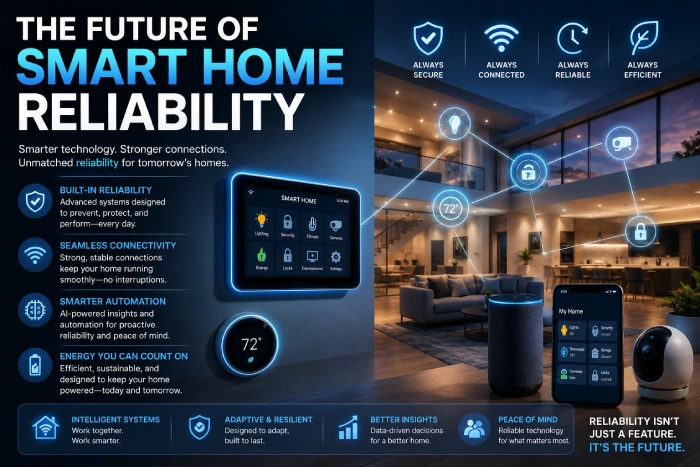
2026 is shaping up to be a turning point for smart home stability, largely thanks to wider Matter protocol adoption — a shared standard that lets devices from different brands talk to each other and your hub without as many of the compatibility issues that have defined the smart home experience for the past decade.
Key takeaways:
- Matter-certified devices are less likely to have the brand-specific bugs covered throughout this guide, since they share a common underlying communication standard
- Wi‑Fi 7 routers are reducing band-conflict issues that plagued 2.4GHz-only devices, thanks to smarter, more device-aware band management
- Local (on-device) processing is reducing how often cloud outages take down entire smart homes, since more commands can now be executed without a round trip to the manufacturer’s servers
- Cross-brand hubs are becoming more common, meaning fewer households will need to juggle three or four separate apps just to manage one home
Mini summary: If you’re troubleshooting a device more than once a month, it may be time to check whether a Matter-certified replacement is available for that category — the reliability gap between older and newer smart home hardware is only going to widen from here.
None of this means older devices suddenly stop working the day a new standard arrives. Most existing smart home hardware will continue functioning for years. But if you’re actively shopping for a replacement anyway — because something finally gave out for good — it’s worth checking Matter compatibility before buying the same type of device again, since it directly addresses several of the most common failure points covered throughout this guide.
Smart Home Troubleshooting: Myths vs. Facts
Much of the bad troubleshooting advice continues to persist because it just sounds right. It‘s worth dispelling some of the most lasting myths before you invest an evening chasing the wrong fix.
Myth: “Unplugging a device and plugging it back in fixes most problems.” Fact: A power cycle does help with a specific subset of issues — mainly devices stuck in a bad state after a firmware update or a brief network drop. It does almost nothing for account sync errors, cloud outages, or scheduling conflicts, which is why people are often surprised when unplugging “doesn’t work this time.”
Myth: “If one smart device is broken, they’re all probably about to fail.” Fact: Smart home devices rarely fail as a group unless the shared cause is the network or a cloud outage. A single failing bulb or plug says very little about the health of the rest of your setup.
Myth: “Deleting and re-adding a device always fixes connectivity issues.” Fact: Re-adding a device can help with corrupted setup data, but if the underlying cause is a weak Wi‑Fi signal or router band conflict, the device will simply fail to pair again — or reconnect briefly before dropping out once more.
Myth: “Newer smart home devices don’t need troubleshooting.” Fact: Newer devices tend to be more reliable on average, but they’re not immune to the same network, account, and firmware issues covered in this guide. Matter certification reduces certain categories of bugs — it doesn’t eliminate the need for basic troubleshooting.
Mini summary: Good troubleshooting starts with correctly identifying the category of problem — network, account, firmware, or hardware — rather than reaching for the same fix every time. Getting that right the first time is usually what separates a five-minute fix from a long evening of trial and error.
Common Mistakes People Make When Troubleshooting

Even the most tech-savvy people will fall into a few common pitfalls when a device suddenly stops playing nice. Knowing what these are can help you avoid a good deal of aggravation.
Key takeaways:
- This is one of the most common steps to be wasted up to the point of network diagnosis, due to the fact that the reset frequently ruins any good configuration that had been accumulated.
- Assuming an app’s “offline” status is always accurate, when in reality app status can lag well behind the device’s real-world state
- Changing multiple settings at once (Wi‑Fi password, router firmware, and device firmware in the same session) makes it nearly impossible to know which change actually fixed — or caused — the issue
- Ignoring the manufacturer’s official support page or status page, which often lists a known outage or bug before a fix has been documented anywhere else
Practical example: A household experiencing a widespread outage across several devices sometimes jumps straight to individually resetting each one, only to discover an hour later that the manufacturer’s cloud service was down the entire time and every device recovers on its own once service is restored. Checking the manufacturer’s status page first would have saved that hour entirely.
Mini summary: Slow down and change one thing at a time — it’s the difference between fixing a problem and accidentally creating a new one.
Final Thoughts
Most smart home problems aren’t mysteries — they’re patterns. Start broad (network), narrow down (brand and device), and know when to stop troubleshooting and start replacing. The system is only as strong as its weakest connection, and more often than not, that weak link is the Wi‑Fi network everything depends on, not the individual gadgets people tend to blame first.
Use the guides connected throughout this page for the comprehensive, step-by-step solutions your specific problem requires and keep this hub bookmarked for the first place to come when something in your smart home goes silent.
As a final tip try to maintain a rough mental schedule of what modifications you make and when. If you upgrade your router firmware on a Tuesday and a day or two later a light socket begins playing up, that duration is every bit as significant as it is a coincidence. Smart homes appreciate ease and persistence more than they do panicked purge-of-the-week resets and here’s a guide to help you recognize that principle in practice.
FAQs
Q1: Prior to all my smart home gadgets failing did anything seem strange?
A: This is (nearly always) a network/internet problem as opposed to failure of the device. Make sure you check your router first.
Q2: Why is my smart device online in the app but not responding to commands?
A: Usually a app to cloud sync delay. Force kill and restart the app or go to the manufacturer‘s server status page.
Q3: Should I reset my router when troubleshooting smart devices?
A: Yes — a router reboot resolves a large share of “device offline” complaints and should be one of your first steps.
Q4: How many times do I need to reset an item before I change it?
A: Yes, is there one more reset they can try? Beyond that, replacement is usually more efficient.
Q5: Does the Matter protocol fix smart home compatibility issues?
A: It significantly reduces brand-specific bugs, though it doesn’t eliminate network or hardware-related problems.
Final Conclusion
Smart home troubleshooting in 2026 doesn‘t have to be hours of trial and error. Just by narrowing down whether the issue is across your whole network, a specific brand, or specific device, you can jump straight to the solution rather than having to go back to default. Use this hub to start with, and use the hyperlinked Alexa, Google Home, Network, smart bulb, smart plug, and thermostat guides to get the in-depth step-by-step solution for your specific problem.