
Last Updated: July 18, 2026
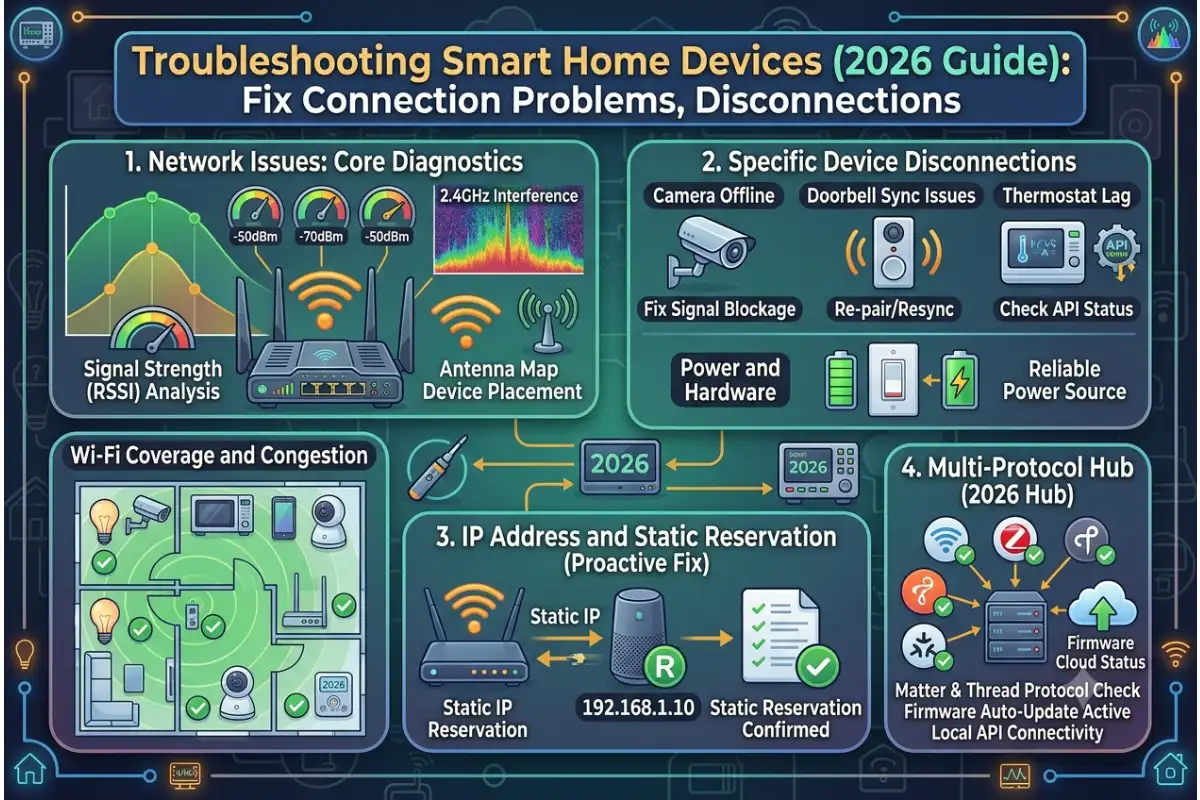
The presence of a reliable network forms the basis for any smart home. Whether you have smart speakers, surveillance cameras, smart lights, thermostats, or connected appliances, every device needs a good and reliable internet connection. The problem is that network problems happen very frequently in smart homes. Slow Wi-Fi, disconnecting devices, weak signal, and the router’s limitations may affect the automation process and decrease the convenience of using a smart home.
Luckily, there is no need to change everything in your home in case of some network problems. Their reasons can be understood and solved.
This guide teaches us all about common smart home network issues and how we can resolve our WiFi connection problems, set up our routers correctly, connect back to our devices, and secure our networks in 2026.
Why Your Smart Home Network Matters
Whereas in an ordinary home there are only a handful of devices connected to the Wi-Fi system, in a smart home there are many Wi-Fi enabled devices working at any one time. From all smart lights, security cameras, thermostats, locks, televisions to voice assistants – all of these compete for Wi-Fi bandwidth.
Once the network gets overloaded or configured wrongly, these devices start to malfunction and disconnect and cannot talk to each other.
The good smart home network allows users to:
- Faster automation responses
- Better video streaming
- Reliable voice assistant performance
- Stable security camera feeds
- Improved smart device reliability
- Better remote access from anywhere
Investing time in network optimization usually solves many smart home issues without replacing devices.
Common Smart Home Network Problems
Identifying the problem is the first step to solving it. There are a number of common connectivity issues.
| Problem | Possible Cause | Typical Solution |
| Devices randomly disconnect | Weak Wi-Fi signal | Improve coverage |
| Slow automation | Network congestion | Reduce traffic |
| Camera buffering | Low bandwidth | Upgrade internet or router |
| Smart speaker not responding | Router issue | Restart network |
| Device won’t connect | Incorrect Wi-Fi settings | Reset and reconnect |
| Voice commands delayed | Signal interference | Optimize router placement |
These issues seem alike, but each has a unique cause.
Common Smart Home Network Issues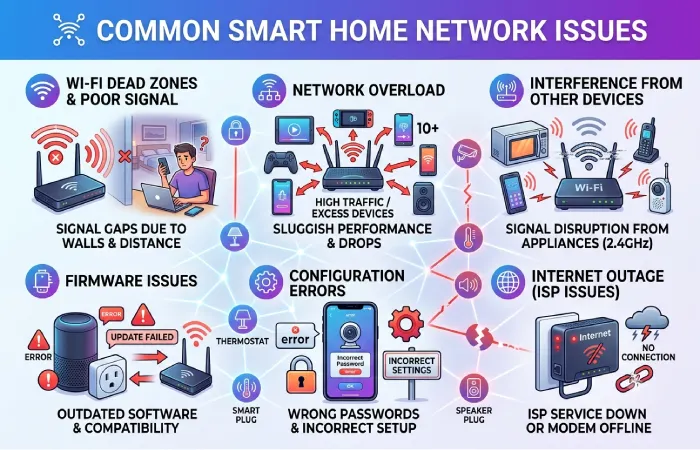
Poor Wi-Fi Range
Poor wireless coverage is one of the major obstacles. This issue arises due to large home sizes, concrete walls, metals, and several floors.
Equipment that is farther from the router will have connection or performance issues.
Some of the common issues include:
- Lights taking several seconds to respond
- Cameras losing connection
- Smart plugs showing offline
- Smart locks failing to respond
Too Many Connected Devices
Today’s households may have over 50 connected devices sharing one router.
Examples include:
- Smartphones
- Laptops
- Smart TVs
- Security cameras
- Smart speakers
- Light bulbs
- Doorbells
- Thermostats
- Gaming consoles
Older routers find it hard to handle too many devices at once, resulting in slow speeds and disconnections.
Wireless Interference
Interference can affect Wi-Fi connection from:
- Microwave ovens
- Baby monitors
- Bluetooth devices
- Cordless phones
- Neighboring Wi-Fi networks
Such interference tends to be very frequent in the crowded 2.4 GHz frequency range.
Old Routers
A router bought six to seven years ago will most likely not be compatible with Wi-Fi technologies.
Older routers often have:
- Limited processing power
- Lower speeds
- Poor security
- Weak device management
Smart homes require modern Wi-Fi 6 or Wi-Fi 6E routers capable of handling several devices simultaneously.
How to Resolve Slow Wi-Fi Speeds for Smart Devices
Slow Wi-Fi speed is not always the problem of the Internet Service Provider (ISP). It often happens due to problems within the home network itself.
Restart Network Equipment
The simplest fix is restarting:
- Router
- Modem
- Mesh nodes
- Network switches
A reboot clears temporary errors and refreshes network connections.
Wait about one minute before turning devices back on.
Check Internet Speed
Run an internet speed test near your router.
Compare the findings with your internet subscription.
In case the speed is considerably slower than anticipated, get in touch with your internet service provider.
If the speed is okay next to the router but slow anywhere else, the problem will be Wi-Fi range, not internet connection.
Minimize Network Traffic
Big downloads and online media players take up quite a lot of bandwidth.
Activities affecting smart devices include:
- 4K video streaming
- Online gaming
- Cloud backups
- Large software updates
- Video conferencing
Scheduling large downloads outside peak hours often improves smart device responsiveness.
Separate Smart Devices
Many routers allow separate Wi-Fi networks.
A common setup includes:
| Network | Best Devices |
| 2.4 GHz | Smart lights, plugs, sensors |
| 5 GHz | Phones, laptops, TVs |
| 6 GHz | Latest Wi-Fi 6E devices |
It is wise to keep your slower IoT devices connected to the 2.4 GHz band.
Update Router Firmware
Manufacturers regularly release updates that improve:
- Stability
- Speed
- Security
- Device compatibility
Firmware updates solve most problems without any known reason.
Tips for Proper Router Placement & Mesh Wi-Fi Networks
Even the fastest router performs poorly if placed in the wrong location.
Best Router Placement
Place the router:
- Near the center of your home
- On a shelf or table
- Away from thick walls
- Away from metal cabinets
- In an open space
Avoid placing routers:
- Behind televisions
- Inside cupboards
- On the floor
- Near microwaves
- Inside closets
Signal strength decreases rapidly when blocked by obstacles.
Position Antennas Correctly
If your router has adjustable antennas:
- Keep one vertical
- Tilt another horizontally
This helps distribute signals across multiple floors.
Use Mesh Wi-Fi
Larger houses usually require a mesh Wi-Fi system.
A mesh Wi-Fi system uses several access points rather than a single router to give uninterrupted Wi-Fi coverage at all places within the house.
Advantages of using a mesh Wi-Fi system are:
- Fewer dead zones
- Better roaming
- Stronger upstairs coverage
- Stable smart camera connections
The mesh Wi-Fi system is more beneficial for a house larger than 2,000 square feet.
Reduce Signal Interference
Certain building materials weaken Wi-Fi.
| Material | Signal Impact |
| Concrete | Very High |
| Brick | High |
| Metal | Very High |
| Glass | Moderate |
| Wood | Low |
| Drywall | Low |
Moving the router even a few feet can significantly improve signal quality.
Fixing Disconnected Smart Devices
Random device disconnections are frustrating but usually easy to resolve.
Restart the Device
Power cycling clears temporary software issues.
For battery-powered devices:
- Remove batteries briefly
- Reinsert them
- Reconnect to Wi-Fi
For powered devices:
- Unplug for 30 seconds
- Plug back in
Forget and Reconnect Wi-Fi
Sometimes saved Wi-Fi credentials become corrupted.
Reconnect by:
- Removing the saved Wi-Fi network.
- Resetting the smart device if necessary.
- Connecting again through the manufacturer’s app.
This often restores stable communication.
Check Signal Strength
Devices installed outdoors or in garages often receive weak signals.
Examples include:
- Smart doorbells
- Outdoor cameras
- Garden lighting
- Garage controllers
Using a mesh node or Wi-Fi extender near your device will improve connectivity.
Device Compatibility Test
Some older smart devices only support:
- 2.4 GHz Wi-Fi
- WPA2 security
- IPv4 networking
If your router uses only 5 GHz or newer security settings, older devices may fail to connect.
Check DHCP Limits
Routers provide IP addresses to the devices attached to them.
In case there are too many devices on the network, it leads to exhaustion of available IP addresses.
Extending DHCP range will allow connection to more devices.
Network Security Troubleshooting
Security problems can also create network instability.
Keeping your network secure protects both performance and privacy.
Change Default Router Passwords
Many users never change factory login credentials.
Always create a strong administrator password containing:
- Uppercase letters
- Lowercase letters
- Numbers
- Symbols
Do not use any password that you have used in any other account.
Use WPA3 or WPA2 Encryption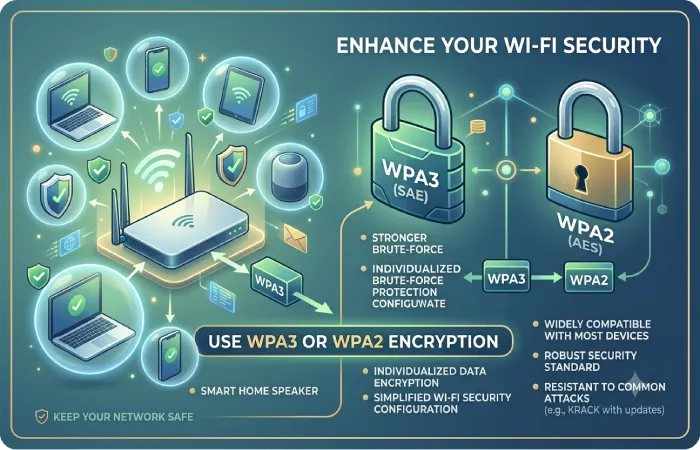
Advanced encryption ensures that no one else can get access to your network.
| Security Type | Recommendation |
| WPA3 | Best |
| WPA2 | Good |
| WPA | Avoid |
| WEP | Never use |
In case your smart devices are old, and they cannot connect using WPA3, WPA2 is a good choice too.
Remove Unknown Devices
Check regularly the list of devices that are connected through your router.
If you find unknown devices:
- Disconnect them
- Change your Wi-Fi password
- Restart the router
- Reconnect trusted devices
This ensures that you are not hacked.
Disable All Unnecessary Features
Some router features increase security risks if unused.
Examples include:
- WPS
- Remote administration
- UPnP (when unnecessary)
By doing this, you limit the number of entry points for hackers.
Enable Auto-update for Firmware
Most of the modern routers install firmware updates on their own.
Automatic updates provide:
- Security patches
- Bug fixes
- Performance improvements
- Better compatibility
This reduces maintenance while keeping your network protected.
Maintaining Your Smart Home Network
Maintenance helps ensure that your smart home is in proper working order.
| Maintenance Task | Recommended Frequency |
| Restart router | Monthly |
| Update firmware | Every 2–3 months |
| Review connected devices | Monthly |
| Change Wi-Fi password | Every 6–12 months |
| Test internet speed | Monthly |
| Clean router vents | Every 6 months |
Simple maintenance tasks will help prevent more serious problems from occurring down the road.
When is the Time for an Upgrade?
There are some concerns that cannot be sorted by troubleshooting. Upgrading becomes necessary in case you have an old router as this may solve most of your connectivity problems.
You should upgrade your network if:
- The router is more than five years old.
- You have over 30–40 connected devices.
- Wi-Fi coverage is inconsistent.
- Video calls frequently drop.
- Security cameras buffer often.
- Firmware updates are no longer available.
- You are using Wi-Fi 5 or older hardware in a busy smart home.
The latest Wi-Fi 6 and Wi-Fi 7 routers are designed to accommodate multiple devices with greater speed and less latency.
Best Practices for a Reliable Smart Home Network
Having an efficient network system becomes simpler by adhering to some basic practices. It is recommended that the router should be placed in the center of the house or any open space, firmware should be regularly updated, and it is better to not crowd a single Wi-Fi frequency band with all the connected devices. Whenever possible, it is advisable to go for the mesh Wi-Fi option in larger houses in order to have no dead spots within the network range.
It will also be a good idea to have strong passwords, have Wi-Fi encryption enabled, and conduct regular checks on all the devices connected to the network.
If you combine proper network planning with maintenance, you will benefit from faster reaction time, reliable automation of processes, uninterrupted video streaming, and increased security for your smart home setup.
Conclusion
The reliability of your smart home system largely depends on how strong your network is. No matter if it is a poor connection, disconnected devices, signal coverage issues, or security problems, almost all of them could be easily fixed by proper router positioning and maintenance.
Smart home technology will become increasingly prevalent in 2026, which means that creating an optimized home network will no longer be an option but a necessity. The right home network will guarantee a lightning fast response time for your lights, a seamless video feed from your cameras, hearing of all your commands by your voice assistants, and unimpeded operation of automation. Here are some ways to create one.