
Last Updated: July 20, 2026
With Google Home products having taken their place in the life of each modern smart house, whether you possess a Google Nest Mini, Google Home Mini, Nest Audio, Nest Hub, or Nest Hub Max, you will enjoy an easy life by performing simple actions with the help of the mentioned devices.
Nevertheless, just like any other type of technology that is connected, there will be times when something will go wrong with Google Home products. These include failing to respond, losing Wi-Fi connection, having problems recognizing your voice, or problems with the Google Home application. The good news is that none of these problems require replacing the product itself.
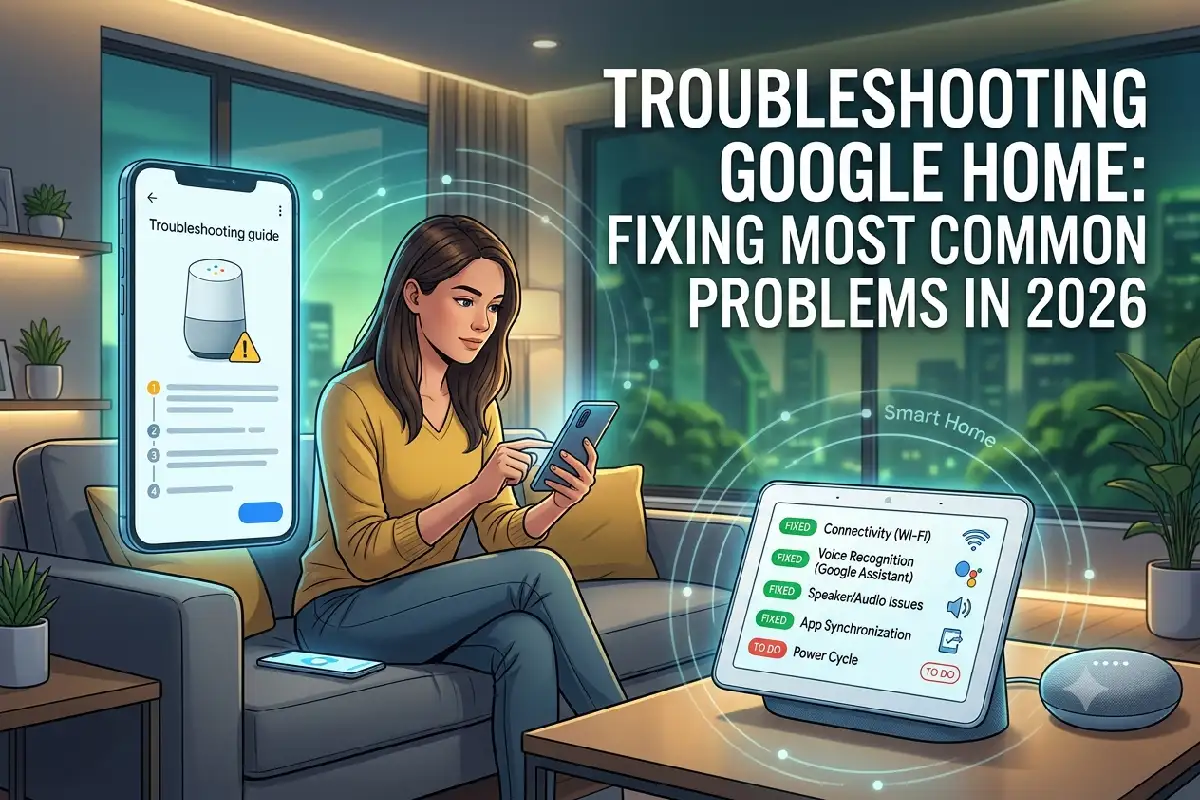
This guide on troubleshooting Google Home products deals with the most common problems faced by people in 2026.
Why Google Home Stops Working
Google Home needs several things to work properly, and some of these include WiFi, Google account, firmware update, and Google Home app.
Some of them are due to changes made in routers and software update, while others may be due to poor wireless signal strength and settings errors.
Some common causes include:
| Problem | Possible Cause |
| Device offline | Weak Wi-Fi or router issue |
| Doesn’t hear voice | Microphone disabled or noisy environment |
| Won’t respond | Temporary software glitch |
| Smart devices unavailable | Lost cloud connection |
| Music won’t play | Streaming service issue |
| Setup fails | Bluetooth or app permissions disabled |
| Slow responses | Network congestion |
| Frequent disconnects | Weak Wi-Fi signal |
Identifying the cause will help to solve the issue quickly.
Common Google Home Errors
Different types of issues will show different symptoms with Google Home. Some issues happen during the initial setup, but others develop after using it for several months.
Here are the most frequently occurring Google Home errors.
Google Home: Something Went Wrong
This is one of the most common issues faced.
Reasons might be the following:
- Temporary Google server issue
- Internet outage
- DNS problem
- Router restarting
- Google account sync problem
Usually, a reset of the router and Google Home resolves the problem.
Google Home Won’t Respond
In case of the speaker turning on but failing to respond, check out:
- Internet connection
- Microphone switch
- Power cable
- Google Assistant service
- Device firmware
Sometimes, the device starts to function normally again by just unplugging it for a minute or two.
Google Home Continues Restarting
Random restarts often happen because of:
- Faulty power adapter
- Damaged cable
- Overheating
- Firmware update errors
Using the original power adapter usually solves the problem.
Google Home Cannot Control Smart Devices
If lights or plugs stop responding:
- Confirm they are online
- Open the Google Home app
- Sync devices again
- Reconnect the smart home service
- Restart the affected device
There are cases when the easiest way out is removing and adding again the smart device.
Google Assistant Returns Incorrect Answers
This often happens because:
- Voice Match confusion
- Wrong home address
- Incorrect language
- Multiple Google accounts
Updating Assistant settings improves accuracy.
Google Home Offline Fix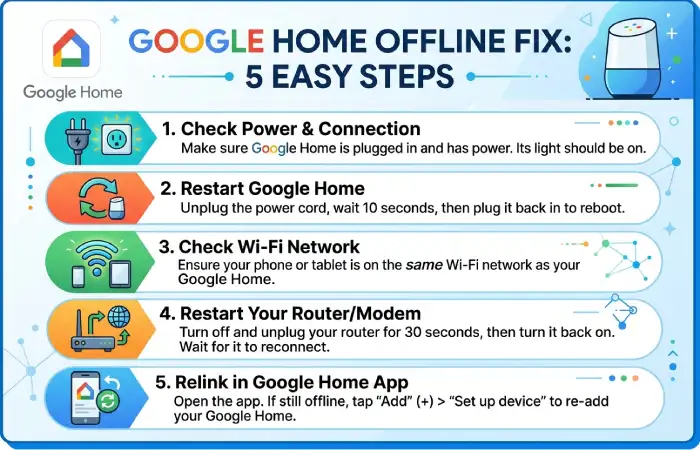
A Google Home device appearing offline is one of the most annoying problems, since it denies you the ability to give voice commands and control your smart home.
Offline problems have mostly something to do with networks.
Check Wi-Fi Connection
The first step is confirming your internet works.
Test:
- Phone Wi-Fi
- Laptop connection
- Streaming services
- Router status lights
If all other devices are offline too, simply reset your modem/router.
Restart Google Home
Power cycling fixes many temporary software bugs.
Steps:
- Unplug Google Home.
- Wait 60 seconds.
- Plug it back in.
- Wait until startup completes.
Many connectivity problems disappear after a restart.
Verify Router Settings
Google Home works best on modern Wi-Fi networks.
Recommended router settings include:
| Setting | Recommended Value |
| WPA Security | WPA2 or WPA3 |
| Frequency | 2.4 GHz or 5 GHz |
| DHCP | Enabled |
| UPnP | Enabled |
| IPv6 | Optional |
| Firmware | Updated |
Old router firmware often causes random disconnects.
Move the Speaker
Distance from the router matters.
Avoid placing Google Home:
- Behind televisions
- Inside cabinets
- Near microwaves
- Next to cordless phones
- Beside thick concrete walls
Moving your device just a few feet closer to your router can make a lot of difference.
Forgetting and Reconnecting Wi-Fi
If Google Home still shows offline:
- Open Google Home app.
- Select your speaker.
- Remove the Wi-Fi settings.
- Connect again.
This refreshes the network configuration.
Restart the Router
Home routers often accumulate temporary network issues after weeks of continuous operation.
Restarting clears:
- Memory leaks
- IP conflicts
- DNS errors
- Network congestion
Many users find this alone resolves offline errors.
Issues with Voice Recognition
The Google Assistant software package includes the capability to recognize different family members through the use of Voice Match. In case the device fails to recognize your voice or responds wrongly, then there must be an issue with the microphone or voice data.
Check the Microphone Switch
Every Google Home device has a physical microphone switch.
If it’s turned off:
- Voice commands won’t work.
- The Assistant won’t respond.
- The device appears unresponsive.
Make sure the microphone setting is turned on before doing further troubleshooting.
Retrain Voice Match
Voice Match improves over time but may need retraining.
Steps:
- Open Google Home app.
- Go to Assistant Settings.
- Select Voice Match.
- Retrain your voice.
This improves recognition accuracy.
Reduce Background Noise
Assistant performs best in quiet environments.
Common sources of interference include:
- Television
- Vacuum cleaners
- Loud music
- Fans
- Air conditioners
Speaking clearly and facing the speaker also improves results.
Use the Correct Language
Google Assistant supports many languages.
If multiple languages are enabled:
- Commands may be misunderstood.
- Pronunciation accuracy may decrease.
Using only the languages you regularly speak often improves recognition.
Keep Firmware Updated
Google continuously improves voice recognition through software updates.
Updates often include:
| Update Benefit | Result |
| Better speech recognition | Improved command accuracy |
| Noise filtering | Fewer missed commands |
| Faster processing | Quicker responses |
| Bug fixes | Stable Assistant performance |
| AI improvements | More natural conversations |
All updates will be installed automatically after connecting the device to Wi-Fi.
Resetting Google Home Devices
In case nothing works with your troubleshooting, you may consider restoring the device to its factory settings.
A reset removes:
- Wi-Fi settings
- Google account
- Voice Match profiles
- Device preferences
- Smart home configurations
Be prepared to set up the device again afterward.
When Should You Reset?
Consider a reset if:
- Setup repeatedly fails
- Device won’t connect to Wi-Fi
- Speaker freezes often
- App cannot find the device
- Voice commands never work
- Software behaves unpredictably
A reset should generally be your last troubleshooting step.
Factory Reset Google Home Mini
The reset method varies by model.
For older Google Home Mini devices:
- Locate the reset button underneath the speaker.
- Press and hold it.
- Hold for about 15 seconds.
- Wait for the confirmation message.
The device will restart in setup mode.
Factory Reset Nest Mini
For Nest Mini:
- Turn off the microphone.
- Press the center of the speaker.
- Hold for approximately 15 seconds.
- Wait for confirmation.
After restarting, the speaker is ready for setup.
Factory Reset Nest Audio
Nest Audio uses a similar process involving the microphone switch and touch controls.
Always wait until the device finishes restarting before opening the Google Home app.
Reset Nest Hub
Displays have their own reset procedure.
Typically:
- Hold both volume buttons.
- Continue holding.
- Wait until reset begins.
- Release the buttons.
The display will restart and return to its factory settings.
Reconfigure the Device
After resetting:
- Open Google Home app.
- Detect the device.
- Connect Wi-Fi.
- Sign in.
- Restore routines.
- Link smart devices again.
Most users complete setup within a few minutes.
Troubleshooting Google Home App
Sometimes the problem is not in the speaker but in the Google Home app. If the app crashes, does not detect any devices or you are unable to configure your speaker using the app, use the following troubleshooting steps.
Update the App
Outdated app may cause incompatibility problems.
First, check your device’s app store and install the latest version of the application.
Enable Required Permissions
The Google Home app requires permissions such as:
- Bluetooth
- Location
- Local network access
- Nearby devices (Android)
- Wi-Fi access
Without these permissions, setup may fail or devices may not appear.
Clear App Cache
To Android users, it will be useful to clean the cached data.
Steps:
- Open Settings.
- Tap Apps.
- Select Google Home.
- Open Storage.
- Tap Clear Cache.
This does not remove your Google Home setup.
Sign Out and Back In
Refreshing your account session can resolve synchronization problems.
Simply:
- Sign out of the Google Home app.
- Close the app.
- Restart your phone.
- Sign back in.
This often restores missing devices and account data.
Reinstall the App
If the app continues to malfunction:
- Uninstall it.
- Restart your phone.
- Download the latest version.
- Sign in again.
This cleans up corrupt application files and ensures that you have the latest version.
Verify Device Discovery
If Google Home can’t find your speaker:
| Check | Solution |
| Bluetooth | Turn it on |
| Wi-Fi | Connect phone to same network |
| Airplane Mode | Disable it |
| VPN | Disconnect temporarily |
| Mobile Data | Switch to Wi-Fi during setup |
| Router Isolation | Disable AP/client isolation if enabled |
Such settings often become an obstacle during the installation process.
More Tips for a Smooth Google Home Experience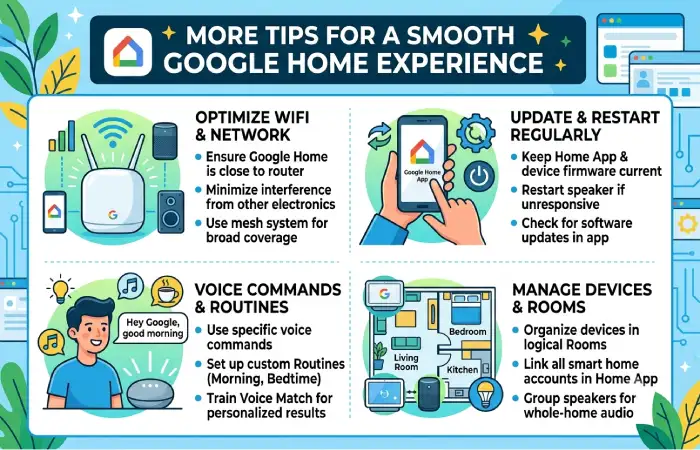
Proactive maintenance is a great way to minimize problems and increase reliability.
Try out some of these tips:
- Restart your router every few weeks.
- Keep Google Home connected to a strong Wi-Fi signal.
- Update router firmware regularly.
- Use original power adapters.
- Remove unused smart home integrations.
- Avoid placing devices near heat sources.
- Rename smart devices with simple, unique names.
- Keep the Google Home app updated.
- Enable automatic firmware updates whenever possible.
Implementing these guidelines will help ensure consistent performance.
Questions that People Often Ask
Why doesn’t my Google Home work when there are lights on?
This problem can be due to internet connectivity problems, software problems, or even mute mode of the device. A restart of the speaker and checking if it connects to the Wi-Fi will solve the problem.
How do I connect Google Home to Wi-Fi?
Through the Google Home app, you select your device, remove all the previously stored Wi-Fi credentials and then connect it to the Wi-Fi network.
Why is Google Home not recognizing my voice?
Possibly you will need to activate the Voice Match feature; your microphone may be turned off; or perhaps there is some noise in the background.
Will a reset of Google Home delete all the data?
Yes. The device’s data will get wiped clean. All Wi-Fi information, associated accounts, routines, Voice Match data, and smart devices will be deleted.
Why is it that my Google Home app cannot find my device?
Make sure that you are using the same Wi-Fi network, that Bluetooth is on, that you have enabled all required permissions of the apps, and that there is no sort of Virtual Private Network running in the background.
Conclusion
Google Home devices are very reliable, but there might be a situation where you will face some problems, such as Wi-Fi disconnecting, voice recognition problems, app issues, etc. But there are solutions for all such problems.
Once you have learned about the most frequent Google Home problems and the steps for troubleshooting them that are listed in this guide, you will be able to make your device work normally again. It is important to take care of your Google Home by keeping your router and the app updated, using good Internet connection, and having the most recent firmware installed on your device.