
Last Updated: September 21, 2026
If you have ever had a morning of forwarding the 3 times, ring someone to chase for a signature or spent 15 minutes typing in number after number from a receipt into a spreadsheet, you already know the problem office automation addresses. It‘s not about people getting replaced. It‘s about removing tiresome, repetitive jobs that take up huge chunks of time every week, so your staff can use that time for work that needs the human brain.
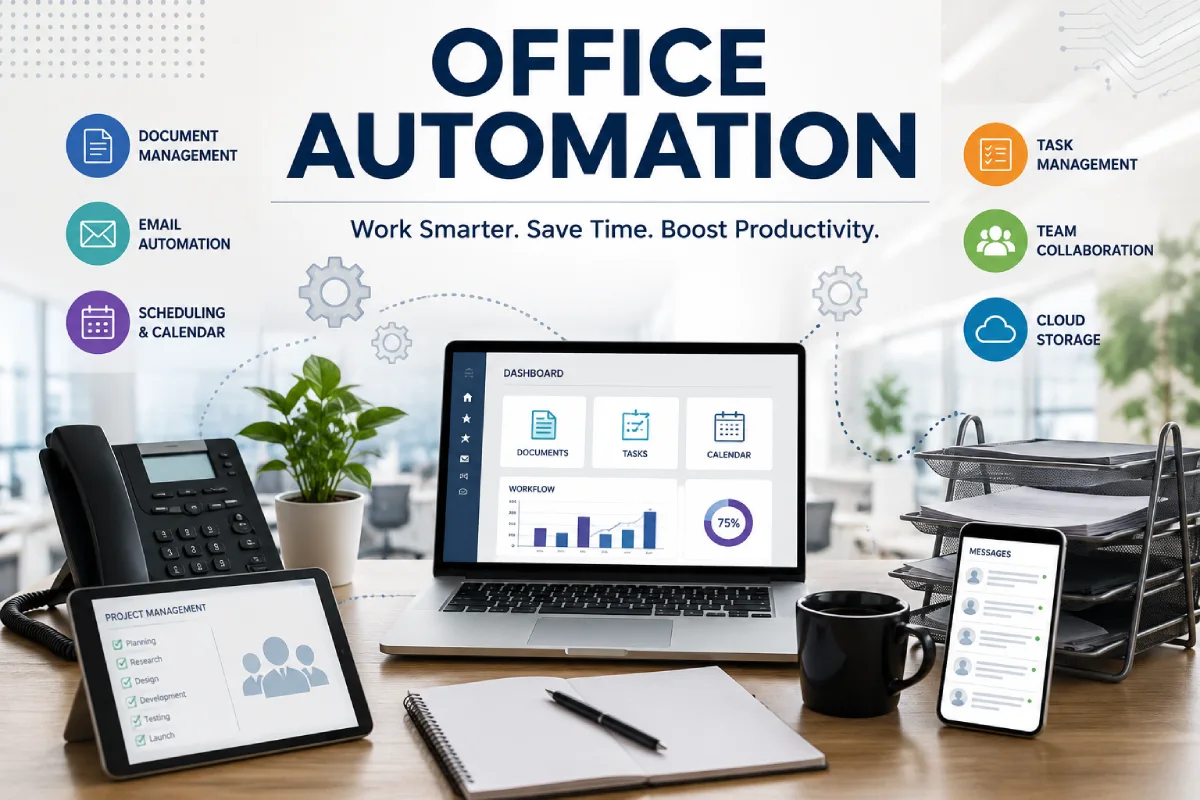
Office automation refers to the application of computer software and other electronic systems to automate mundane daily office functions – such as routing documents, individual email responses, scheduling meetings, filling out HR forms and paying invoices – enabling them to be performed with little or no human effort, after the system has been configured.
It‘s not a boutique feature anymore. Nearly twothirds of organizations now say they have adopted some level of workflow automation, and use increased rapidly in the last two years as AI-based tools made it simpler, faster and less expensive to automate. And the market for office automation itself is expected to expand from just under $112 billion in 2025 to close to $167 billion in 2030 an eightpercent annual compound growth rate that‘s powered by hybrid working, cloud software and AI-enabled auto-productivity tools.
This is your summary table. You‘ll find practical snapshots under each of the six categories where office automation will help you most, what to think about before using each concept, what it costs, how to know if it‘s working for you, and the slip-ups that cheat most teams. Click on a section for a more thorough, detailed guide.
Table Of Content:
“Explore comprehensive guides on this topic:
Workflow Automation Software
Document Management Automation
Email Automation for Offices
Meeting and Scheduling Automation
HR Process Automation
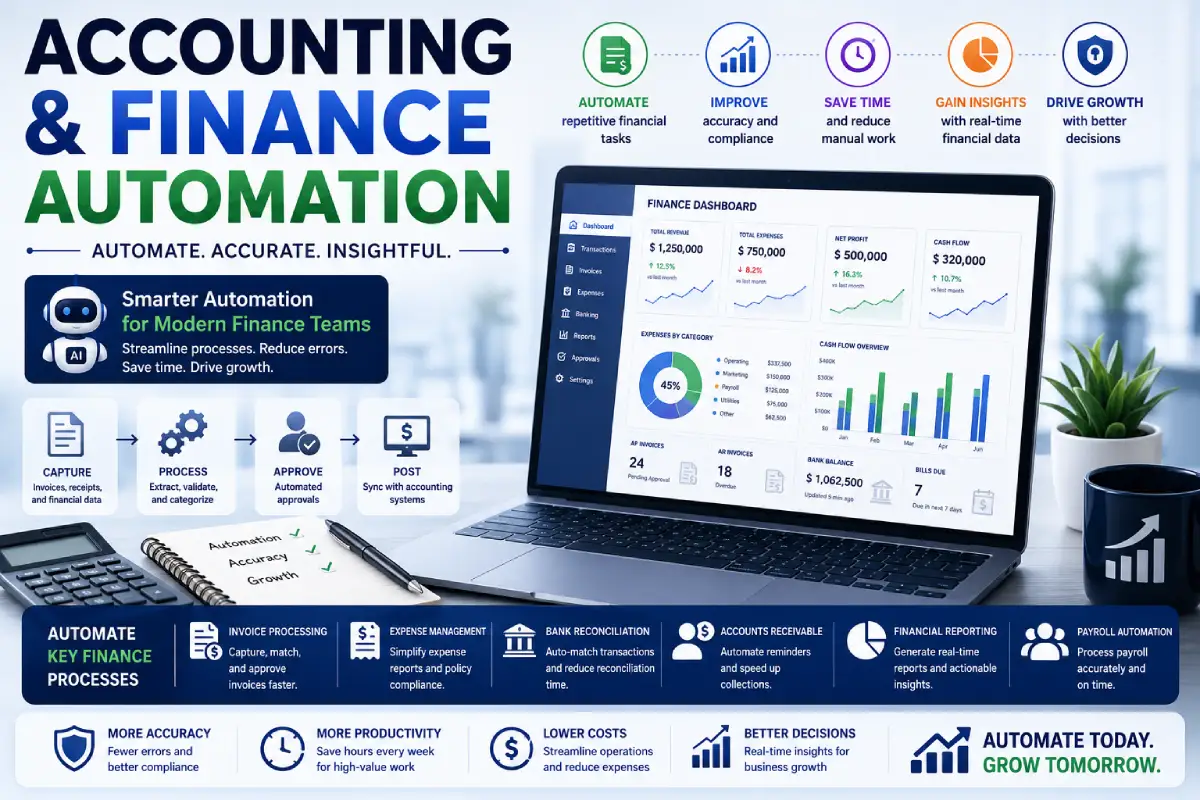
Accounting and Finance Automation
What Counts as Office Automation?
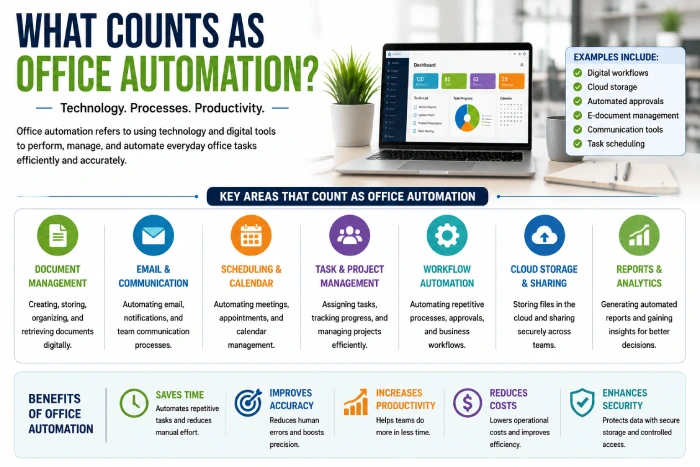
Office automation covers any task that a computer system can complete on a set schedule, trigger, or rule — without someone doing it by hand each time. That includes:
- Routing a document to the right approver automatically
- Sending a confirmation email the moment someone books a meeting
- Syncing an invoice into your accounting software the moment it’s received
- Reminding a new hire to complete onboarding paperwork
- Booking a meeting room the second a calendar invite goes out
- Flagging an expense report that’s missing a receipt before it reaches finance
Key takeaway: if a task follows a predictable pattern — “when X happens, do Y” — it’s a strong candidate for automation. The less judgment a task demands the more easily it can be delegated to software.
There‘s a good distinction to make between two related concepts that tend to get conflated. Automation is rule-based if this, do that. AI-guided automation takes the process a stage further by incorporating models that are able to interpret unstructured data (such as an email or a scanned invoice) in situ, rather than a pre-structured, canonical format, and determine the course of action. The vast majority of today‘s office tools provide a hybrid that combines rule-based triggers (for the predictable things) with more AI- like interpretation and transmutation (to process the less-structured things).
Why Offices Are Automating Now
A few forces have converged to make this the right time to automate:
- Hybrid/remote work created the work-around that papered over the cracks of ineffective process: the informal, in-the-building approver. When youall were in the same room, people circumnavigated the work-around by grabbing a hallway passerby. That doesn‘t happen anymore; so system automation has to replace it.
- To make setup much easier, there are AI-engines included in some tools you can just describe what you want to do rather than assemble it from complex logic trees.
- Cost pressure refers to teams having to do more with same headcount and automation is sometimes the quickest way to get hours back without adding staff.
- Equipment has become more affordable and integrated, making automation more accessible to small business that previously would have needed the budget of an enterprise IT shop and a systems administrator.
Studies reveal that office personnel tend to spend more time searching for files and papers than the amount of time they spend on concentrated work and automation is designed to address this exact issue. Enterprise is still leading the way; however, the fastest growing segment is now SMB adoption; because no-code is taking away the technical skills that you needed to get automation there originally.
Mini summary: The hurdle for automating your office has just been lifted, and the cost of not doing it (lost hours, more errors, missed deadlines) keep on increasing.
The Six Core Areas of Office Automation
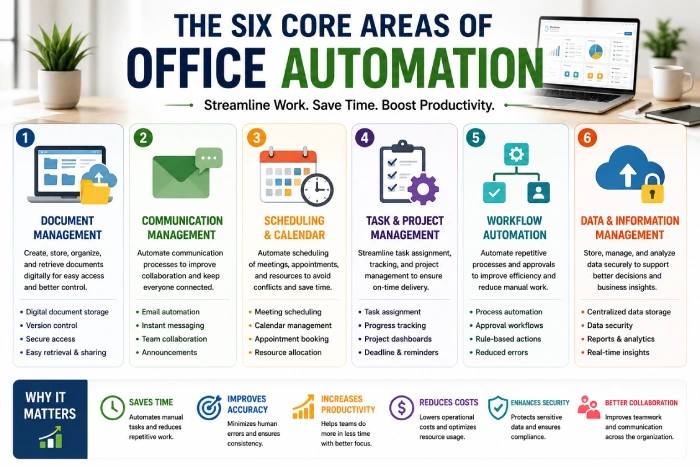
Rather than treating “office automation” as one giant category, it helps to break it into the specific jobs it actually does. Here’s the map most offices should work from.
1. Workflow Automation Software
This is the backbone category — software that moves tasks, approvals, and information between people and systems automatically, based on rules you set once.
How it works in real life: a request for reimbursement is made and sent into the system, routed to the immediate supervisor to approve, then to finance for payment all of this without a single person having to manually forward one email or track down a signature. If the supervisor does not respond within two days, the system will automatically follow up with a reminder, and if after a week still unresolved it will go to an alternate approver.
Key takeaways:
- Works best when a process has clear steps and clear owners
- Most modern platforms use simple “if this, then that” logic — no coding required
- The biggest early win is usually approval chains (expenses, time off, purchase requests)
- Escalation rules prevent the most common failure mode of manual processes: things silently sitting in someone’s inbox
Practical tip: Start by automating one workflow that currently causes the most bottlenecks — usually an approval process — rather than trying to automate everything at once. Map the current process in paper (on paper) first, every handoff point before you begin touching any software. More often than not, you‘ll discover that many of the steps were never redesigned, just there because they could be.
Looking for the complete breakdown, including tips on selecting workflow automation software for a small team? Read our complete guide to workflow automation software.
2. Document Management Automation
This describes the methods used to store, organize, direct (route) and sign documents without anyone having to file, email or chase paper.
How it might work in practice. A contract is uploaded; it is instantly filed in the right folder and automatically tagged, then sent for e-signature; and then stored and made searchable once it has been signed – and anyone involved can access it. If not signed within a certain deadline, an automatic reminder email is sent.
Key takeaways:
- Centralized storage eliminates the “which version is correct” problem that plagues shared drives and email attachments
- E-signature automation removes one of the slowest steps in most office processes — contracts that used to take a week to finalize can close in a day
- Automated tagging and search save the hours people currently spend hunting for files
- Version control can prevent the most common problem of three people working on three separate copies of three different documents;
Practical tip: If your team has all kinds of important information hiding out in email attachments and shared drives, this the place to begin. A quick audit — asking five people on your team where they’d look for a specific contract — will usually reveal you get five different answers. That inconsistency is exactly what document automation fixes.
See our full guide to document management automation for setup steps and tool comparisons.
3. Email Automation for Offices
Not to be confused with marketing email automation — this is about internal and operational office email: routing, templated replies, shared inboxes, and follow-up reminders.
How it works in action: a support or admin inbox automatically categorizes incoming queries, sends a reply, and directs the message to the appropriate individual rather than someone reading and forwarding each email. Any query that remains unaddressed for 48 hours is automatically marked and sent elsewhere.
Key takeaways:
- Shared inboxes prevent the “I thought someone else replied” problem that causes dropped requests
- Templates cut response time on repeat questions dramatically, and keep tone and accuracy consistent across whoever is answering
- Automated follow-up reminders reduce dropped requests and missed deadlines
- Auto-routing based on keywords or sender means the right person sees a message faster, without a human triage step
Practical tip: Audit your most repeated email replies over one week — those are your first automation templates. Most offices find that 20–30% of their email volume is answering the same handful of questions, which makes this one of the fastest categories to see a return on.
Explore the full guide to email automation for offices.
4. Meeting and Scheduling Automation
This takes care of the back-and-forth of determining meeting times, booking rooms, reminding employees and taking notes.
What it feels like: Rather than a viciously long-mail thread to determine a meeting time, a scheduling link indicates live availability, books the appointment, reserves the room, and transmits out calendar notice on its own. AI note-taking apps can record, transmits out notes afterward, and clearlyDefineAction items allocated to appropriate people.
Key takeaways:
- Self-service scheduling links eliminate most of the back-and-forth, especially across time zones
- Automated reminders measurably cut no-show rates for both internal and client meetings
- AI meeting notes save the 10–15 minutes people usually spend writing recaps afterward — and make sure action items don’t get lost
- Automated room and resource booking prevents the double-booked conference room problem
Practical tip: If scheduling meetings across time zones is a recurring headache, this category alone can save hours per week per person. Start with client-facing scheduling first — it has a visible, immediate benefit that’s easy to point to when you’re building the case for automating elsewhere.
Get the complete guide to meeting and scheduling automation.
5. HR Process Automation
For the people docs, the franchise deals with the following: new hire documentation, orientation, time-off requests, exit documents.
What it‘s actually like to do this: A new hire is automatically e-mailed their offer letter, tax forms, onboarding checklist the second they accept and constantly reminded if they haven‘t submitted anything rather than having HR send each one separately and keep track of them in a spreadsheet.
Key takeaways:
- Onboarding automation is usually the fastest win — it’s repetitive, time-sensitive, and directly shapes a new hire’s first impression of the company
- Automated PTO requests remove the spreadsheet-tracking headache and reduce scheduling conflicts
- Consistent, automated processes also help with compliance and recordkeeping — every step is timestamped and documented automatically
- Offboarding automation (revoking access, returning equipment, final paperwork) closes a common security gap that manual processes often miss
Practical tip: Map out every step of your current onboarding process on paper first — you’ll usually find 3–4 steps that are pure busywork (sending the same welcome packet, requesting the same forms) and easy to automate immediately, freeing HR to spend that first week actually getting to know the new hire instead of chasing paperwork.
Read the full guide to HR process automation.
6. Accounting and Finance Automation
This covers the back-office money tasks: invoicing, expense reports, and reconciling transactions.
How it works in practice: you get the invoice (or some data from it), it extracts relevant information automatically, compares it to the purchase order, and imports it into your accounting system without anyone copying it in by hand page by page or cross checking it manually to the order.
Key takeaways:
- Manual data entry is one of the most error-prone tasks in any office — automation reduces those errors significantly and catches mismatches before they become a problem
- Expense report automation cuts the time between a purchase and reimbursement, which matters a lot for employee satisfaction
- Automated syncenabling between tools (invoicing, accounting, banking) cuts down on the reconciliation pains at month-end, when errors are most costly and difficult to track down.
- Automated approval routing on invoices adds a layer of fraud protection that manual, ad-hoc approval often lacks
Practical tip: If already manually transcribing data back and forth between two systems that should be communicating, that‘s most likely your quickest ROI automation project.
Start by listing every place a number gets typed twice — that’s your shortlist.
Dive into the complete guide to accounting and finance automation.
A Day in an Automated Office vs. a Manual One
I believe it‘s easier to see the benefits of office automation when it is compared side by side with a list of features.
You’re sitting in the office on a Tuesday morning. Someone requests time off over email. You don’t read it for a couple of days. Then a client is trying to schedule a call and receives three emails with proposed times before one sticks. A new invoice comes as a PDF attachment; someone manually enters the figures into the ledger, transposing two numbers. A new hire’s offer letter sends a day late because your HR manager is out sick and there’s no readily available template.
Automated office, Tuesday morning: The time-off request goes straight to the right manager, automatically send-back reminder waiting 48 hours if not responded, click a scheduling link and pick a time in ten seconds, automatically book me a room and put it on clients’ calendars, scan in the invoice and extract data automatically, match it up against Purchase Order before lunch.
The new hire’s paperwork goes out the moment they accept the offer — no single point of failure, because it doesn’t depend on one person remembering to send it.
Nothing about the second scenario requires a bigger team or a bigger budget — just the right systems handling the predictable parts of the day so people can focus on the parts that actually need judgment.
Office Automation Tools: What to Look For
Instead of suggesting particular software (that update very rapidly, and the best available solution depends on the size of your team as well as your financial resources), the following parameters are what truly matter when comparing office automation solutions:
| Factor | Why It Matters |
| Integrations | A tool that doesn’t connect to what you already use just creates another silo, and someone will end up manually moving data between systems anyway |
| Ease of setup | No-code/low-code options matter most for small teams without dedicated IT — if it takes a developer to change a workflow, adoption stalls |
| Scalability | Choose something that won’t need replacing once you add three more workflows or double your headcount |
| Security & compliance | Especially important for HR and finance data — check for encryption standards and access controls before you commit |
| Cost structure | Per-user pricing can get expensive fast as a team grows — check how costs scale, not just the starting price |
| Support and documentation | When something breaks in an automated process, you need a fast way to figure out why — good documentation matters more than it seems at first |
What Office Automation Actually Costs
Cost is one of the biggest unknowns for teams considering automation, and it varies more than most guides admit.
- Entry-level, single-purpose tools (a scheduling link, a basic e-signature tool) often run free to $15–$25 per user per month.
- Mid-tier workflow platforms that connect multiple tools and support several automated processes typically land between $20–$60 per user per month, though many price per workflow or per automation run rather than strictly per seat.
- Enterprise-grade platforms with advanced compliance, custom integrations, and dedicated support can run into the thousands per month, usually with implementation and onboarding fees on top.
The bigger cost consideration isn’t always the subscription — it’s the time spent on setup and the risk of choosing a tool that doesn’t fit how your team actually works. A cheaper tool that gets adopted and used consistently will usually beat a more expensive one that half the team avoids because it’s confusing.
Measuring Whether Office Automation Is Working
It’s easy to assume automation is helping just because it feels more modern. It’s worth actually checking. A few practical metrics:
- Time-to-completion for the automated process, compared to how long it took manually before
- Error rate — are fewer invoices coming back with mismatched numbers, fewer onboarding steps missed?
- Volume handled per person — is the same team now handling more requests without added stress?
- Employee sentiment — a quick, honest check-in on whether the automated process actually feels easier, or just different
If a metric hasn’t moved after a reasonable adoption period, that’s usually a sign the workflow needs to be redesigned, not that automation itself failed.
Common Mistakes When Automating an Office
- Automating a broken process. Automation speeds up whatever process you build — including bad ones. Fix the process first, then automate it, or you’ll just get bad results faster.
- Trying to automate everything at once. Start with one high-friction workflow, prove the value, then expand. Teams that try to overhaul every process simultaneously usually end up with half-finished automations and a frustrated team.
- Ignoring change management. A tool is only useful if your team actually adopts it — plan for training and a clear explanation of “why,” not just technical setup.
- Choosing tools that don’t integrate. Disconnected automation tools just create new manual work stitching them together, which defeats the purpose.
- Skipping a test run. Rolling out an automated workflow to the whole team without testing it on a small group first means any mistake in the logic affects everyone at once.
- Forgetting to document the automation. If only one person understands how a workflow was set up, you’ve just created a different kind of single point of failure.
Myth vs. Fact

Myth: “Office automation will replace most office jobs.”
Fact: Most current automation handles specific repetitive tasks within a role, not entire jobs — the goal is freeing people for higher-value work, not eliminating positions. Research on job displacement generally points to task-level automation, not wholesale role elimination, for most office functions.
Myth: “You need a big budget and an IT team to automate your office.”
Fact: Many modern, no-code tools are built specifically for small teams with no technical background, and can be set up in an afternoon rather than a multi-month IT project.
Myth: “Once it’s set up, automation runs itself forever.”
Fact: Business processes change — new hires, new tools, new policies. Automated workflows need periodic review, just like any other system, or they quietly start producing outdated results.
Office Automation for Small Businesses
Small teams often assume automation is an enterprise-only investment, but that’s outdated. Cloud-based, no-code tools have made it realistic for a five-person office to automate scheduling, invoicing, and onboarding without hiring a developer. In fact, small businesses often see automation pay off faster than large enterprises, simply because there’s less organizational complexity to work around — a five-person team can go from idea to a working automated workflow in a single afternoon, where a 500-person company might need weeks of sign-off.
The starting point is usually the same regardless of company size: pick the one task that wastes the most time every single week, and automate that first. Prove it works, then move to the next.
Where to Start: A Simple Decision Framework
If you’re not sure which of the six categories to tackle first, ask:
- Which task do people complain about most often?
- Which task causes the most delays or errors when done manually?
- Which task, if automated, would save the most collective hours per week?
- Which task has the clearest, most predictable pattern — the easiest to translate into simple rules?
Whichever category comes up most across your answers is your starting point — and there’s a dedicated guide above for exactly that.
The Future of Office Automation
A few trends are worth watching as you plan further ahead than just your first workflow:
- AI agents that handle multi-step tasks, not just single triggers — for example, reading an incoming email, drafting a reply, and routing it for approval in one motion, rather than requiring separate rules for each step.
- Deeper integration between categories. Expect the line between document management, email, and workflow tools to blur further, with single platforms handling more of the six categories together instead of requiring separate tools stitched together.
- Governance becoming a bigger focus. As more processes run automatically, especially involving AI, having clear oversight — who approved what, what data a system can access — is becoming as important as the automation itself.
- Continued SMB adoption growth, as no-code tools keep lowering the technical barrier that used to keep automation out of reach for smaller teams.
Getting Buy-In From Your Team
Even the best-chosen automation tool fails if the people expected to use it don’t trust it or understand why it’s there. A few things consistently make adoption go smoother:
- Explain the “why,” not just the “how.” People are far more willing to change a process when they understand what problem it’s solving for them personally — fewer late nights on expense reports, faster reimbursement, less time hunting for a document — rather than being told to use a new tool because leadership decided to.
- Involve the people doing the work in choosing the tool. The person processing invoices every day will spot a clunky, unusable interface faster than anyone in a demo call. Their early feedback saves you from picking a tool that looks great in a sales pitch and gets ignored in practice.
- Run a small pilot before a full rollout. Automate one workflow with one team first. Fix the inevitable rough edges before it touches everyone, and use the pilot team’s experience to build a short internal guide for the rest of the company.
- Keep a human fallback for edge cases. Automated systems handle the predictable 80% of cases well. Make sure there’s a clear, simple way to flag the unusual 20% for a person to review, rather than forcing every exception through the automated path and frustrating everyone involved.
- Celebrate the win publicly. When a workflow saves visible time — an onboarding process that used to take a week now takes a day — share that number with the team. Concrete results build more trust than any pitch for a new tool ever will.
Frequently Overlooked Automation Opportunities
Most offices automate the obvious candidates — scheduling, invoicing — and stop there. A few less obvious opportunities are often just as valuable:
- Recurring internal reports. If someone manually compiles the same weekly or monthly report from multiple sources, that’s almost always automatable, and it’s usually a task nobody enjoys doing by hand.
- Vendor and contract renewal reminders. Missed renewal deadlines lead to either an unwanted auto-renewal or a scramble to renegotiate at the last minute. A simple automated reminder 30–60 days out avoids both.
- Equipment and access provisioning. New hires need laptops, software accounts, and building access set up; departing employees need all of it revoked. This is one of the most commonly missed automation opportunities, and one of the riskiest to leave manual from a security standpoint.
- Client or customer check-ins. A simple automated email at set intervals after onboarding a new client — checking in, asking for feedback, flagging if there’s been no activity — catches problems before they become churn.
- Compliance and certification tracking. For industries with recurring training or certification requirements, automated reminders well ahead of expiration dates prevent last-minute compliance scrambles.
None of these require a dedicated new tool in most cases — they’re often just additional workflows built inside the platforms you’d already use for the six core categories above.
The Bottom Line
Office automation isn’t one tool or one project — it’s a set of six overlapping categories, each solving a specific kind of repetitive work: workflow routing, document handling, email management, scheduling, HR processes, and accounting tasks. Start with the one causing the most friction on your team today, use the guides linked above to go deeper, and expand from there. The goal isn’t to automate everything at once; it’s to steadily remove the busywork that keeps people from doing their best work, one workflow at a time.
If you’re weighing where to begin, resist the urge to pick the category that sounds most impressive and instead pick the one that’s actually causing the most friction today. A modest, well-adopted automation that your whole team trusts and uses every day will do more for your office than an ambitious rollout that only half the team ever learns to use. Start small, measure the result honestly, and let that first success make the case for the next one.