
Last Updated: September 17, 2026
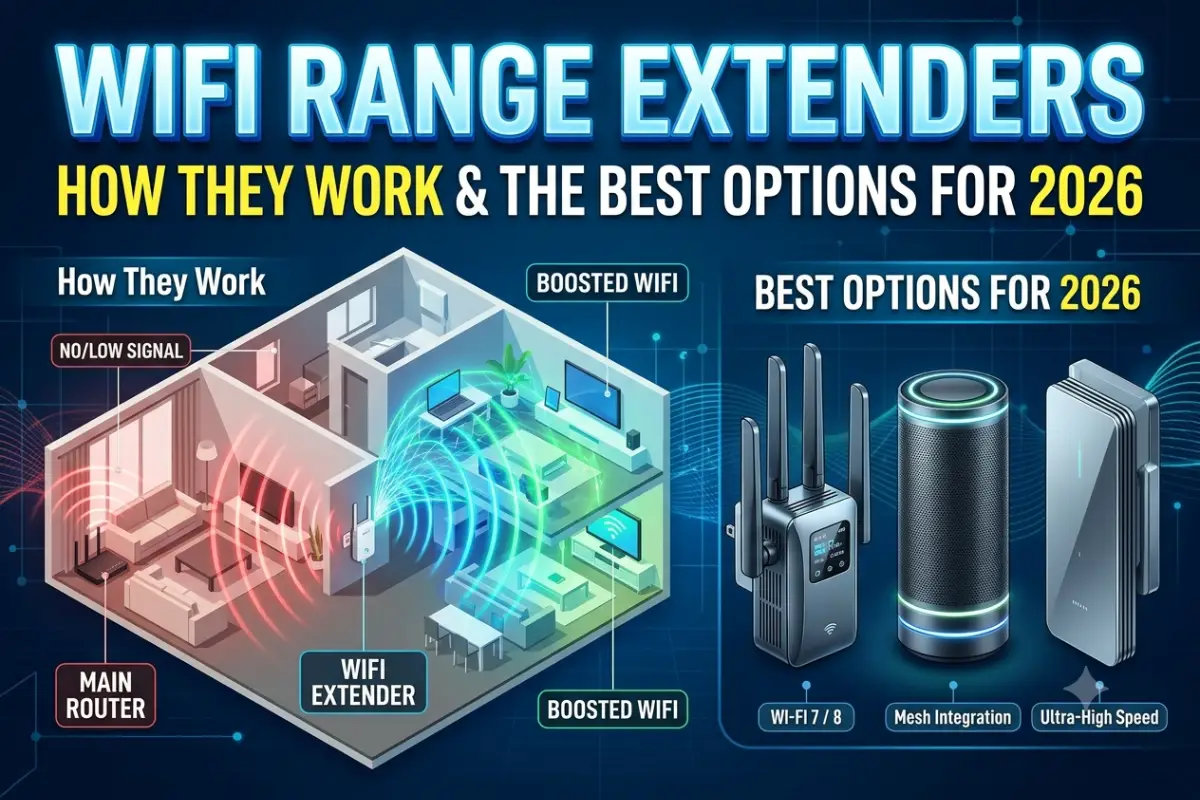
WiFi range extenders help eliminate wireless dead zones by receiving an existing WiFi signal and retransmitting it into areas where coverage is weak.
They can be useful when your router provides good service in most of your home but struggles to reach a bedroom, home office, upper floor, garage, or another specific area.
However, an extender does not magically create a faster internet connection. It depends on the quality of the signal it receives from the main router.
For a single dead zone, an extender can be a practical solution. For several dead zones across a large home, a mesh WiFi system or wired access point may be more appropriate.
In 2026, WiFi 6 and WiFi 7 extenders are increasingly common, including models supporting features such as EasyMesh, 6GHz connectivity, 320MHz channels and multi-gigabit Ethernet.
What Is a WiFi Range Extender?
A WiFi range extender, sometimes called a WiFi repeater, is a networking device that receives wireless data from your router and retransmits it to extend coverage.
The basic arrangement looks like this:
Internet → Router → WiFi Extender → Device
For example, imagine your router is in the living room and the WiFi signal becomes unreliable in a bedroom at the other end of the house.
Instead of replacing the router, you can place an extender between the router and bedroom.
The extender receives the router’s signal and provides additional wireless coverage.
The important point is that the extender still needs a usable connection to the router.
If it receives a very weak signal, moving the extender farther into the dead zone will not solve the problem.
How Do WiFi Range Extenders Work?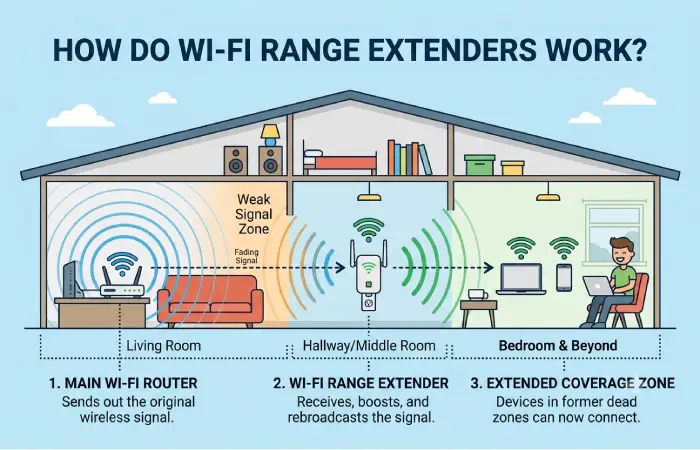
A conventional wireless extender uses radio communication to connect to the main router.
It then creates or extends a wireless network that devices can connect to.
Depending on the model, an extender may support 2.4GHz, 5GHz and, with newer WiFi 7 hardware, 6GHz connectivity.
2.4GHz
The 2.4GHz band generally travels farther and penetrates obstacles better than higher-frequency bands.
Its trade-off is that it can experience more congestion because many household devices use this band.
5GHz
5GHz generally provides higher throughput than 2.4GHz but has shorter effective range and can be affected more by walls and other obstacles.
6GHz
WiFi 6E and WiFi 7 introduce access to the 6GHz band where permitted and supported.
The band can provide additional spectrum and wide channels, but compatibility and regional availability matter.
A WiFi 7 extender therefore does not automatically make an older WiFi 5 router a WiFi 7 network.
Range Extender vs Mesh vs Repeater
These technologies overlap, but they are not identical in how they are normally deployed.
| Feature | WiFi Extender | WiFi Repeater | Mesh WiFi |
| Main purpose | Extend coverage | Repeat wireless signal | Whole-home coverage |
| Works with existing router | Usually | Usually | Usually requires compatible mesh system |
| Roaming | Depends on system | Often limited | Designed for seamless roaming |
| Best for | One or two weak areas | Basic coverage extension | Multiple dead zones |
| Setup | Usually simple | Simple | More involved |
| Ethernet backhaul | Many models | Some | Common |
| Scalability | Limited | Limited | High |
| Typical cost | Low–medium | Low | Medium–high |
The term repeater is sometimes used interchangeably with extender because both can retransmit a wireless signal.
Modern range extenders can offer more advanced features than traditional repeaters, including access-point mode and mesh integration.
WiFi Extender vs Mesh WiFi: Which Do You Need?
Consider a WiFi extender when your router works well throughout most of the house and only one or two locations have poor coverage.
A mesh system becomes more attractive when multiple rooms, floors or sections of the property have inconsistent coverage.
For example:
One bedroom has weak WiFi → Extender
Several rooms and two floors have weak WiFi → Mesh
Ethernet cable is already available → Wired access point or Ethernet-backhauled extender
This distinction can prevent you from spending money on a more complicated system than your network actually requires.
What to Look for in a WiFi Range Extender
The wireless standard is only one part of the buying decision.
WiFi Standard
For a new purchase, WiFi 6 is a reasonable starting point for many homes.
WiFi 7 models are more appropriate when the existing router and client devices also support newer WiFi technologies.
Dual-Band or Tri-Band
Dual-band extenders typically operate on 2.4GHz and 5GHz.
Tri-band models can provide additional radio capacity and may use a dedicated band or more flexible backhaul arrangements.
Ethernet Port
An Ethernet port is useful if you want to connect a desktop PC, smart TV, game console or other wired device.
It is also important when using an extender as a wired access point.
Access Point Mode
Access Point mode allows the device to receive network connectivity through Ethernet rather than relying entirely on a wireless connection to the router.
For homes with Ethernet cabling, this can be a major advantage.
Mesh Compatibility
Some extenders can integrate with compatible mesh technologies such as TP-Link EasyMesh.
This can provide a more unified network experience than using a basic standalone repeater.
Best Placement for a WiFi Extender
Placement is one of the most important factors in WiFi extender performance.
TP-Link recommends positioning an extender roughly halfway between the router and the weak-signal area, while ensuring that the extender itself still receives a strong connection. Its 2026 placement guidance also recommends keeping the extender around router height and away from sources of interference such as large metal objects and appliances.
A simple layout is:
Router → Strong WiFi → Extender → Weak Coverage Area
Do not put the extender at the very edge of the existing WiFi signal.
Instead, move it closer to the router until it can establish a reliable connection.
Avoid These Locations
Avoid placing an extender:
- Inside a cabinet
- Behind large appliances
- Directly beside a microwave
- On the floor
- Behind large metal objects
- In a far corner where the router signal is already extremely weak
- Immediately next to another wireless networking device
Walls, floors and building materials can significantly affect wireless performance.
How to Configure a WiFi Extender
Most current extenders can be configured using an app, web browser or WPS.
The exact process varies by manufacturer, but the general steps are similar.
Step 1: Plug In the Extender
Start with the extender relatively close to the main router.
This makes initial configuration easier.
Step 2: Connect to the Extender
Use the manufacturer’s mobile app or connect to the temporary WiFi network created by the extender.
Step 3: Select Your Router
Choose the existing wireless network you want to extend.
Enter the WiFi password when prompted.
Step 4: Configure the Extended Network
Depending on the model, you may be able to use the same network name and password as the router or create a separate SSID.
Mesh-compatible systems may handle network naming and roaming more automatically.
Step 5: Move the Extender
After configuration, move the extender to a suitable position between the router and the dead zone.
Step 6: Check the Connection
Use the manufacturer’s app or your device’s WiFi information to check signal quality.
If the connection between the router and extender is poor, move the extender closer to the router.
Can You Use Ethernet With a WiFi Extender?
Yes.
Many modern extenders support Access Point mode, allowing an Ethernet cable to connect the extender directly to the router.
This changes the architecture:
Router → Ethernet → Extender → WiFi Devices
Instead of:
Router → WiFi → Extender → WiFi Devices
A wired connection can provide a more stable backhaul because the extender no longer has to rely entirely on a wireless connection to the router.
TP-Link also documents Ethernet backhaul for a range of EasyMesh-compatible extenders, including models such as the RE715X and RE655BE.
Top WiFi Extenders Reviewed for 2026
The right model depends on your router, WiFi generation, home layout, Ethernet availability and budget.
Current 2026 testing and reviews include models from TP-Link, NETGEAR, ASUS and other manufacturers.
| Model | WiFi Generation | Configuration | Ethernet | Suitable For |
| TP-Link RE655BE | WiFi 7 | Tri-band | 2.5Gbps | WiFi 7 networks |
| TP-Link RE715X | WiFi 6 | Dual-band | 1Gbps | General home coverage |
| ASUS RP-AX58 | WiFi 6 | Dual-band | 1Gbps | WiFi 6 networks |
| NETGEAR EAX80 | WiFi 6 | Dual-band | 4 × 1Gbps | Wired devices |
| NETGEAR EAX17 | WiFi 6 | Dual-band | 1Gbps | Basic coverage extension |
| TP-Link RE605X | WiFi 6 | Dual-band | 1Gbps | Lower-cost WiFi 6 setups |
TP-Link RE655BE
The TP-Link RE655BE is a premium WiFi 7 extender designed for newer WiFi 7 networks.
It supports 2.4GHz, 5GHz and 6GHz connectivity, 320MHz channels, Multi-Link Operation and a 2.5Gbps Ethernet port. Independent testing by Tom’s Guide recorded 719.5Mbps at 15 feet and 376.7Mbps at 40 feet in its test environment. (Tom’s Guide)
Its main disadvantage is cost.
It makes the most sense when your router and client devices can actually take advantage of WiFi 7 features.
TP-Link RE715X
The RE715X is a WiFi 6 extender aimed at mainstream home networks.
BroadbandNow’s 2026 testing found speeds above 300Mbps under its gigabit test connection, while other 2026 reviews continue to position the model as a practical WiFi 6 option.
It is better suited to a conventional WiFi 6 network than buying a premium WiFi 7 extender solely for its theoretical specifications.
ASUS RP-AX58
The ASUS RP-AX58 is a dual-band WiFi 6 extender that can make sense for users already invested in ASUS networking hardware.
Its value comes partly from ecosystem compatibility rather than simply the highest advertised wireless number.
NETGEAR Nighthawk EAX80
The EAX80 is a larger desktop-style WiFi 6 extender.
Its four Gigabit Ethernet ports make it particularly interesting for setups containing several wired devices. Current 2026 comparisons continue to include it among high-performance extender options.
WiFi Extender Performance: What the Numbers Really Mean
One of the biggest mistakes when comparing WiFi extenders is treating the advertised number as actual internet speed.
For example, a device marketed with a combined wireless rate of several gigabits per second does not mean your smartphone will download from the internet at that speed.
Actual performance depends on:
- Router capability
- Internet connection speed
- WiFi standard
- Client device
- Distance
- Walls and floors
- Wireless interference
- Channel width
- Backhaul configuration
- Number of connected devices
Tom’s Guide’s testing of the RE655BE illustrates the difference between advertised specifications and real-world throughput: its 10.8Gbps aggregate rating is substantially different from the hundreds of Mbps observed in practical testing.
WiFi Extender Troubleshooting
Extender Is Connected but Internet Is Slow
First, check the connection between the extender and router.
If the extender is too far away, it may be receiving a weak signal.
Move it closer to the router and test again.
WiFi Keeps Disconnecting
Interference or poor placement may be responsible.
Move the extender away from appliances, large metal objects and dense physical obstructions.
Also check whether the extender has current firmware.
Extender Shows a Strong Signal but Speeds Are Low
Signal strength does not always equal high throughput.
Check the wireless band, channel congestion and number of connected devices.
Testing with a device close to the extender can help determine whether the problem is the extender’s backhaul or the client’s connection.
Some Devices Cannot Connect
Check whether the device supports the extender’s selected security mode and wireless bands.
Older IoT devices may work better on 2.4GHz than 5GHz or 6GHz.
Extender Works but Roaming Is Poor
A basic extender can create a less seamless experience when moving around the house.
If your router and extender support the same mesh ecosystem, enabling the appropriate mesh functionality may improve roaming.
If you have several coverage problems, a dedicated mesh system may be more appropriate.
WiFi Extender vs Access Point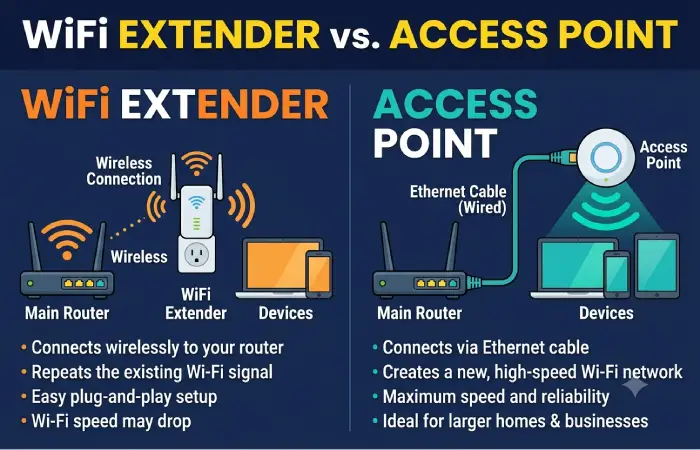
If you have Ethernet available, compare these two setups:
| Factor | Wireless Extender | Wired Access Point |
| Backhaul | WiFi | Ethernet |
| Installation | Easier | Requires Ethernet |
| Stability | Depends on wireless conditions | Generally more consistent |
| Speed potential | Limited by wireless backhaul | Better suited to high-speed networks |
| Best for | Homes without Ethernet | Homes with Ethernet cabling |
For a newly wired home or office, an Ethernet-connected access point can be a strong alternative to a wireless extender.
When Should You Upgrade to Mesh WiFi?
Consider moving to mesh when your WiFi problem is larger than a single dead zone.
A mesh system can be more appropriate if:
- Several rooms have weak coverage.
- You have multiple floors.
- You frequently move between coverage areas.
- You want centralized network management.
- You need multiple wireless nodes.
- You want more consistent roaming.
If Ethernet is available between locations, wired backhaul can further improve a mesh deployment. TP-Link’s own guidance notes that Ethernet backhaul provides a more stable and faster connection than wireless backhaul in supported mesh setups.
Frequently Asked Questions
Do WiFi extenders increase internet speed?
No. An extender primarily improves wireless coverage. It cannot increase the bandwidth supplied by your internet service.
How far can a WiFi extender reach?
There is no universal distance. Walls, floors, interference, router power and extender design all affect coverage.
Should a WiFi extender be near the router?
It should be far enough from the router to extend coverage but close enough to receive a strong signal. A position roughly between the router and dead zone is a useful starting point.
Is WiFi 7 worth it for an extender?
It can make sense when the existing router and client devices support WiFi 7. For an older WiFi 5 or WiFi 6 network, a less expensive compatible extender may provide better value.
Can a WiFi extender work with any router?
Many extenders are designed to work with standard WiFi routers, but advanced features such as mesh integration may require compatible hardware from the same ecosystem.
Is a WiFi extender better than a mesh system?
Neither is universally better. An extender can solve a localized coverage problem, while mesh is designed for broader whole-home coverage.
Can I use an old router as a WiFi extender?
Some routers support repeater or access-point modes. If Ethernet is available, configuring the old router as a wired access point can often provide a more reliable connection than wireless repeating.
Final Verdict: Choosing a WiFi Range Extender in 2026
WiFi range extenders remain useful in 2026, particularly when the problem is limited to one or two areas of a home.
For a mainstream WiFi 6 network, models such as the TP-Link RE715X provide a sensible feature set. For a modern WiFi 7 setup, the TP-Link RE655BE adds newer capabilities such as 6GHz connectivity, 320MHz channels and a 2.5Gbps Ethernet port.
The most important decision, however, is not the largest number printed on the box.
Choose the solution based on where the dead zones are, what router you already own, whether Ethernet is available, how many devices need coverage, and whether you need a single extension or whole-home networking.
For one weak room, an extender may be enough.
For a large property with multiple weak areas, consider mesh WiFi or wired access points instead.