
Last Updated: September 23, 2026
Home WiFi has moved beyond securing just a password. Today, a home‘s WiFi networks connect laptops, smartphones, smart TVs, cameras, speakers, home appliances and all other IoT devices with the internet, thus increasing the attack surface of home WiFi networks. Selecting the appropriate wireless security protocol is an integral part of securing the network.
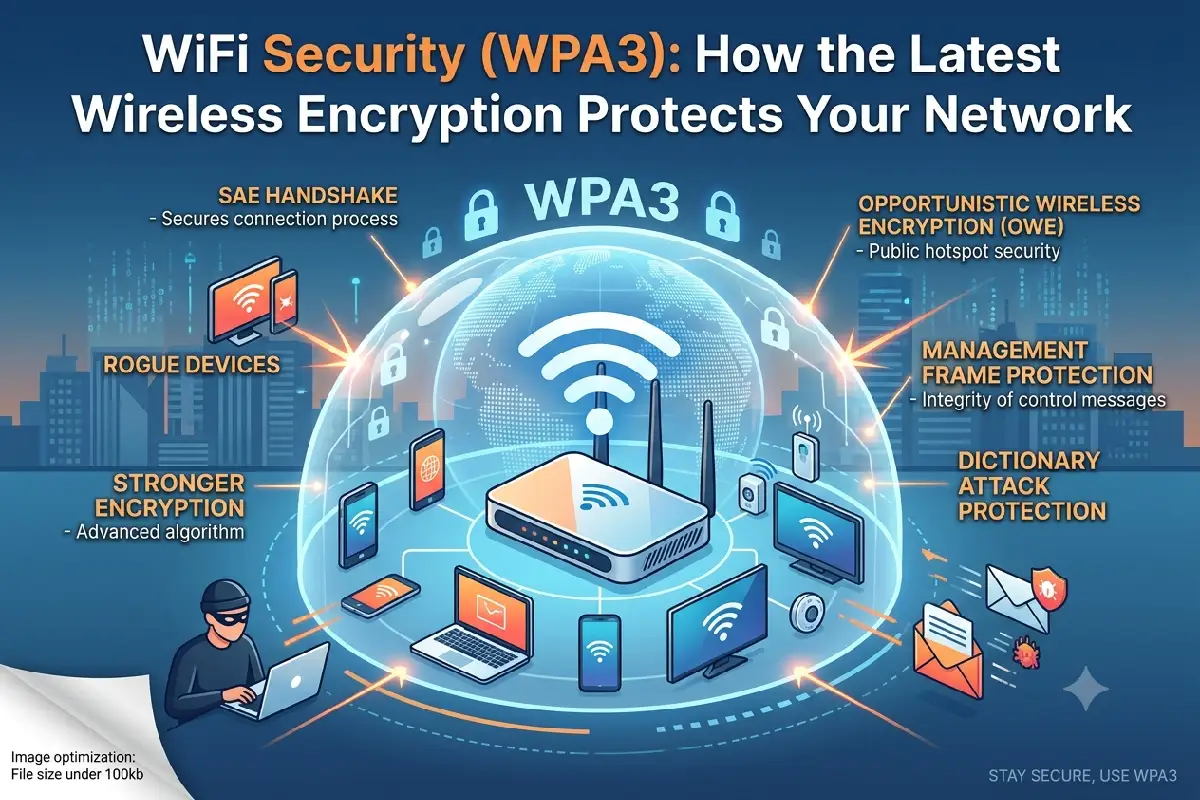
WPA3 is the latest generation of security used in WiFi. It intends to provide stronger authentication and security compared to WPA2. Its full form is Wi-Fi Protected Access 3 as stated by the institute of standards and technology(NIST) and supports both modes of Wi-Fi CERTIFIED devices which are WPA3-Personal and WPA3-Enterprise.
WPA3-Personal is the most relevant mode for most home users, as it incorporates the new SAE feature and provides increased resistance to password-guessing attacks and is likely to provide better security on existing wireless networks.
So, what is a WPA3 WiFi security?
WPA3, a wifi security protocol has been designed inside the Wi-Fi Alliance certification framework to provide stronger security mechanisms for wireless authentication compared to its old rivals, WPA and WPA2.
In the case of homes, the dominant version is WPA3-Personal. This supersedes the authentication method used by WPA2-Personal (Pre-Shared Key handshake) by the SAE (Simultaneous Authentication of Equals).
Another element of WPA3 is to support enterprise installation known as WPA3-Enterprise, targeted for organizations with more advanced authentication system. Certified WPA3-Enterprise implementations can also support 192-bit security.
Why WPA3 Matters for Home Networks
The WiFi password is the password to get access to the wireless network, but the way the router authenticates using the password is what makes the password insecure or secure.
Weak passwords may make older security schemes vulnerable to a variety of attacks, such as password-guessing. WPA3-Personal‘s SAE protocol is intended to be stronger.
This is especially helpful as many people have several devices connected to one network. A typical home WiFi would have several phones, a few computers, printers, a few cameras, a TV or two, some gaming consoles, smart speakers and whatever else they have connected.
The NIST WLAN security guidance highlights that the security of a WLAN is only as secure as the overall WLAN environment. In other words, The individual access points, client devices, configuration, maintenance, and monitoring all contribute to the overall WLAN security.
WPA3 thus should be viewed as just one layer of a comprehensive network security strategy rather than a substitute for other controls.
WPA2 vs WPA3 Explained
Though still in heavy use, WPA3 will offer significant updates to wireless authentication.
| Feature | WPA2-Personal | WPA3-Personal |
| Authentication | PSK-based | SAE-based |
| Password protection | Strongly dependent on password quality | Improved protection against password-guessing |
| Modern security | Mature and widely supported | Newer security standard |
| Older-device compatibility | Very broad | Requires WPA3 support |
| Transition support | N/A | Available on compatible equipment |
| Best use | Older or mixed-device networks | Modern compatible networks |
The biggest technical change is SAE.
WPA3 cannot simply make your weak passwords safe. A long, unique WiFi password remains important. The protocol offers a more robust authentication scheme though the security of the entire network is still reliant on the setup of the router and the attached devices.
Compatibility is another factor. For example, some old laptops and smart-home products, printers and IoT devices might only support WPA2. If you use WP3-only settings in those settings, the older items cannot connect.
Hence the usefulness of some hardware supporting a WPA2/WPA3 transition mode.
How Simultaneous Authentication of Equals (SAE) Works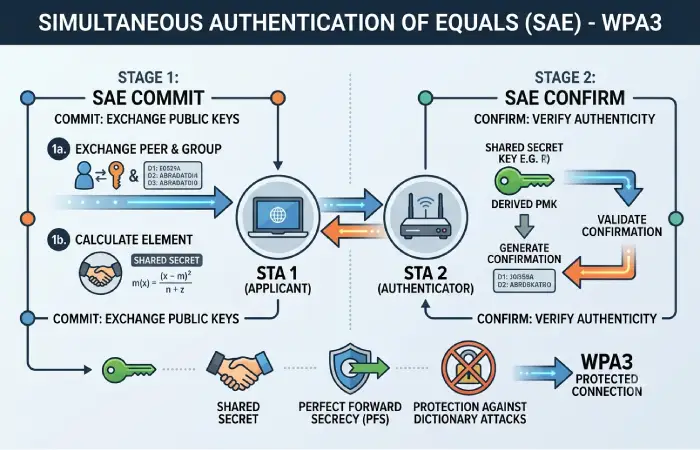
Simultaneous Authentication of Equals, commonly called SAE, is a signature technology of WPA3-Personal.
Rather than using the identical WPA2-Personal authentication method, WPA3 uses SAE (Simultaneous Authentication of Equals) to negotiate a link between the client and access point.
At a high level, the process works like this:
- Your device discovers the wireless network.
- The device and router begin the SAE authentication exchange.
- Both sides use information derived from the password and the exchange to establish shared cryptographic material.
- The connection proceeds using the resulting security keys.
- The data transmitted through the wireless link is protected using the negotiated security mechanisms.
The key security advantage is that the SAE is meant to make the offline password guessing attack far more difficult than the normal WPA2- Personal.
You don‘t have to do anything from your side of the equation, manual-wise. If the router and the device have support for WPA3-Personal, the login procedure will be performed seamlessly.
Does SAE Make WPA3 Unhackable?
No.
No wireless security protocol makes a network completely immune to attack.
An attacker may still target:
- Weak passwords
- Router administration credentials
- Outdated firmware
- Vulnerable IoT devices
- Misconfigured guest networks
- Phishing attacks
- Compromised client devices
- Poor network segmentation
While WPA3 advances security of the wireless authentication layer, multiple defenses are necessary to achieve good security.
How to Enable WPA3 on Your Router
The exact names differ depending upon router makes and versions of firmware but the process goes along the lines of:
1. Check Router Compatibility
Enter the login for your wireless router‘s admin and go to wireless (or WiFi) security.
Look for options such as:
- WPA3-Personal
- WPA3-SAE
- WPA2/WPA3-Personal
- WPA3-Enterprise
If WPA3 doesn‘t show up, then either your router doesn‘t support it at all, or a firmware update is available that enables WPA3. (In case your router is extremely old, it may not support WPA3 at all.)
2. Update the Router Firmware
Before you change any of the security settings please ensure that you have the latest firmware installed for your router.
In some cases, a hardware manufacturer may offer firmware updates to enhance security, stability or compatibility and support for newer wireless features.
It is important to note that theNIST WLAN guidance covers security from start to finish in the entire WLAN lifecycle rather than a one-off configuration step.
3. Choose WPA3-Personal
For most home networks, choose WPA3-Personal or WPA3-SAE if it is available on your router.
Create a strong WiFi password that is:
- Long
- Unique
- Difficult to guess
- Not reused on other accounts
- Free from easily identifiable personal information
Save the configuration and allow the router to restart if required.
4. Reconnect Your Devices
Once security mode is changed, then the old devices will have to reconnect.
If the device can‘t connect, make sure that this device supports WPA3.
Older devices may require WPA2 or a transition-mode configuration.
5. Consider WPA2/WPA3 Transition Mode
In case you have a mix of the latest and not so latest devices, your router might have WPA2/WPA3 transition mode.
This would enable backward compatible devices to use WPA3 while existing older clients remain on WPA2.
However, transition mode is a compromise for compatibility. You could go for a WPA3-only setup if all your critical devices support WPA3 and you have no need for legacy support.
The actual security and compatibility behavior will vary depending on the implementation of the router and client, so consult the documentation of the manufacturer before making the change.
Common WiFi Security Mistakes
Switching to WPA3 is useful, but several common configuration mistakes can still leave a network exposed.
Using a Short WiFi Password
WPA3 enhances authentication, but password quality (Good or Bad (Weak)) is what remains.
What not to use: avoid any passwords that include: names, maiden names of wives, dates of birth, current addresses, home, work or telephone numbers, company or team names or alphabetical or number series.
Use a long, complex phrase instead.
Leaving Router Admin Credentials Unchanged
Your WiFi password and router administrator password serve different purposes.
A malicious attacker with administrator privileges may access the wireless network. Thus he/she should modify the network configurations without necessarily knowing the password.
Change the default administrator username and password and choose a complex password.
Ignoring Firmware Updates
A modern security protocol cannot compensate for vulnerable router firmware.
Check for firmware updates in theRouter settingsregularly and turn on automatic updates when your router offers a safe, automatic-update option.
Using Old Security Modes
Do not use old modes of security on the wireless network if you equipment is capable of using new, better ones.
If your router supports WPA3-Personal, WPA2/WPA3 transition mode, and past legacy options, select the highest strength that is compatible with the appliances you need.
Leaving WPS Enabled Without Considering the Risks
WiFi Protected Setup is supposed to simplify connecting devices, but it has varying security performance depending on implementation.
If at all possible, turn off WPS if it is not necessary. Do so especially on networks that benefit from security more than ease of use.
How to treat the SSID as a Security Control
Hiding the network name (ESSID broadcast) just doesn‘t offer any real protection a serious attacker.
There are more important things to concentration on such as proper authentication, proper encryption, firmware updates, and segmenting networks using firewalls.
Guest Network and IoT WiFi Security
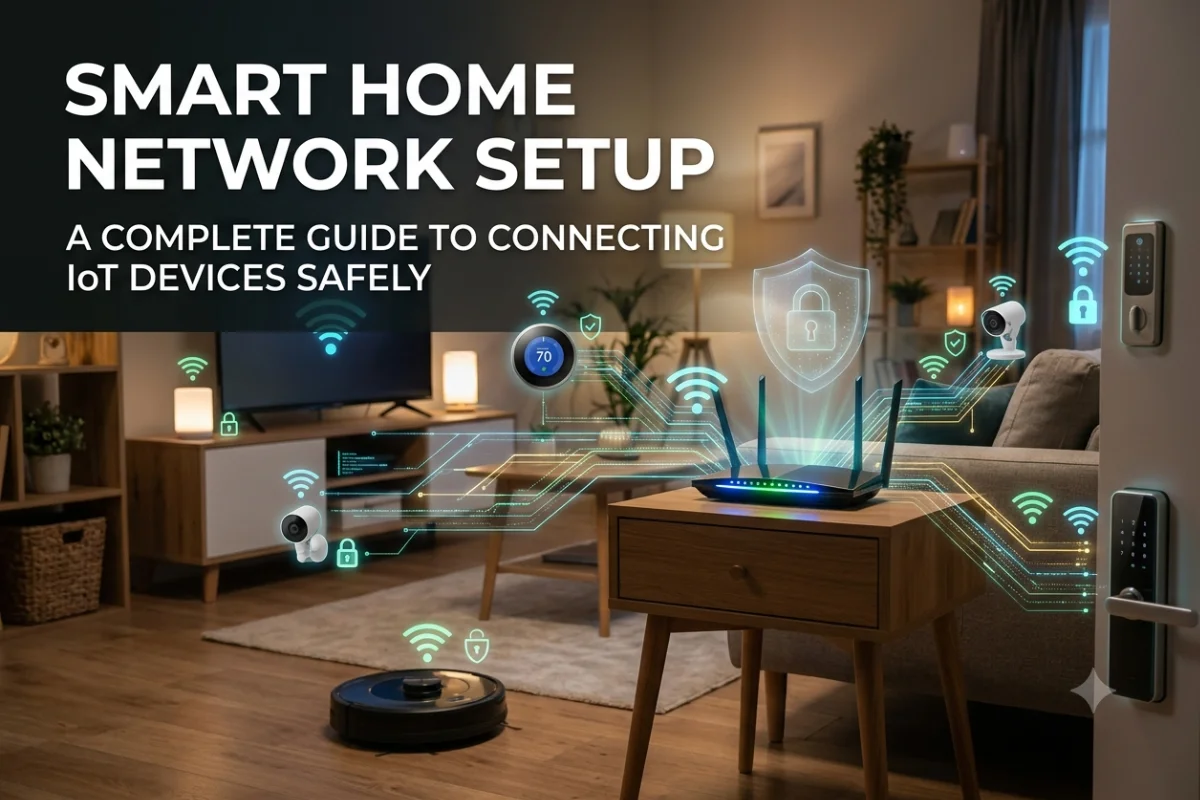
Nowadays, you can find dozens of connected devices in a home.
Smart cameras, plugs, thermostats, TVs, speakers and appliances others may not have the same security features as computers and Smartphones.
A user session or IoT network isolation can mitigate the risk of a compromised device.
For example, your primary network could contain:
- Personal computers
- Phones
- Work devices
- Trusted tablets
- Network storage
A separate IoT network could contain:
- Smart TVs
- Smart bulbs
- Smart plugs
- Cameras
- Smart speakers
- Other connected appliances
A guest network can similarly provide internet access to visitors without giving their devices direct access to your primary devices.
Why Network Separation Helps
Imagine that a vulnerable smart device becomes compromised.
If that device sits on the same unrestricted network as your laptop and NAS, an attacker may have more opportunities to interact with other systems.
Segmentation can reduce this exposure.
Nonetheless, separation by the router is only useful if the router itself actually makes the separation. Many consumer grade routers have some sort of guest-network options that might not allow access to other local machines, while others give much more granular control in terms of VLANs and firewalls.
Refer to the documentation of the home router so you know precisely what the guest and IoT features isolate.
WPA3 and Smart Home Devices
The presence of smart-home appliances is another factor that makes WiFi security more critical.
Many IoT devices have scarce processing power, rare firmware updates, and long lifetime. Products may continue to run for years without getting any significant security upgrades.
When buying new WiFi-enabled devices, check:
- WPA3 support
- Firmware-update policy
- Manufacturer security support
- Ability to change default credentials
- Local network requirements
- Cloud-account security
- Compatibility with your router‘s security mode
If the new device does not support WPA3, you might be required to use WPA2/WPA3 transition mode or a dedicated IoT network.
WPA3 Does Not Replace Other Security Measures
A secure WiFi network requires more than encryption.
Consider your network security from 7 layers of the OSI model.
Wireless security: Employ WPA3 if available.
Globally strong credentials: unique passwords (for WiFi, router administration, websites), one-time passwords, if possible.
Firmware: Always ensure your router and all the enabled devices are running the newest firmware versions.
Segmentation: Segregate guest and perhaps less-trusted IoT devices whenever possible.
Device security: implement screen lock, endpoint protection, application patching, and strong account authentication.
Monitoring: Be aware of any devices on your network that you do not recognize.
And this multi-layered process is in line with a wider NIST recommendation that WLAN security covers five areas configuration, device security, maintenance and monitoring.
WPA3 for Businesses
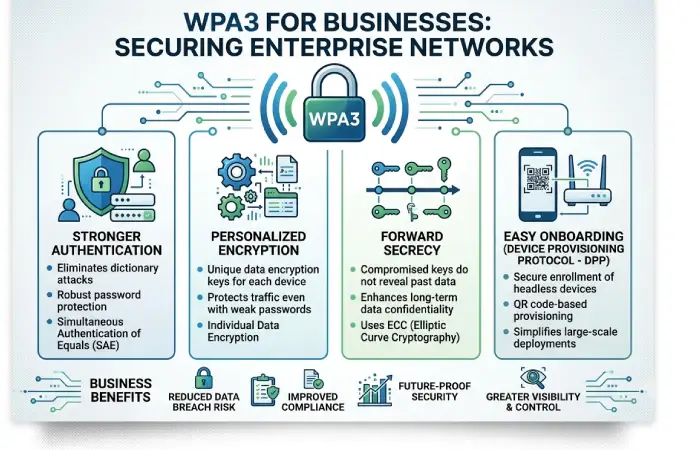
Companies have differing needs than home users.
WPA3-Personal might be appropriate for small scale environment that can share the same WiFi password, but most organizations require centralized identity management and more robust access control.
WPA3-Enterprise: supports enterprise environments and can reference to authentication infrastructure as opposed to only shared wireless password.
A certified implementation of WPA3-Enterprise is also allowed to support enterprise authentication method, and the 192bit security mode.
In addition, enterprises need to think about network segmentation, access-control policy, Monitoring, secure management console, and regular update of firmware.
WPA3 Troubleshooting Tips
If a device wasn‘t able to connect after turning on WPA3, one could try the following.
Check compatibility: Ensure the device and the router is supported by chosen mode of WPA3.
Upgrade the device:. Upgrade the device‘s operating-system, driver, or firmware.
Forget and reconnect: Delete the stored WiFi and reconnect to your network.
Test transition mode: in case of connection failure by older ones, react temporarily on WPA2/WPA3 transition mode.
Check the 2.4 GHz and 5 GHz bands: Certain routers display various security settings depending on the wireless band it is using.
Review router documentation: Manufacturer terminology and compatibility rules vary considerably.
If an older IoT product only supports WPA2, putting it on a properly isolated IoT network may be preferable to weakening security across the entire primary network.
WPA3 Security Checklist
Use this checklist when securing a home or small-office WiFi network:
| Security task | Recommended action |
| WiFi security | Use WPA3-Personal if available. |
| Memorable password | Use a long and unique passphrase |
| Router firmware | Keep it updated |
| Admin password | Change the default |
| WPS | Disable if unnecessary |
| Guest network | Use for visitors |
| IoT devices | Consider a separate network |
| Old devices | Use transition mode when necessary |
| Router management | Avoid unnecessary remote administration |
| Connected devices | Review them periodically |
Final Thoughts
WiFi security with WPA3 represents an important step forward in modern wireless networking especially WPA3-Personal with the SAE authentication system. It is aimed at improving resistance to password-guessing attacks, making the security more up-to-date for machines able to use it.
The practical way is very easy for most home users: if your router supports WPA3-Personal then just use it, if all your devices do just use it, keep a strong unique WiFi password, keep firmware up to date, separate guests or IoT devices if needed.
If one or more of the older devices precludes a setup that is solely WPA3 capable, going for a WPA2/WPA3 transition mode will allow newer equipment to take advantage of it. Gradually retirement of the older equipment will simplify the transition toward a complete modern wireless security setup.