
Last Updated: September 15, 2026
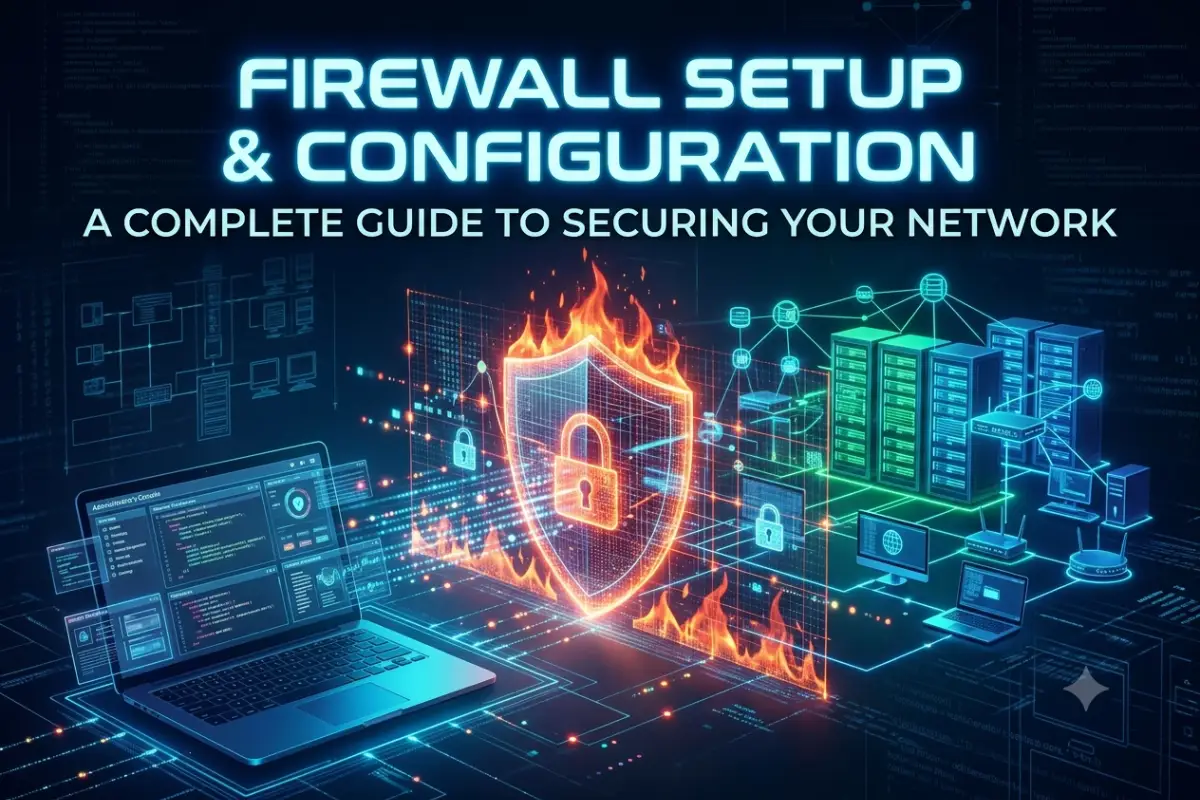
A firewall is one of the most important security controls for a home, office, or business network. It monitors network traffic and applies security rules to determine which connections should be allowed or blocked.
However, simply enabling a firewall is not enough. A poorly configured firewall can leave unnecessary ports exposed, block legitimate applications, or make troubleshooting difficult.
This guide explains firewall setup and configuration in practical terms. You will learn what a firewall does, how hardware and software firewalls differ, how to create firewall rules, block unwanted traffic, and monitor firewall logs.
What a Firewall Does
A firewall acts as a traffic control point between trusted and untrusted networks.
For a typical home network, the router’s built-in firewall can inspect traffic between your local devices and the internet. In a business, dedicated firewalls can provide more advanced controls between internal networks, guest networks, servers, remote users, and the internet.
When traffic reaches a firewall, it evaluates the connection against configured rules. Depending on those rules, the firewall can allow, block, reject, or log the traffic.
Firewall Functions
| Function | What it does |
| Traffic filtering | Allows or blocks network traffic |
| Port control | Restricts access to network ports |
| IP filtering | Controls traffic from specific IP addresses |
| Application control | Controls selected applications or services |
| Network segmentation | Separates different network zones |
| Logging | Records selected network events |
| VPN support | Helps secure remote network connections |
| Threat prevention | Some advanced firewalls detect malicious traffic |
A firewall is not the same as antivirus software.
Antivirus protects against malicious software on a device, while a firewall primarily controls network communication. A strong security strategy generally uses multiple layers of protection.
Hardware vs Software Firewalls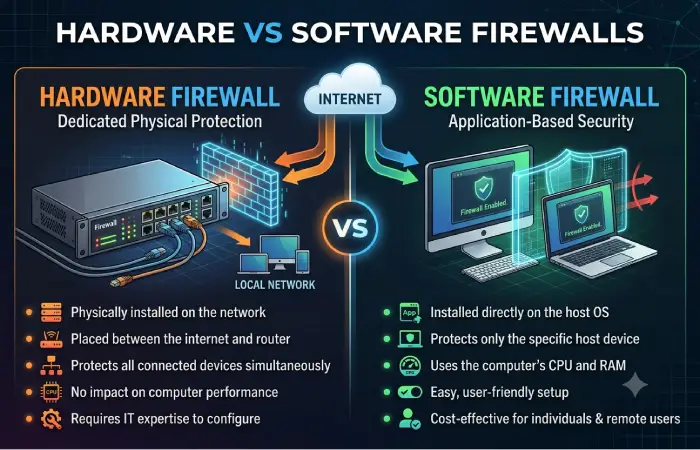
Firewalls can operate on dedicated network equipment, routers, operating systems, cloud platforms, or security applications.
Hardware Firewalls
A hardware firewall is normally positioned at the network boundary.
For example:
Internet → Modem/ONT → Firewall/Router → Switch → Devices
This allows one firewall to protect multiple computers, phones, servers, smart devices, and other network equipment.
Hardware firewalls are particularly useful for businesses because they can provide centralized policies and network segmentation.
Software Firewalls
A software firewall runs directly on a computer, server, or other endpoint.
It can control traffic entering or leaving that particular device.
Software firewalls are useful when different devices need different security policies. They can also provide protection when a laptop leaves the office network and connects to another network.
Hardware vs Software Firewall
| Feature | Hardware Firewall | Software Firewall |
| Location | Network gateway | Individual device |
| Main protection | Multiple devices | One endpoint |
| Centralized management | Usually yes | Usually device-specific |
| Resource usage | Dedicated hardware | Uses device resources |
| Best for | Homes, offices, businesses | PCs, servers, endpoints |
| Protection outside network | Limited unless supported | Strong endpoint protection |
For many environments, using both provides better defense.
Firewall Setup: What to Do First
Before changing firewall settings, understand your network.
Identify:
- Internet connection
- Router or gateway
- Firewall device
- Switches
- Wi-Fi access points
- Computers and servers
- Printers
- IoT devices
- Guest devices
- Remote-access requirements
Create a simple network diagram if possible.
For example:
Internet → Router/Firewall → Main Switch → PCs + Servers + Access Points
If your network has sensitive systems, consider separating them into different network segments.
For example, guest Wi-Fi should generally not have unrestricted access to internal business systems.
Configuring Firewall Rules
Firewall rules tell the firewall what traffic should be allowed, blocked, or logged.
A rule commonly contains information such as:
- Source IP address or network
- Destination IP address or network
- Protocol
- Source port
- Destination port
- Direction
- Action
- Logging requirement
For example, a rule might allow HTTPS traffic from internal users to internet destinations.
Use Specific Rules
Avoid creating unnecessarily broad rules.
For example, allowing all traffic from every source to every destination creates a large attack surface.
A more controlled approach is:
Allow only the source → destination → protocol → port combination that is actually required.
Rule Order Matters
Many firewalls process rules sequentially.
A broad rule placed above a more specific rule can produce unexpected results.
For example:
- Allow all traffic
- Block traffic from a specific IP
The second rule may never be reached.
A better design is to place specific restrictions where appropriate and keep the rule set logical and easy to audit.
Default-Deny Approach
A useful security principle is to deny traffic that is not explicitly required.
This is often described as:
Default deny + explicit allow
However, don’t blindly block everything on an existing production network. Some essential services may depend on specific traffic.
Test changes carefully before applying restrictive policies.
Port Blocking and Traffic Filtering
Network ports identify services or applications communicating over a network.
Some commonly encountered ports include:
| Port | Common Use | Protocol |
| 22 | SSH | TCP |
| 25 | SMTP | TCP |
| 53 | DNS | TCP/UDP |
| 80 | HTTP | TCP |
| 123 | NTP | UDP |
| 443 | HTTPS | TCP |
| 3389 | Remote Desktop | TCP |
The presence of an open port does not automatically mean a system is compromised.
However, unnecessary exposed services increase potential attack opportunities.
Should You Block Unused Ports?
Yes, where appropriate.
Start by identifying which services your network actually needs.
Then:
- Identify listening services.
- Determine who needs access.
- Restrict access to known sources where possible.
- Remove unnecessary internet exposure.
- Monitor the resulting traffic.
- Document the rule.
Inbound vs Outbound Filtering
Inbound filtering controls traffic entering a network or device.
Outbound filtering controls traffic leaving it.
Inbound controls are particularly important for preventing unauthorized external access.
Outbound filtering can also be valuable because compromised devices may attempt to communicate with external command-and-control infrastructure or unauthorized services.
For business networks, consider whether outbound access needs to be restricted for sensitive systems.
Firewall Rules for Common Network Services
Different services require different rules.
For example, a public web server may need HTTPS access from the internet.
A database server usually should not be directly accessible from the public internet.
A safer architecture could be:
Internet → Firewall → Web Server → Internal Application/Database Network
The firewall can restrict database access so that only the application server can communicate with the database.
This reduces unnecessary exposure.
Monitoring Firewall Logs
Firewall logs provide visibility into network activity.
Depending on the firewall, logs may record:
- Allowed connections
- Blocked connections
- Source IP addresses
- Destination IP addresses
- Ports
- Protocols
- Timestamps
- Rule identifiers
- Connection states
Regular monitoring can help identify unusual activity.
What to Look For
Pay attention to repeated blocked connections from the same source.
Also investigate unexpected traffic to unusual ports, repeated connection attempts, and sudden changes in normal network behavior.
A single blocked connection is not necessarily an attack.
Patterns are generally more useful than isolated events.
Example Log Review
Suppose a firewall repeatedly records:
External IP → Internal Device → TCP 3389 → Blocked
This could indicate scanning or attempted remote-access connections.
If the device does not need external Remote Desktop access, keeping that traffic blocked is appropriate.
If the activity continues at high volume, investigate the source, affected device, and broader network logs.
Firewall Configuration Best Practices
1. Change Default Credentials
If your firewall or router uses default administrator credentials, change them immediately.
Use a strong, unique administrative password.
2. Keep Firmware Updated
Firewall software and firmware can contain security fixes.
Enable automatic updates where appropriate, or establish a regular update process.
3. Disable Unnecessary Services
Turn off services and management interfaces that are not required.
This reduces the number of possible attack paths.
4. Restrict Administrative Access
Do not expose firewall administration interfaces to the public internet unless there is a strong operational reason and appropriate protection.
Prefer management from trusted networks or secure remote-access methods.
5. Use Network Segmentation
Separate sensitive systems from less trusted devices.
Common segments include:
- Employee devices
- Servers
- Guest Wi-Fi
- IoT devices
- Security cameras
- Management systems
6. Review Rules Regularly
Old firewall rules can remain long after the application or service they supported has disappeared.
Schedule periodic rule reviews.
Remove rules that are no longer necessary.
7. Enable Logging Strategically
Logging everything can create excessive noise and storage requirements.
Log important security events and monitor patterns that matter to your environment.
8. Back Up Firewall Configuration
Maintain a secure backup of your firewall configuration.
This can make recovery considerably easier after hardware failure or an incorrect configuration change.
Common Firewall Configuration Mistakes
Even experienced administrators can create problems with overly broad or outdated rules.
Allowing All Traffic
A rule that permits unrestricted traffic defeats much of the firewall’s purpose.
Opening Ports Without a Clear Need
Never open a port simply because an application recommends it without understanding the security implications.
Exposing Administrative Services
Management interfaces should receive additional protection.
Creating Duplicate Rules
Large rule sets can become difficult to understand when duplicate or overlapping rules accumulate.
Ignoring Outbound Traffic
Only controlling incoming connections may leave important security gaps.
Never Reviewing Logs
A firewall that generates security events but is never monitored provides limited visibility.
Making Changes Without Documentation
Document what a rule does, why it exists, who approved it, and when it should be reviewed.
Firewall Setup for Home Networks
Home users can usually start with the firewall built into their router.
Recommended steps include:
- Update the router firmware.
- Change the default administrator password.
- Disable unnecessary remote administration.
- Keep the firewall enabled.
- Review port-forwarding rules.
- Use WPA2/WPA3 security for Wi-Fi, depending on device compatibility.
- Create a guest network for visitors and less-trusted devices.
- Review connected devices regularly.
Avoid exposing services such as remote administration directly to the internet unless you understand the risks and have implemented appropriate safeguards.
Firewall Setup for Small Businesses
Small businesses generally need more control than a basic home router provides.
A business firewall can help manage:
- Employee networks
- Guest networks
- Servers
- VPN connections
- Remote workers
- VoIP systems
- Cloud applications
- IoT equipment
Start by documenting business requirements.
For every required service, determine:
Who needs it? Where is the service hosted? Which protocol does it use? Which ports are required?
Then create the narrowest practical rule.
How to Test Firewall Configuration
After making changes, test both allowed and blocked traffic.
For example:
| Test | Expected Result |
| Authorized HTTPS connection | Allowed |
| Unauthorized management connection | Blocked |
| Guest network accessing internal server | Blocked if policy requires |
| Internal user accessing approved service | Allowed |
| Unused external port scan | Blocked |
Do not assume a rule works simply because it appears correctly in the configuration interface.
Verify the behavior using appropriate network testing and firewall logs.
Firewall Troubleshooting
If an application suddenly stops working after a firewall change, check the rule set first.
Look for:
- Blocked destination ports
- Incorrect source networks
- Wrong protocol
- Rule-order problems
- NAT configuration
- DNS issues
- Application-specific requirements
- Asymmetric routing
Firewall logs can often reveal exactly where traffic is being blocked.
When troubleshooting, make one controlled change at a time.
This makes it easier to identify which rule caused the problem.
Firewall vs Router: What’s the Difference?
Routers and firewalls perform different primary functions, although modern network devices often combine both.
A router moves traffic between different networks.
A firewall controls traffic according to security policies.
Many consumer routers include basic firewall capabilities, while business-grade security gateways can combine routing, firewalling, VPN, intrusion prevention, web filtering, and other features.
Firewall Setup Checklist
Before considering your configuration complete, verify the following:
| Check | Status |
| Firewall enabled | ☐ |
| Administrative password changed | ☐ |
| Firmware updated | ☐ |
| Unnecessary services disabled | ☐ |
| External management restricted | ☐ |
| Unused ports closed | ☐ |
| Firewall rules documented | ☐ |
| Guest network separated | ☐ |
| Important events logged | ☐ |
| Configuration backed up | ☐ |
| Rules reviewed periodically | ☐ |
Frequently Asked Questions
What is firewall configuration?
Firewall configuration is the process of setting rules and security policies that determine which network traffic is allowed, blocked, or monitored.
Should I keep my firewall turned on?
Yes. For most home and business networks, the firewall should remain enabled unless there is a specific technical reason to disable it temporarily.
What ports should I block?
There is no universal list of ports that every network should block. Instead, identify services you do not need and restrict unnecessary exposure.
What is the difference between inbound and outbound firewall rules?
Inbound rules control traffic entering a device or network. Outbound rules control traffic leaving it.
Is a router firewall enough for a home network?
A modern router firewall can provide useful baseline protection for many homes. Additional endpoint security, secure Wi-Fi configuration, updates, and safe device practices are still important.
How often should firewall rules be reviewed?
Review them periodically and whenever applications, network architecture, users, or security requirements change. Businesses should establish a formal rule-review process.
Can a firewall stop all cyberattacks?
No. A firewall is one layer of security. It should be combined with endpoint protection, software updates, strong authentication, secure configuration, backups, monitoring, and user security awareness.
Final Thoughts
Effective firewall setup and configuration is about controlling network access without unnecessarily disrupting legitimate traffic.
Start by understanding your network and identifying the services that actually need connectivity.
Then create specific rules, restrict unnecessary ports, protect administrative interfaces, monitor logs, and review the configuration regularly.
For home users, a properly configured router firewall provides an important security foundation. For businesses, firewall policies should form part of a broader network-security strategy that includes segmentation, secure remote access, monitoring, endpoint protection, and regular security reviews.