

Last Updated: September 15, 2026
What Is WiFi Optimization?
WiFi optimization is the process of improving a wireless network’s speed, coverage, reliability, latency, and overall performance.
A fast internet plan does not automatically guarantee fast WiFi. Router placement, wireless interference, network congestion, device capabilities, channel selection, firmware, and building layout can all affect the connection.
Effective WiFi optimization addresses these factors together.
For a small apartment, moving the router to a better location may make a noticeable difference. Larger homes and offices may benefit from wired access points or a properly configured mesh WiFi system.
The goal is not simply to achieve the highest speed beside the router. A well-optimized network should provide a stable connection throughout the areas where you actually use your devices.
Why Is WiFi Optimization Important?
Poor WiFi performance can appear in several ways.
Websites may load slowly. Video calls may freeze. Streaming services can buffer. Smart-home devices can disconnect, while online games may experience high latency.
Common causes include:
- Router positioned behind furniture or inside cabinets
- Too much distance between the router and device
- Interference from neighboring WiFi networks
- Congested wireless channels
- Outdated router firmware
- Too many connected devices
- Weak 5 GHz or 6 GHz coverage
- Poorly configured mesh nodes
- Old WiFi standards
- Wireless backhaul limitations
Before buying new equipment, identify the actual problem.
If your internet connection is slow even when a computer is connected directly to the router with Ethernet, replacing your WiFi equipment may not solve the underlying issue.
How to Optimize WiFi Step by Step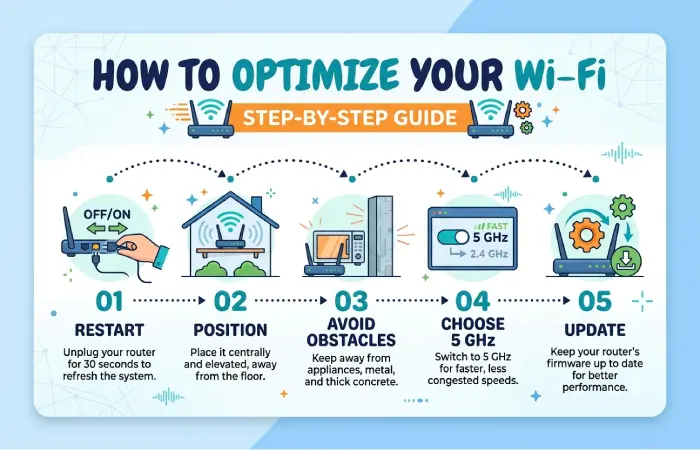
A practical WiFi optimization process should begin with the basics.
1. Check Your Internet Connection
Connect a computer directly to the router using Ethernet and run a speed test.
Compare the result with the download and upload speeds included in your internet plan.
If the wired connection is already significantly slower than expected, contact your internet provider or investigate the router, modem, or service connection before troubleshooting wireless coverage.
2. Place Your Router Correctly
Router placement is one of the easiest improvements you can make.
Place the router in a relatively central and elevated location. Keep it away from thick walls, large metal objects, enclosed cabinets, and appliances that may contribute to interference.
Avoid placing the router on the floor.
A central position can help distribute the wireless signal more evenly across your home.
3. Update Router Firmware
Router manufacturers periodically release firmware updates that can improve security, compatibility, stability, and performance.
Log in to your router’s administration interface and check for available updates.
Enable automatic firmware updates if your router supports them.
4. Reduce Wireless Interference
WiFi operates using radio frequencies that can become crowded.
Neighboring wireless networks, Bluetooth devices, microwave ovens, cordless equipment, and other electronics can contribute to interference depending on the frequency and environment.
Reducing unnecessary wireless congestion can improve reliability.
5. Choose the Right WiFi Band
Modern routers commonly support multiple wireless bands.
2.4 GHz generally provides greater range and better wall penetration but has fewer available channels and can experience more congestion.
5 GHz usually provides higher speeds and more capacity but has shorter effective range.
6 GHz, available with WiFi 6E and WiFi 7 equipment, provides additional spectrum and can offer cleaner high-speed connections where compatible devices and regulatory support are available.
| WiFi Band | Coverage | Typical Advantage | Best Use |
| 2.4 GHz | High | Longer range | IoT and distant devices |
| 5 GHz | Medium | Speed and capacity | Streaming, laptops, gaming |
| 6 GHz | Lower to medium | Clean high-capacity spectrum | Compatible newer devices |
The best band depends on your home, router, devices, and local wireless environment.
WiFi Channel Selection
WiFi channel selection can have a significant effect on performance in congested environments.
A wireless channel is essentially a portion of the radio spectrum used for communication.
When many nearby networks compete for the same or overlapping channels, interference can increase.
2.4 GHz Channel Selection
The 2.4 GHz band is particularly susceptible to congestion because it has fewer practical non-overlapping channel options.
In many environments, channels 1, 6, and 11 are commonly used because they avoid overlapping with one another when using standard 20 MHz channel widths.
However, the best choice depends on your local wireless environment.
5 GHz Channel Selection
The 5 GHz band provides more channel options and generally has less congestion than 2.4 GHz.
Your router may automatically select a channel, or you may be able to choose one manually.
Automatic selection is often a good starting point.
If you experience intermittent performance, use a WiFi analyzer to inspect nearby networks and identify congestion.
Should You Use Wider Channels?
Wider channels can increase theoretical throughput.
However, wider channels also consume more spectrum and may encounter more interference.
For example, a 160 MHz channel can provide higher peak performance than an 80 MHz channel under suitable conditions.
In a crowded environment, however, a narrower channel may deliver a more consistent connection.
Maximum channel width is not always the same as maximum real-world performance.
WiFi Signal Boosters and Extenders
WiFi extenders and boosters can improve coverage in areas where the router’s signal is weak.
A traditional wireless extender receives the WiFi signal and retransmits it.
This can be useful for eliminating a small dead zone, but there is a major trade-off.
If the extender communicates wirelessly with both the router and client device, some wireless capacity can be consumed by repeating traffic.
When Should You Use a WiFi Extender?
An extender can make sense when:
- You have a relatively small dead zone.
- Running Ethernet is impractical.
- You need an inexpensive coverage improvement.
- Your performance expectations are moderate.
Place the extender where it can still receive a strong signal from the main router.
Putting an extender inside the dead zone is usually counterproductive.
Mesh WiFi Systems
A mesh WiFi system uses multiple nodes to provide wireless coverage across a larger area.
Instead of relying on one router, the system distributes wireless access throughout the property.
This systems can be particularly useful in larger homes, multi-story buildings, and spaces with difficult layouts.
Mesh WiFi vs WiFi Extender
| Feature | WiFi Extender | Mesh WiFi |
| Coverage | Expands existing network | Designed for whole-home coverage |
| Management | Often separate settings | Usually centralized |
| Roaming | Can be less seamless | Generally better |
| Scalability | Moderate | High |
| Setup | Usually inexpensive | Usually easier as a complete system |
| Cost | Lower | Higher |
| Best for | Small dead zones | Larger homes and multiple areas |
Mesh does not automatically mean faster.
A poorly positioned mesh node or weak wireless backhaul can still produce disappointing performance.
Wired vs Wireless Mesh Backhaul
A mesh system can communicate between nodes wirelessly or through Ethernet.
A wired Ethernet backhaul is generally preferable when available because the nodes do not need to use wireless spectrum to communicate with one another.
Wireless backhaul can still work very well, especially with modern tri-band systems.
When choosing a mesh system, consider whether it supports Ethernet backhaul and whether that feature fits your home’s wiring.
WiFi 6 and WiFi 7 Explained
The wiFi generations have evolved beyond simply increasing maximum speed.
WiFi 6, based on the IEEE 802.11ax standard, introduced technologies designed to improve efficiency and performance in environments with many connected devices.
These include technologies such as OFDMA and improved multi-user operation.
WiFi 6E extends WiFi 6 capabilities into the 6 GHz band where permitted.
WiFi 7, based on IEEE 802.11be, adds capabilities designed for higher throughput, lower latency, and better use of multiple bands.
One important WiFi 7 feature is Multi-Link Operation (MLO), which allows compatible devices to use multiple links in supported configurations.
| Generation | Standard | Key Advantage |
| WiFi 5 | 802.11ac | Strong 5 GHz performance |
| WiFi 6 | 802.11ax | Better efficiency and capacity |
| WiFi 6E | 802.11ax | Adds 6 GHz support |
| WiFi 7 | 802.11be | Higher performance and multi-link capabilities |
Buying the newest router is not automatically the best WiFi optimization strategy.
Your client devices must also support the relevant technology to benefit from many of the newer features.
WiFi Speed Test and Diagnostics
A WiFi speed test can help determine whether your wireless network is performing as expected.
However, one speed test does not tell the entire story.
Test from multiple locations.
For example:
- Test beside the router.
- Test from the room where performance is poor.
- Test farther away from the router.
- Test using both 2.4 GHz and 5 GHz where applicable.
- Compare WiFi performance with Ethernet.
- Repeat tests at different times of day.
Record download speed, upload speed, latency, and consistency.
What Your Speed Test Can Tell You
| Result | Possible Issue |
| Ethernet slow and WiFi slow | ISP, modem, or router issue |
| Ethernet fast, WiFi slow everywhere | Wireless configuration or router issue |
| WiFi fast near router, slow far away | Coverage problem |
| Speed varies dramatically | Interference or congestion |
| Good speed but high latency | Network congestion or routing issue |
| One device slow, others fast | Device-specific limitation |
Also check whether your device is connected to the intended WiFi band.
A device that supports only older WiFi technology cannot take full advantage of a newer router.
How to Improve WiFi Speed
Start with the simplest changes before spending money.
Move the router to a better position.
Update firmware.
Reduce unnecessary wireless congestion.
Use 5 GHz or 6 GHz for compatible high-bandwidth devices when appropriate.
Choose suitable channel settings.
Remove obsolete devices that are no longer needed.
If coverage remains poor, consider adding a wired access point or mesh system.
The most effective solution depends on the cause of the performance problem.
How to Reduce WiFi Latency
Speed and latency are not the same thing.
Download speed measures how quickly data can be transferred. Latency measures how long it takes data to travel between endpoints.
Low latency is especially important for:
- Online gaming
- Video conferencing
- Remote desktop connections
- Voice calls
- Real-time collaboration
- Cloud applications
For latency-sensitive devices, use Ethernet whenever practical.
If wireless is required, maintain a strong connection and minimize congestion.
Some modern routers also provide traffic-management or Quality of Service features that can help prioritize latency-sensitive traffic.
However, these settings should be configured carefully rather than assuming QoS always improves performance.
WiFi Optimization for Gaming
Gaming generally benefits from low latency and stable connectivity more than extremely high download speeds.
For the best results, connect a gaming PC or console through Ethernet when possible.
If wireless is necessary, use a strong 5 GHz or 6 GHz connection with compatible equipment.
Avoid placing the gaming device at the edge of wireless coverage.
Also investigate whether other devices are consuming substantial bandwidth during gaming sessions.
A busy network can create latency spikes even when the internet connection has plenty of total bandwidth.
WiFi Optimization for Video Calls
Video conferencing requires a stable connection rather than simply a high advertised speed.
Place your computer within strong WiFi coverage.
If possible, use Ethernet for important meetings.
Avoid large downloads, cloud backups, and high-bandwidth streaming during critical calls.
If multiple people work remotely from the same home, a modern router with adequate capacity can help manage simultaneous connections.
WiFi Optimization for Smart Homes
Smart homes can contain dozens or even hundreds of connected devices.
Many inexpensive IoT devices still operate primarily on 2.4 GHz.
This makes network design important.
Keep IoT devices within reliable coverage and avoid unnecessary interference.
Some routers allow users to create a separate IoT network or guest network.
This can help organize devices and reduce the risk of allowing less-trusted smart devices to communicate freely with computers and personal devices.
How Many Devices Can WiFi Handle?
There is no universal maximum number of WiFi devices.
A router’s practical capacity depends on its hardware, WiFi generation, channel configuration, client behavior, traffic patterns, and the quality of the wireless environment.
Ten devices performing light tasks may place less demand on a network than three devices simultaneously streaming high-resolution video and transferring large files.
Modern WiFi systems are designed to handle many simultaneous clients more efficiently than older generations.
For busy homes and offices, capacity should therefore be evaluated based on concurrent activity, not just the number of connected devices.
Common WiFi Optimization Mistakes
Hiding the Router in a Cabinet
This can obstruct wireless signals and reduce coverage.
Buying an Extender Before Testing
An extender may not solve the actual problem.
Identify whether the issue is interference, router placement, ISP performance, or inadequate coverage first.
Using Maximum Channel Width Everywhere
Wider channels can provide higher theoretical speeds but may perform poorly in congested environments.
Placing Mesh Nodes Too Far Apart
A mesh node needs a sufficiently strong connection to the rest of the network.
Ignoring Ethernet
Wireless is convenient, but Ethernet can provide lower latency and greater consistency for stationary high-performance devices.
Testing Only Beside the Router
A perfect speed test next to the router does not prove that every room has good coverage.
Replacing Equipment Without Diagnosing the Problem
New hardware can help, but it can also be an expensive solution to the wrong problem.
Best WiFi Optimization Checklist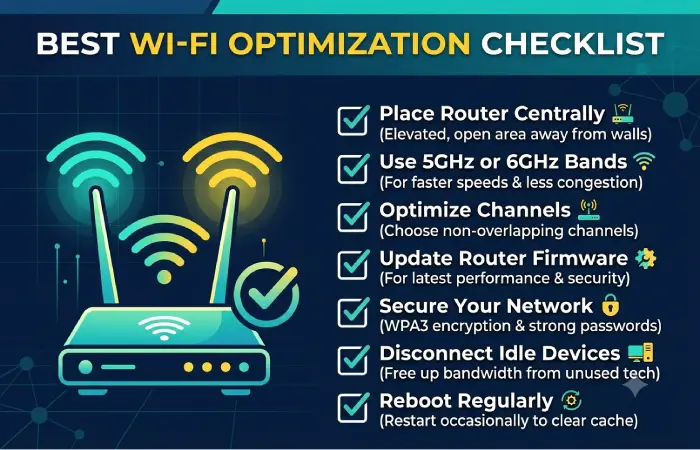
Use this checklist when troubleshooting a slow or unreliable wireless network:
- Check your wired internet speed.
- Restart and update the router.
- Place the router centrally and away from obstructions.
- Check nearby WiFi networks for congestion.
- Select an appropriate WiFi channel.
- Use 5 GHz or 6 GHz when appropriate.
- Keep older 2.4 GHz devices on 2.4 GHz.
- Test WiFi performance in multiple rooms.
- Move mesh nodes into stronger coverage areas.
- Prefer Ethernet backhaul for mesh when practical.
- Use Ethernet for stationary high-performance devices.
- Review connected devices.
- Check for firmware updates.
- Monitor latency as well as download speed.
- Replace hardware only when diagnostics justify it.
WiFi Optimization: Quick Comparison
| Problem | First Solution to Try | Possible Long-Term Solution |
| Weak signal | Move router | Mesh or access points |
| Congested 2.4 GHz | Change channel/use 5 GHz | Modern multi-band system |
| Dead zone | Reposition router | Mesh or wired AP |
| High gaming latency | Ethernet | Better network design |
| Slow WiFi everywhere | Test Ethernet | Router/ISP investigation |
| Large multi-story home | Mesh placement | Wired access points |
| Too many devices | Review network load | Higher-capacity router |
| Smart-home disconnects | Improve 2.4 GHz coverage | Dedicated IoT network/AP |
Frequently Asked Questions
What is WiFi optimization?
WiFi optimization is the process of improving wireless network performance by addressing router placement, interference, channels, coverage, configuration, equipment, and connected devices.
How can I improve my WiFi speed?
Start by testing your wired internet speed, moving the router to a central location, updating firmware, reducing interference, selecting an appropriate WiFi band and channel, and testing performance in different locations.
Is 5 GHz better than 2.4 GHz?
Neither is universally better. 5 GHz generally provides higher performance over shorter distances, while 2.4 GHz generally offers greater range and better penetration through obstacles.
Do WiFi extenders increase speed?
WiFi extenders primarily increase coverage. They do not inherently increase the speed provided by your internet connection and can sometimes reduce wireless throughput depending on how they communicate with the main router.
Is mesh WiFi better than an extender?
Mesh WiFi is generally better suited to whole-home coverage and seamless management, while an extender can be a practical solution for a smaller dead zone.
Should I upgrade to WiFi 7?
Consider WiFi 7 if you have compatible devices, need higher wireless performance, or are building a new network expected to remain in use for several years. Upgrading solely for the label may not provide a noticeable benefit if your existing devices are older.
How often should I run a WiFi speed test?
Run a test whenever you experience unexplained performance problems, after major network changes, or when checking whether an upgrade improved performance. Testing from multiple locations provides more useful information than a single test.
Why is my WiFi fast near the router but slow in another room?
The most common explanation is reduced signal strength, physical obstructions, interference, or distance. Repositioning the router, adding a wired access point, or using a properly positioned mesh node can improve coverage.
Final Thoughts
Effective WiFi optimization is less about buying the most expensive router and more about understanding how your network behaves.
Start with diagnosis.
Check your wired connection, improve router placement, reduce interference, select appropriate channels, and test coverage throughout your home or office.
If a single router cannot provide reliable coverage, consider a properly designed mesh system or wired access points.
For newer networks, WiFi 6, WiFi 6E, and WiFi 7 can provide improvements in capacity, efficiency, and performance when compatible devices are available.
The best wireless network is not necessarily the one with the highest advertised speed. It is the one that provides consistent performance, reliable coverage, low enough latency, and enough capacity for the devices and activities you actually use.