
Last Updated: September 15, 2026
Introduction
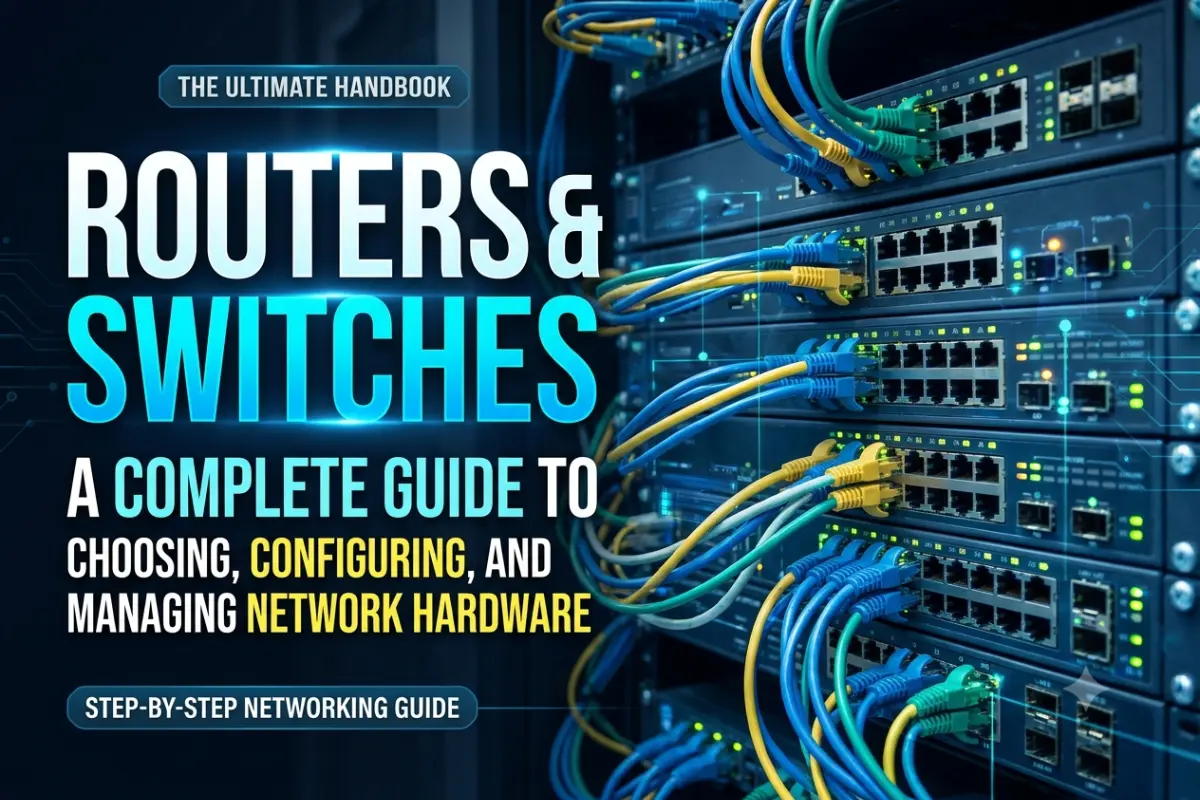
Routers and switches are two of the most important pieces of hardware in a modern network. A router connects different networks and directs internet traffic, while a switch connects devices within the same local network.
Although both devices can have Ethernet ports and appear similar, they perform different jobs. Understanding those differences makes it easier to build a reliable home network, small-office network, or larger business infrastructure.
In this guide, you will learn how routers and switches work, how they differ from modems, what hardware to choose, how to configure a router, when to use managed or unmanaged switches, and how firmware and security settings protect your network.
What Are Routers and Switches?
A router is a networking device that moves data between different networks. In a typical home setup, it connects your private local network to the internet.
A router can also assign IP addresses through DHCP, provide firewall functionality, perform NAT, manage traffic, and offer Wi-Fi when it includes wireless capabilities.
A switch has a narrower primary role. It connects devices on the same local network and forwards Ethernet frames to the appropriate destination.
For example, a desktop PC, network printer, NAS, smart TV, and access point can all connect to an Ethernet switch. The switch allows those devices to communicate without requiring every device to connect directly to the router.
How a Router Works
When you open a website, your computer sends traffic through the local network to the router. The router determines where that traffic needs to go and forwards it toward the destination.
Most consumer routers also perform Network Address Translation (NAT), allowing multiple devices using private IP addresses to share a public internet connection.
How a Switch Works
A switch learns which devices are connected to its ports by examining MAC addresses. It then forwards Ethernet traffic toward the appropriate port rather than sending every frame everywhere.
This makes switches particularly useful when a network has more wired devices than the router’s available Ethernet ports.
Router vs Switch vs Modem
The easiest way to understand these devices is to think about their positions in a network.
| Device | Main Job | Connects | Typical Example |
| Modem | Provides ISP connection | ISP to customer network | Cable modem |
| ONT | Converts fiber service | Fiber to Ethernet | Fiber ONT |
| Router | Connects different networks | LAN to internet/WAN | Home or business router |
| Switch | Connects local wired devices | Device to device | 8-port Ethernet switch |
| Access Point | Provides Wi-Fi | Wireless clients to LAN | Ceiling-mounted AP |
A modem is not necessarily a router. Some internet providers supply combination devices that include modem, router, switch, firewall, and Wi-Fi functionality in one box.
With fiber internet, an ONT commonly performs the network termination function instead of a traditional modem.
Can You Use a Switch Without a Router?
Yes, but its usefulness depends on the network.
A switch can connect devices on a local network without a router. However, if those devices need internet access or communication with another network, a router or another Layer 3 networking device is generally required.
Can a Router Work Without a Switch?
Yes. Most consumer routers include several built-in Ethernet switch ports.
If you need additional wired connections, you can connect an external switch to one of those LAN ports.
Best Routers for Home and Office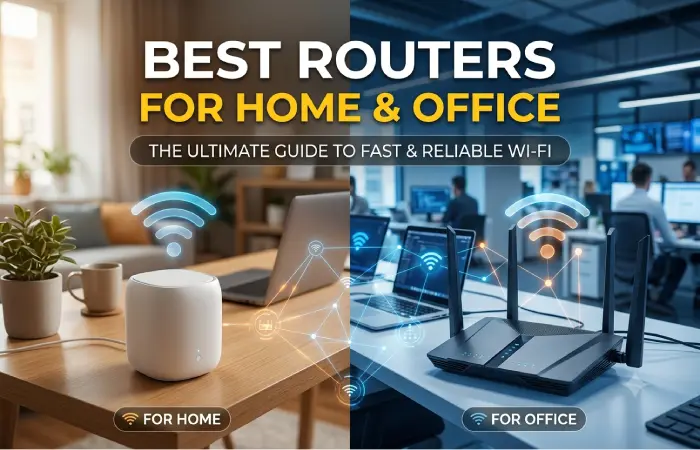
The best router depends on the size of your network, internet speed, number of devices, wireless requirements, security needs, and budget.
Instead of choosing a router based only on its advertised Wi-Fi speed, evaluate the entire network.
Routers for Basic Homes
A basic home router is suitable for apartments and smaller homes with ordinary browsing, streaming, video calls, smart-home devices, and gaming.
Look for:
- Wi-Fi 6 or newer
- Gigabit Ethernet
- WPA3 support
- Automatic firmware updates
- Guest networking
- IPv6 support
- Basic parental controls
- Sufficient wireless coverage
Routers for Larger Homes
Larger homes may benefit from a more powerful router or a mesh Wi-Fi system.
However, adding more antennas does not automatically guarantee better coverage. Building layout, walls, interference, access-point placement, and client-device capabilities all affect real-world performance.
For difficult layouts, consider multiple access points or a mesh system with wired Ethernet backhaul.
Routers for Home Offices
A home-office router should prioritize reliability and security.
Features worth considering include:
- WPA3
- VPN support
- Guest networks
- VLAN support where appropriate
- QoS or traffic-management features
- Multi-gigabit Ethernet
- Automatic security updates
- Strong administrative controls
If your work depends heavily on cloud applications and video meetings, stable latency and reliable coverage may matter more than maximum theoretical Wi-Fi throughput.
Routers for Small Businesses
Small businesses often need more control than consumer routers provide.
Business-oriented equipment can provide:
- VLANs
- Multiple SSIDs
- Firewall policies
- VPNs
- Centralized management
- Traffic monitoring
- Access controls
- Multiple WAN connections
- Advanced logging
The right architecture depends on the number of users, applications, locations, and security requirements.
Managed vs Unmanaged Switches
One of the most important switch-buying decisions is whether you need a managed or unmanaged model.
An unmanaged switch works with minimal configuration. You connect Ethernet cables and the switch handles basic forwarding automatically.
A managed switch provides administrative controls that allow you to configure and monitor how the network operates.
| Feature | Unmanaged Switch | Managed Switch |
| Plug and play | Yes | Usually requires configuration |
| VLANs | No | Yes |
| Traffic monitoring | Limited | Extensive |
| Port configuration | Limited | Advanced |
| QoS | Limited/No | Usually available |
| Security controls | Basic | Advanced |
| Remote management | Usually no | Often available |
| Best for | Simple networks | Business and advanced networks |
| Cost | Lower | Higher |
When to Choose an Unmanaged Switch
Choose an unmanaged switch when you simply need more Ethernet ports.
For example, a home office with a router and four wired devices might use an inexpensive 8-port gigabit switch.
When to Choose a Managed Switch
A managed switch becomes more useful when you need network segmentation or centralized control.
Businesses can use VLANs to separate employee devices, guest traffic, IP cameras, VoIP phones, and IoT equipment.
Managed switches can also provide better visibility into network activity and allow administrators to configure port-level policies.
Ethernet Speed: 1GbE, 2.5GbE, and 10GbE
Network hardware should match the speeds of your internet connection and internal devices.
| Ethernet Standard | Approximate Link Speed | Suitable For |
| Fast Ethernet | 100 Mbps | Legacy/basic equipment |
| Gigabit Ethernet | 1 Gbps | Most homes and offices |
| 2.5GbE | 2.5 Gbps | Fast internet and modern NAS systems |
| 5GbE | 5 Gbps | High-performance networks |
| 10GbE | 10 Gbps | Servers, workstations, NAS and professional workloads |
A 10GbE switch will not automatically make a 1Gbps internet connection faster. Its main advantage may be faster communication between compatible devices inside the local network.
For example, video editors moving large files between a workstation and NAS can benefit significantly from multi-gigabit Ethernet.
Router Configuration Guide
A properly configured router improves reliability and reduces common security risks.
The exact interface varies by manufacturer, but the overall process is similar.
1. Connect the Router
The router’s WAN or internet port to the modem, ONT, or ISP-provided Ethernet connection.
Connect a computer using Ethernet if possible during initial configuration.
2. Access the Administration Interface
Open the router’s management application or local administration page.
Follow the manufacturer’s setup instructions rather than relying on a default administrator password.
3. Change Default Administrator Credentials
One of the first steps should be changing default administrative credentials.
Use a long, unique password that is not reused elsewhere.
If the router supports multi-factor authentication for cloud administration, enable it.
4. Configure the Internet Connection
Depending on your ISP, the router may use DHCP, PPPoE, a static configuration, or another connection method.
Fiber providers may also require specific VLAN or authentication settings.
Use the ISP’s current configuration requirements when necessary.
5. Configure Wi-Fi
Create a clear network name and use a modern security protocol such as WPA3 when supported by your devices.
If older equipment requires WPA2 compatibility, use the most secure mixed mode supported by the router and your devices.
Avoid using easily guessed Wi-Fi passwords.
6. Create a Guest Network
A guest network allows visitors to access the internet without giving them unrestricted access to your primary network.
It can also be useful for some smart-home and IoT devices.
7. Review DHCP Settings
DHCP automatically assigns IP addresses to devices.
For most home networks, the router’s default DHCP configuration is sufficient.
For servers, printers, NAS systems, cameras, and other devices that need predictable addresses, DHCP reservations can be useful.
8. Configure DNS
Many routers allow users to specify DNS servers.
You can use your ISP’s DNS service or choose another reputable DNS provider.
DNS selection can affect filtering, privacy features, reliability, and sometimes browsing performance.
9. Review Firewall Settings
Keep the router’s firewall enabled unless there is a specific technical reason to change it.
Avoid exposing internal services directly to the public internet unless you understand the security implications and have appropriate protections in place.
10. Save a Backup Configuration
If your router supports configuration backups, create one after completing your setup.
Store the backup securely.
This can save considerable time if the device needs to be reset or replaced.
Firmware Updates and Security
Router firmware is an important part of network security.
Manufacturers periodically release firmware updates that can address vulnerabilities, fix bugs, improve compatibility, and add functionality.
Check whether your router supports automatic updates. If it does, enable them when appropriate.
For manually managed devices, establish a regular firmware-review process.
Router Security Checklist
Use these practices to strengthen your network:
- Change default administrator credentials.
- Use WPA3 where practical.
- Use a strong Wi-Fi password.
- Disable unnecessary remote administration.
- Keep firmware updated.
- Disable unused services and ports.
- Use guest networking for visitors.
- Separate sensitive and IoT devices when practical.
- Review connected devices periodically.
- Replace routers that no longer receive security updates.
Security is not a one-time configuration task. Networking equipment should be reviewed and maintained throughout its useful life.
Router Placement and Network Performance
Router placement can have a major effect on Wi-Fi performance.
Avoid placing the router inside cabinets, behind large objects, or near sources of electromagnetic interference.
For a typical home, placing the router near the center of the area that needs coverage can be more effective than positioning it at one extreme end of the building.
For larger properties, use additional access points or a mesh system rather than expecting one router to cover every room.
Router vs Access Point
A router and an access point are not the same thing.
A router manages traffic between networks. An access point primarily provides wireless connectivity to a wired network.
Many home routers combine both functions.
In larger networks, separating these functions can provide greater flexibility. A dedicated router can handle routing and security while multiple access points provide Wi-Fi throughout the building.
When Should You Add a Network Switch?
You should consider adding a switch when you need more wired Ethernet ports or want to build a more structured wired network.
Common devices that benefit from Ethernet include:
- Desktop computers
- NAS systems
- Smart TVs
- Gaming consoles
- Network printers
- Security cameras
- Wireless access points
- VoIP phones
- Servers
Wired connections generally offer more predictable performance than wireless connections, particularly for stationary devices that transfer large amounts of data.
PoE Switches
Power over Ethernet (PoE) allows compatible devices to receive both network connectivity and electrical power through an Ethernet cable.
PoE can simplify installations for:
- Wireless access points
- IP cameras
- VoIP phones
- Certain IoT devices
- Network intercoms
Before buying a PoE switch, verify the required PoE standard and total power budget of the connected devices.
Common Router and Switch Problems
Networking problems can come from hardware, configuration, cabling, interference, ISP issues, or client devices.
Slow Internet
First determine whether the problem affects one device or the entire network.
Run a speed test using a wired connection where possible.
If wired speeds are also poor, investigate the router, Ethernet connection, ISP connection, or service plan.
If wired performance is good but Wi-Fi is slow, investigate wireless coverage, interference, channel selection, client capabilities, and router placement.
Devices Cannot Connect
Check the Ethernet cable, switch port, DHCP configuration, Wi-Fi password, and device network settings.
Restarting the affected device can also help isolate temporary connection problems.
Wi-Fi Drops Frequently
Frequent wireless disconnections can result from interference, poor coverage, outdated firmware, overloaded equipment, or compatibility issues.
Update the router firmware and examine wireless settings before replacing the hardware.
Switch Port Not Working
Try another Ethernet cable and another switch port.
If the problem follows the cable or device, the issue may not be the switch.
Managed switches should also be checked for VLAN, port-security, speed, duplex, and administrative settings.
How to Choose Routers and Switches
Use the following decision framework before buying networking hardware.
| Requirement | Recommended Direction |
| Basic home internet | Wi-Fi router with gigabit Ethernet |
| Large home | Router plus mesh/AP system |
| Home office | Secure Wi-Fi 6/7 router with wired Ethernet |
| Many wired devices | Add an Ethernet switch |
| Simple wired network | Unmanaged switch |
| VLAN requirements | Managed switch |
| IP cameras | PoE switch |
| NAS and large file transfers | Multi-gigabit switch |
| Business network | Managed switches + business-grade routing |
| Multiple locations | Advanced routing/VPN infrastructure |
Do not buy based on speed numbers alone. Check the device’s actual ports, wireless bands, management features, security support, update policy, and compatibility with your existing equipment.
How Many Ethernet Ports Do You Need?
Estimate your current wired devices and add room for expansion.
For example, if you currently have five Ethernet devices, an 8-port switch may be appropriate.
For a growing home office or small business, choosing a 16- or 24-port switch can avoid another hardware upgrade later.
Remember that the router itself may already provide several LAN ports.
Do You Need a Separate Router and Switch?
Not always.
A typical home can operate with a combination router that provides routing, Wi-Fi, firewall functionality, and several Ethernet ports.
A separate switch becomes useful when you need additional Ethernet ports, VLANs, PoE, higher internal throughput, or more advanced network management.
Router and Switch Best Practices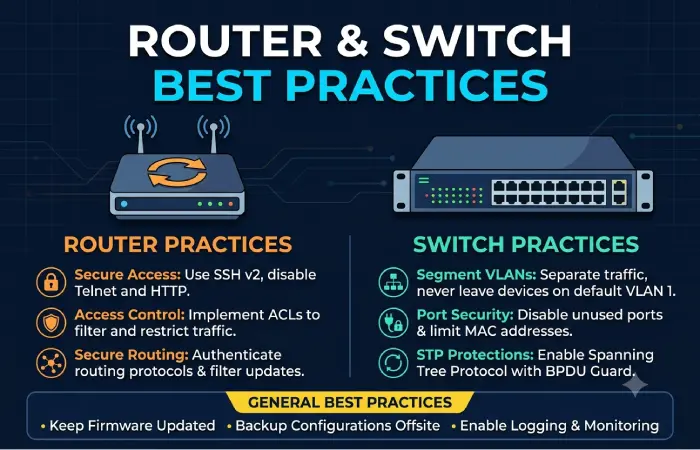
A reliable network is easier to maintain when the hardware and configuration are planned together.
Use wired Ethernet for stationary, bandwidth-intensive devices whenever practical.
Keep router and switch firmware current.
Document important network settings such as VLANs, IP ranges, DHCP reservations, and device locations.
Label Ethernet cables and switch ports in larger installations.
Avoid unnecessary network complexity. Advanced features are valuable when they solve a real requirement, but poorly configured VLANs, routing rules, or firewall policies can create more problems than they solve.
Frequently Asked Questions
What is the difference between a router and a switch?
A router connects different networks and directs traffic between them. A switch primarily connects devices within the same local network.
Is a router also a switch?
Many consumer routers include an integrated Ethernet switch. However, a dedicated switch provides additional ports and may offer advanced features.
Do I need a modem and router?
It depends on your internet service. Some ISPs provide separate devices, while others provide combination equipment. Fiber services commonly use an ONT rather than a traditional modem.
Is a managed switch better than an unmanaged switch?
Neither is universally better. An unmanaged switch is easier for simple networks, while a managed switch is better when you need VLANs, monitoring, QoS, or advanced configuration.
How often should I update router firmware?
Install firmware updates when the manufacturer releases security or stability updates. Routers that support automatic security updates can reduce the maintenance burden.
Is Wi-Fi faster than Ethernet?
Not necessarily. Modern Wi-Fi can deliver very high speeds, but Ethernet generally provides more predictable latency, reliability, and throughput for stationary devices.
Can a switch improve internet speed?
A switch does not increase the speed provided by your ISP. However, a suitable switch can improve or enable faster communication between devices on your local network.
How many switches can I use in one network?
You can use multiple switches in a network, provided the topology, bandwidth, addressing, and network design are appropriate. Larger networks require more careful planning to avoid bottlenecks and loops.
Should I use a router or switch for a home office?
Most home offices need a router for internet connectivity and may benefit from a switch if several devices require wired Ethernet.
Final Thoughts
Routers and switches form the foundation of most modern wired and wireless networks.
The router manages communication between networks, while switches connect devices inside the local network. Once you understand those roles, choosing and configuring networking equipment becomes much easier.
For a basic home, a modern all-in-one router may be enough. Larger homes can benefit from additional access points or mesh networking. Home offices and businesses with many wired devices can add switches, while managed and PoE switches become valuable for more advanced deployments.
The best network is not necessarily the one with the most expensive hardware. It is the one designed around your actual internet speed, devices, coverage requirements, security needs, and future growth.