Last Updated: September 15, 2026
Setting up a home network does not have to be complicated. With the right equipment and a simple plan, you can connect laptops, smartphones, smart TVs, gaming consoles, printers, cameras, and other devices to one reliable network.
A properly configured home network can also improve WiFi coverage, reduce connection problems, and make your devices safer from unauthorized access.
This guide explains setting up a home network step by step, from planning the layout and connecting your modem and router to configuring WiFi and securing the finished network.
Planning Your Home Network Layout
Before buying equipment or connecting cables, decide how you want your home network to work.
Start by identifying where your internet connection enters the home. This is usually where your modem or fiber ONT will be installed. The router should ideally be positioned somewhere relatively central so its wireless signal can reach the largest possible area.
For a small apartment, one modern router may be enough. Larger homes with multiple floors, thick walls, or dead zones may benefit from a mesh WiFi system or additional wired access points.
Think about where your high-bandwidth devices will be located. A desktop computer, smart TV, gaming console, NAS, or work computer can often benefit from Ethernet rather than WiFi.
Wired vs. Wireless Home Networks
| Connection | Best For | Main Advantage | Limitation |
| Ethernet | PCs, TVs, consoles, NAS | Fast and stable | Requires cabling |
| WiFi | Phones, tablets, laptops | Convenient and flexible | Signal can vary |
| Mesh WiFi | Large homes | Better whole-home coverage | Higher cost |
| WiFi extender | Small coverage gaps | Simple expansion | Can reduce performance |
For a new installation, consider running Ethernet to important stationary devices if your home allows it. Wireless connections are convenient, but wired connections generally provide greater consistency.
Equipment You Need to Get Started
The exact equipment depends on your internet service and the size of your home.
A basic home network usually needs an internet connection, a modem or ONT, and a router. Some internet providers supply a combined modem-router gateway.
Essential Home Networking Equipment
Modem or ONT:
A modem is commonly used with cable internet. Fiber connections typically use an optical network terminal (ONT) instead.
Router:
The router creates and manages your local network. It assigns local IP addresses, provides WiFi, and directs traffic between your devices and the internet.
Ethernet cables:
Use Ethernet cables to connect the modem or ONT to the router and to connect wired devices.
Network switch:
A switch is useful when you need more Ethernet ports than your router provides.
Mesh nodes or access points:
These can improve coverage in larger homes.
You should also check whether your router supports the WiFi generation and internet speed you need. Buying an expensive router does not automatically make a slow internet connection faster.
Connecting Your Modem and Router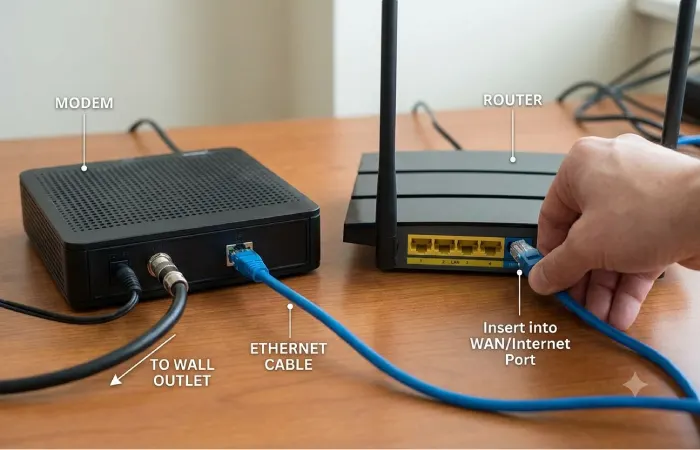
Once you have planned the layout and gathered your equipment, you can connect the network.
First, connect the modem or ONT to your internet service according to your provider’s instructions. Make sure its connection status indicates that the internet service is active.
Next, connect an Ethernet cable from the modem’s Ethernet/LAN port to the router’s WAN or Internet port.
Then connect the router to power and wait for it to start. Startup can take several minutes.
Your basic connection should look like this:
Internet → Modem/ONT → Router → WiFi/Ethernet Devices
If your internet provider supplied a combined gateway, you may not need a separate modem and router.
What If You Have a Fiber Connection?
With many fiber installations, the incoming fiber connects to an ONT. The ONT then provides an Ethernet connection to your router.
Some providers instead supply an integrated fiber gateway. In that situation, follow the provider’s instructions for router configuration, bridge mode, or access-point mode if you want to use your own networking equipment.
Configuring WiFi Name and Password
After connecting the hardware, open your router’s administration interface.
The exact process varies by manufacturer. You may configure the router through a mobile app or web browser.
Look for settings such as Wireless, WiFi, or Network Settings.
Choose a recognizable WiFi network name, also called an SSID. Avoid including unnecessary personal information such as your full name or home address.
Next, create a strong WiFi password. Use a long, unique password that is not reused on other accounts.
Recommended WiFi Settings
| Setting | Recommended Approach |
| WiFi name | Simple, recognizable SSID |
| Security | WPA3 when supported |
| Older-device compatibility | WPA2/WPA3 mixed mode if needed |
| Password | Long and unique |
| WPS | Disable if unnecessary |
| Firmware | Keep router updated |
| Guest network | Enable for visitors and untrusted devices |
Modern routers may support both 2.4 GHz and 5 GHz bands. Some newer systems also support 6 GHz.
The 2.4 GHz band generally provides better range and wall penetration, while 5 GHz can offer higher performance at shorter distances. The 6 GHz band can provide additional capacity with compatible devices, although its range is generally more limited.
Many modern routers automatically manage these bands, so beginners usually do not need to manually configure every frequency.
Testing and Securing Your New Network
Once your WiFi is configured, connect a phone or computer and test the internet connection.
Open several websites and run a reputable internet speed test. Compare the result with the speed advertised by your internet provider, while remembering that WiFi performance can vary based on distance, interference, device capabilities, and network traffic.
Walk through different areas of your home to identify weak spots.
You should also check whether devices can communicate normally with the internet and with other local devices when required.
Check These Five Things
Internet access:
Confirm that multiple devices can browse the web.
WiFi coverage:
Test the connection in bedrooms, work areas, living spaces, and other frequently used locations.
Speed:
Run tests near the router and in distant rooms to identify performance differences.
Ethernet connections:
If you have wired devices, verify that each Ethernet connection works correctly.
Device list:
Review the router’s connected-device list and confirm that you recognize the devices using your network.
How to Secure a Home Network
Security should be part of the initial setup rather than something you add later.
Start by changing the router’s default administrator password. This password is different from the WiFi password and protects access to the router’s settings.
Use WPA3 security when all important devices support it. If older devices require WPA2, use an appropriate compatibility mode rather than leaving the network unsecured.
Keep the router’s firmware updated. Firmware updates can improve performance, fix bugs, and address security vulnerabilities.
You should also disable features you do not need, particularly remote administration and unnecessary port forwarding.
Use a Guest Network
A guest network creates a separate wireless network for visitors.
It can also be useful for some smart-home devices that do not need access to your computers or personal files.
For example, you could have:
Main Network: laptops, phones, work computers, personal devices
Guest/IoT Network: visitors, smart plugs, inexpensive connected devices
The exact level of isolation depends on the router’s features, so check its configuration options.
Where Should You Place Your Router?
Router placement can have a significant effect on wireless performance.
Place the router in a relatively central location rather than at the far end of your home. Keep it elevated and away from large obstructions when practical.
Avoid placing it inside cabinets, behind large appliances, or directly beside sources of significant wireless interference.
If your router is located next to the modem because the internet connection enters there, consider using Ethernet to connect to a more centrally positioned access point or mesh system.
When Should You Use a Mesh WiFi System?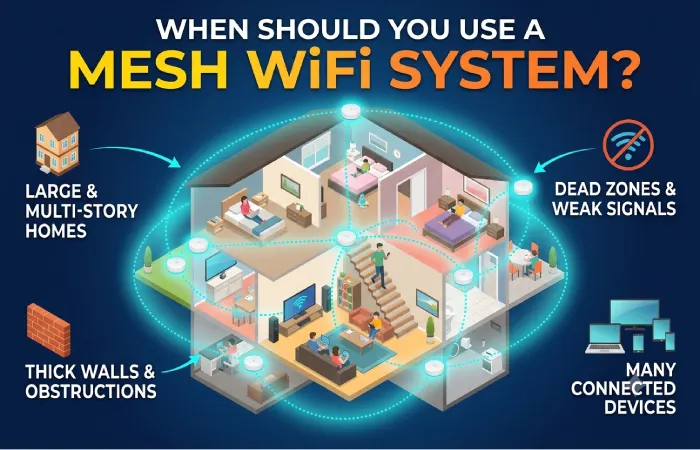
A single router is often sufficient for smaller homes.
A mesh system becomes more useful when you have multiple floors, large rooms, thick walls, or persistent dead zones.
Instead of relying on one router, mesh systems use multiple nodes to provide broader wireless coverage.
However, adding more nodes is not always better. Poorly positioned mesh nodes can create inefficient connections and may not solve the underlying problem.
Where possible, using Ethernet to connect mesh nodes or access points can provide a stronger network architecture than relying entirely on wireless backhaul.
Common Home Network Problems
Even a correctly installed network can experience problems.
WiFi Is Slow
Check your distance from the router, network congestion, interference, and the capabilities of your device.
Test the same connection near the router. If performance improves substantially, coverage or interference may be the issue.
Some Rooms Have No Signal
Try repositioning the router first.
If that does not solve the problem, consider a mesh system or additional wired access point.
Internet Works but WiFi Does Not
Check whether the router’s wireless network is enabled. Restart the router and verify that the device is connecting to the correct SSID.
One Device Cannot Connect
Restart the device and check whether it can see the network. If other devices work normally, the problem may be related to that device’s network settings, compatibility, or saved WiFi credentials.
Internet Keeps Disconnecting
Check the modem/ONT connection and router logs if available. If multiple wired devices lose internet access at the same time, the issue may be with the modem, router, or internet provider rather than WiFi itself.
Home Network Setup Checklist
Use this checklist after completing your installation:
| Task | Complete |
| Identify internet connection point | ✓ |
| Plan router location | ✓ |
| Connect modem/ONT | ✓ |
| Connect router WAN port | ✓ |
| Configure WiFi name | ✓ |
| Create strong WiFi password | ✓ |
| Change router administrator password | ✓ |
| Enable WPA3 or appropriate WPA2 security | ✓ |
| Update router firmware | ✓ |
| Test internet speed | ✓ |
| Test WiFi coverage | ✓ |
| Review connected devices | ✓ |
| Configure guest network if needed | ✓ |
Frequently Asked Questions
What do I need to set up a home network?
Most homes need an internet connection, modem or ONT, router, and Ethernet cables. Larger homes may also need a switch, mesh system, or additional access point.
Can I set up a home network without a modem?
Yes, depending on your internet service. Fiber installations commonly use an ONT instead of a traditional modem. Some providers also supply an integrated gateway.
Should my router be near the modem?
It can be, but it does not always have to be. If the router needs to be positioned elsewhere for better WiFi coverage, you can use Ethernet to connect it to the modem or ONT.
Is Ethernet better than WiFi?
For stationary devices that need reliable performance, Ethernet is generally preferable. WiFi is more convenient for mobile devices and devices where running cables is impractical.
How often should I restart my router?
There is usually no need to restart a modern router on a fixed schedule. Restart it when troubleshooting requires it, and keep its firmware updated.
How can I improve my home WiFi coverage?
Start with router placement. If coverage remains poor, consider a mesh WiFi system or additional access point. Wired backhaul can improve the performance of multi-access-point networks.
Final Thoughts
Setting up a home network is mainly about creating a reliable path from your internet connection to every device that needs access.
Start with a simple layout, choose equipment appropriate for your home and internet plan, and configure your wireless network with strong security. Then test coverage and performance before deciding whether you need additional equipment.
For most beginners, the best approach is to avoid unnecessary complexity. A well-positioned modern router, secure WiFi settings, updated firmware, and Ethernet for important stationary devices can provide an excellent foundation for a fast and dependable home network.