Last Updated: September 24, 2026
Fast internet does not necessarily mean fast WiFi. Your WiFi can be hampered if your router is on the same wireless channel as other networks causing interference that results in slower speeds, lag, and unpredictable connections. WiFi channel optimization allows your router to operate on a less crowded wireless channel thus enabling the connected devices to communicate more effectively.
The process is especially helpful if you are on an apartment or office complex or in a congested area where several routers are all working in the same vicinity. Selecting the appropriate band, channel width and channel improves wireless reliability even without switching your internet plan.
What Is WiFi Channel Optimization?
WiFi channel optimization determining what wireless interference exists and which is the best channel to use for the cleanest connection.
WiFi routers operate on specific radio frequencies that are segmented into individual channels. When multiple wireless networks in the region overlap one another or operate on congested channel(s), users compete for wireless airtime leading to decreased throughput and increased latency.
Many modern routers offer the options of automatically selecting a channel. However, automatic selection isn‘t always best and it may sometimes be worth changing the channel manually should you find that you‘re suffering from interference and not getting consistent performance.
But the objective is not just to locate the channel with the least visible networks. Factors such as signal strength, channel overlapping, the network traffic, channel width, and the WiFi generation also count.
Comparison of 2.4 GHz and 5 Ghz and 6Ghz Bands
Selecting the correct WiFi band is a critical component of channel optimization.
| WiFi Band | Coverage | Interference | Typical Use |
| 2.4 GHz | Longer range | Higher | IoT, basic browsing, distant devices |
| 5 GHz | Medium range | Lower than 2.4 GHz | Streaming, gaming, general high-speed use |
| 6 GHz | Shorter range | Generally lower | WiFi 6E/7 devices and high-performance connections |
2.4 GHz
2.4GHz band: This frequency range performs better over distance and through solid objects in comparison with other frequencies. The trade-off is greater congestion because many routers and wireless devices operate here.
The non-overlapping channels usually suggested in 2.4 GHz networks are channels 1, 6, 11 in the countries in which those channels are authorized. Using 40 MHz that 40 MHz overlap may increase in congested environment and will not improve the actual performance.
5 GHz
The non-overlapping channels usually suggested in 2.4 GHz networks are channels 1, 6, 11 in the countries in which those channels are authorized. Using 40 MHz that 40 MHz overlap may increase in congested environment and will not improve the actual performance.
It is generally a suitable option for heavy bandwidth activities (4K stream, large files, video chat, and gaming) when the device is not far from the router.
6 GHz
The 6 GHz band is available with newer WiFi technologies such as WiFi 6E and WiFi 7. It provides additional spectrum and can offer cleaner connections where compatible equipment is available.
Its shorter effective range means it works particularly well when the router and client device are relatively close together.
Best WiFi Channels to Use
No single WiFi channel is best in all places. The best channel in one location may not be the best in another; several parameters may influence this, including your location, other wireless networks in the vicinity, your router capabilities, and what the local regulations are.
The 2.4 GHz band is usually most effective on channels 1, 6 and 11 since they are non-overlapping with respect to using 20 MHz channel width.
Availability of channels for 5 GHz and 6 GHz also depends on router, client, country, and regulation rules. Some 5 GHz channels may have a DFS (Dynamic Frequency Selection) process, which puts some restrictions or switch channels in the event of detection of radar.
A practical approach is:
- Scan nearby wireless networks.
- Identify congested channels.
- Check signal strength and channel width.
- Select an appropriate channel.
- Test your connection.
- Recheck after making changes.
Don’t automatically select the channel with the fewest networks. A distant network with a very weak signal may have little practical impact, while a nearby network with a strong signal can create considerably more competition.
WiFi Analyzer Tools
A WiFi analyzer can list networks around you, and shows the channels, signal strengths and sometimes overlapping channels.
Useful for ascertaining whether it‘s worth altering your router settings before doing so.
Common options include:
- Wifi Analyzer applications: These are helpful for seeing the surrounding networks and aspect of signal.
- NetSpot: wireless network discovery and survey tool.
- inSSIDer: for WiFi analysis and troubleshooting congestion.
- Apps from your router manufacturer: Quite a few routers these days have network scanning and optimization tools built in.
- Operating system integrated tools: Each of Windows, MacOS, Android, and other operating systems will give different amount of wireless diagnostic details.
When viewing your network you also need to check out RSSI/signal strength, channel used, channel width and neighboring networks instead of just one.
For example, if the 2.4 GHz router, is on channel 6 and there are many other strong signals in the vicinity all around, then switching the test channels to 1 or 11 could give better results.
Reducing WiFi Interference
Choosing your channel, however, is only one aspect to a good WiFi setup. The physical placement of your access points and other electronic devices can cause connectivity issues.
Position the Router Properly
Position the router in an open area away from large objects preferably on a shelf or desk. Don‘t place the Access Point inside cabinets, behind bulky furniture, or against heavy walls.
The nearer a device is to the router, the more powerful the wireless signal isumed.
Avoid Unnecessary 2.4 GHz Congestion
Many of the older, smart-home-type devices operate solely on 2.4 GHz. But, other wireless equipment, such as Bluetooth devices, can also operate in the same frequency.
If possible, connect high bandwidth devices like laptops, TVs, game systems to 5 GHz or 6 GHz.
Use Appropriate Channel Width
Wider channels can increase their theoretical throughput but they require more spectrum.
Another example, an overlap can be created in a network 2.4 GHz congested than with a channel8 MHz channel.
Wider channel widths at 5 GHz and 6 GHz is beneficial when the spectrum is quiet and the devices you are using are capable of wider channels. For busy spectrum, it is better to use narrower channels.
Keep Firmware Updated
Updates to router firmware are often made by the manufacturer which can improve performance and stability security and compatibility.
Check for updates available to you router in router‘s admin panel or in manufacturer application.
Auto vs Manual Channel Selection
Most modern routers include automatic channel selection. This allows the router to scan the wireless environment and select a channel according to its optimization algorithm.
Automatic selection is usually the simplest choice for households that do not experience significant WiFi problems.
Manual selection becomes useful when:
- WiFi repeatedly slows down at certain times.
- Nearby networks create substantial congestion.
- The router consistently chooses a crowded channel.
- You have tested several channels and identified a more reliable option.
- You need predictable wireless behavior in an office environment.
| Feature | Automatic Selection | Manual Selection |
| Setup | Easy | Requires testing |
| Ongoing maintenance | Low | Higher |
| Control | Limited | High |
| Best for | Typical homes | Troubleshooting and controlled environments |
| Requires analysis | Usually no | Yes |
Remember that the wireless environment changes. A channel that works well today may become congested later as neighbors add routers or access points.
How to Optimize Your WiFi Channel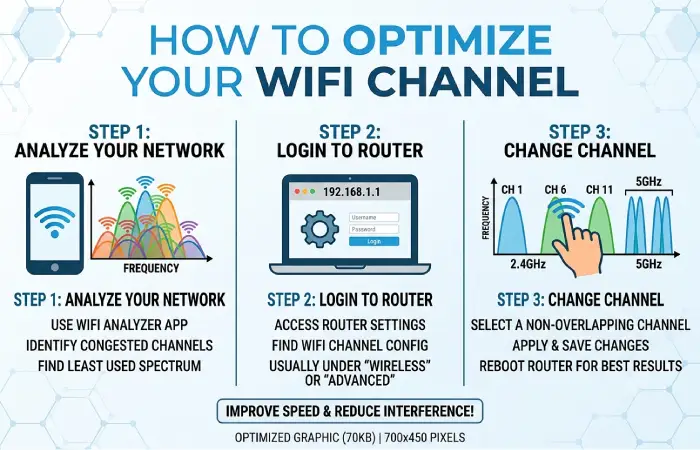
You can follow this simple process:
Step 1: Run a WiFi scan.
Use an analyzer to identify nearby networks, channels, and signal levels.
Step 2: obvious congested links.
Search for overshadowing strong neighboring networks on the same or overlapping channels.
Step 3: Confirm that you are in your band of frequencies.
Isolate whether it is an issue on the 2.4, 5 or 6 Ghz band.
Step 4: Switch the channel if it is not already on the one you want.
2.4GHz, initially test channel 1, 6 and 11 on 20 MHz channel.
Step 5: the performance tests.
Test it a number of times at various times throughout the day, run numerous speed tests and check the latency from the same location. Testing just once is not enough.
Step 6: Check on the stability of the findings.
A channel producing a marginally lower peak speed but less interruptions would perhaps be more useful than one that produces a higher result only sporadically.
Can switching the WiFi channel improve my Internet speed?
Changing the channel will not make your broadband connection any faster. It will, however, have the effect of reducing any wireless interference your router experiences from other wireless devices.
For instance, if your internet connection is 500 Mbps and WiFi congestion is working against you to keep your wireless device at only 100 Mbps, a change in the wireless environment could make the device perform at a faster rate in practice.
Your real-life outcome varies based on the router, client device, distance from AP, walls in the way, WiFi standard, channel width, network traffic and internet connection.
When do you need to change the WiFi channel?
Consider investigating your WiFi channel when you experience:
- Slow wireless speeds despite a fast internet plan
- Frequent buffering
- High latency during gaming
- Video-call interruptions
- Connection drops
- Significant differences between wired and wireless performance
- Poor performance at specific times of day
If changing channels is unsuccessful, investigate router location and interference, channel width, firmware, limitations of the device or whether a mesh WiFi or wired Ethernet device is appropriate.
Final Takeaway
Optimizing the WiFi channels can also improve the wireless reliability by removing congestion and un-necessary interference. First, identify which band is troublesome, then scan around wireless surroundings to select channel and channel width.
For 2.4 GHz 20 MHz operation generally channel 1, 6 and 11 are used as a starting point. For 5 GHz and 6 GHz the channels used and conditions on the spot should be considered.
Auto channel selection probably will work best for most of the users, but in certain cases, manual tuning could be more beneficial, especially if the network suffers through a long term interference. The final best configuration would be whatever makes the items happiest in home radio area.
Frequently Asked Questions
What is WiFi channel optimization?
Channel Optimization in WiFi consists of choosing the best wireless channel and configuration for the node so as to avoid congestion or interference.
What is the optimal 2.4 GHz WiFi channel?
The use of channels 1, 6, and 11 in a 20 MHz channel width is seen to be a better option as these channels do not overlay with each other.
Which one? 2.4GHz or 5 GHz?
2.4 GHz should be used for longer distances and wall penetration. 5 GHz should be used for higher performance and when your device is not to far away from the access point/router,
Is automatic WiFi channel selection better?
Auto picks is very easy to use and it works well in most case with most networks. Manual selection, however, might be efficient if auto optimization consistently picks a channel that is congested.
Can WiFi channel optimization improve range?
Changing the channel could mitigate interference and increase usable wireless performance, but it will not expand the physical range of the router.