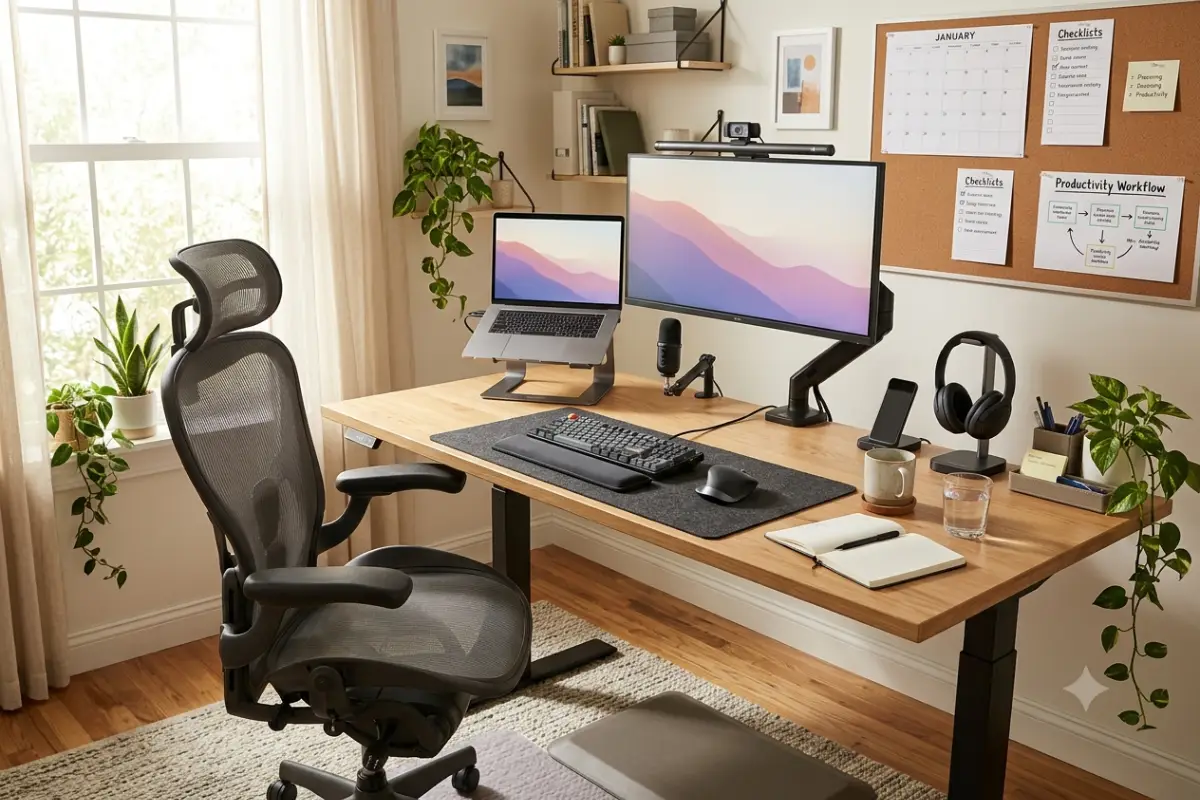

Last Updated: September 14, 2026
Working from home can be convenient, but a poor workspace can quickly affect your focus, comfort, and productivity. An uncomfortable chair, bad lighting, slow connectivity, or constant background noise can make even simple tasks harder.
A well-planned home office setup for remote work does not require a large room or an expensive renovation. The goal is to create a workspace that supports your daily tasks, keeps your technology organized, and helps you separate work from personal life.
Whether you work from a dedicated office, a bedroom corner, or a small apartment, this guide explains the essential gear, layout strategies, ergonomic essentials, and technology you need to build a productive workspace in 2026.
What Makes a Good Home Office Setup for Remote Work?
The best home office setup balances five important elements:
- Comfort
- Productivity
- Technology
- Organization
- Work-life separation
Many remote workers make the mistake of focusing only on buying gadgets. However, productivity often starts with the basics: a comfortable chair, a suitable desk, proper monitor placement, reliable internet, and a quiet environment.
A good workspace should make it easy to work for several hours without unnecessary discomfort or distractions.
The Five Foundations of a Productive Home Office
| Foundation | Why It Matters | Essential Solution |
| Ergonomics | Reduces discomfort during long work sessions | Adjustable chair and desk |
| Technology | Supports communication and daily tasks | Laptop, monitor and reliable internet |
| Lighting | Reduces eye strain | Natural and adjustable task lighting |
| Acoustics | Improves focus and calls | Headphones and sound control |
| Organization | Keeps the workspace efficient | Cable and desk management |
Best Home Office Setup Ideas for Remote Workers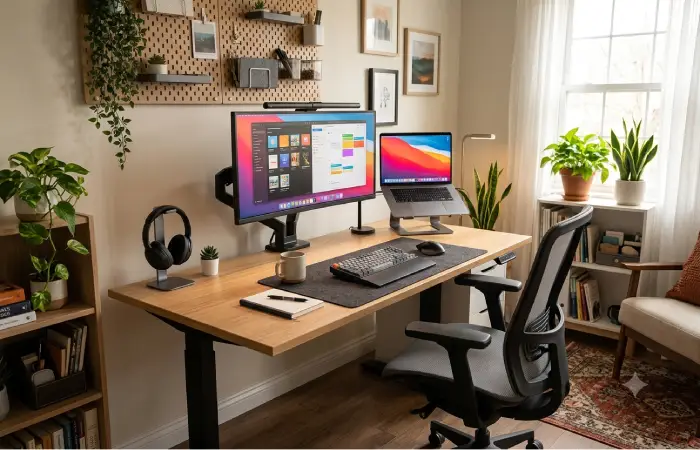
There is no single perfect workspace design. The right setup depends on your available space, budget, work type, and daily routine.
For example, a graphic designer may need multiple displays and color-accurate lighting. A remote customer support employee may prioritize a high-quality headset and reliable internet. A writer may need a quiet desk with minimal distractions.
Here are some practical best home office setup ideas for different types of remote workers.
1. The Dedicated Home Office
A dedicated room is ideal because it creates a physical separation between work and home life.
A typical dedicated office can include:
- Adjustable desk
- Ergonomic chair
- External monitor
- Desk lamp
- Storage cabinet
- Webcam
- Noise-cancelling headphones
- Cable management system
The biggest advantage is that you can leave your work environment at the end of the day by simply closing the door.
2. The Minimalist Home Office
A minimalist workspace focuses on essential equipment and reduced visual clutter.
A basic setup may include:
- Laptop or desktop computer
- External monitor
- Ergonomic chair
- Compact desk
- Wireless keyboard
- Wireless mouse
- Desk organizer
This type of setup works well for writers, marketers, consultants, and other knowledge workers.
3. The Hybrid Workstation
A hybrid workstation is designed for people who split their time between home and a traditional office.
Portability becomes more important in this setup.
Consider adding:
- Laptop stand
- Portable monitor
- Compact keyboard
- Wireless mouse
- USB-C hub
- Multi-device charger
- Laptop backpack or organizer
This allows you to maintain a similar workflow in different locations.
Ergonomic Home Office Essentials
Ergonomic home office essentials should be the foundation of your workspace. You may use your desk for six to ten hours per day, so poor positioning can quickly become uncomfortable.
You do not need to purchase every ergonomic accessory at once. Start with the equipment that has the greatest impact.
Choose the Right Office Chair
Your chair is one of the most important investments in a remote work setup.
Look for features such as:
- Adjustable seat height
- Lumbar support
- Adjustable armrests
- Comfortable seat depth
- Stable base
- Breathable materials
Your feet should rest comfortably on the floor or on a footrest. Your knees should generally remain at a comfortable angle rather than being tightly compressed under the desk.
Avoid choosing a chair only because it looks attractive. Long-term comfort and adjustability are more important.
Select a Comfortable Desk
Your desk should provide enough space for your computer, keyboard, mouse, and other daily tools.
Common desk options include:
| Desk Type | Best For | Main Advantage |
| Standard desk | General remote work | Simple and affordable |
| Standing desk | Long work sessions | Allows position changes |
| Desk converter | Existing desks | More affordable flexibility |
| Corner desk | Larger setups | Uses corner space efficiently |
| Folding desk | Small rooms | Easy to store |
For more workspace ideas, consider linking internally to your Smart Desks and Ergonomic Gadgets guide.
Position Your Monitor Correctly
Monitor placement can significantly affect comfort.
Ideally, your display should be positioned so you can view it without constantly bending your neck.
Consider using:
- Monitor stand
- Adjustable monitor arm
- Laptop stand
- External monitor
A monitor arm can be especially useful because it frees up desk space while allowing easier adjustments.
For larger workstation upgrades, link to your Smart Monitors and Display Accessories article.
Use an External Keyboard and Mouse
Laptop keyboards are convenient, but they can force you to position the screen too low.
A laptop stand combined with an external keyboard and mouse creates a more flexible setup.
Popular options include:
- Compact wireless keyboards
- Mechanical keyboards
- Ergonomic keyboards
- Vertical mice
- Trackballs
Choose equipment based on comfort and the type of work you perform.
Small Space Home Office Setup Ideas
A dedicated office is not always available. Many remote workers need to create a workspace in a bedroom, living room, or apartment.
Fortunately, a productive small space home office setup can still provide everything you need.
Use Vertical Space
When floor space is limited, look upward.
Wall-mounted solutions can include:
- Floating shelves
- Wall organizers
- Monitor mounts
- Pegboards
- Cable clips
- Small storage units
This keeps frequently used equipment accessible without overcrowding the desk.
Choose Compact Furniture
Large office furniture can make a small room feel crowded.
Consider:
- Narrow desks
- Folding desks
- Wall-mounted desks
- Mobile storage units
- Compact chairs
- Stackable storage
Multifunctional furniture can also be useful. A desk with built-in storage may eliminate the need for an additional cabinet.
Create a Work Zone
Even if your workspace is in a shared room, create a visual boundary.
You can use:
- A small room divider
- A dedicated desk area
- Different lighting
- A rug
- Storage furniture
- Wall shelving
Creating a consistent work zone can help your brain associate that area with focused work.
Keep the Desk Clear
Small desks become cluttered quickly.
Try to keep only daily essentials on the surface.
For example:
Keep on the desk:
- Computer
- Monitor
- Keyboard
- Mouse
- Notebook
- Water bottle
Store elsewhere:
- Extra cables
- Documents
- Chargers
- Accessories
- Old notebooks
- Unused equipment
A clean workspace can also make a small room feel significantly larger.
Home Office Tech Checklist
Technology is the backbone of remote work. Your exact requirements will depend on your job, but most remote workers need a reliable core setup.
Essential Home Office Technology
Computer
Your primary computer should match your workload.
Basic office tasks may only require:
- Documents
- Spreadsheets
- Video calls
- Web applications
Creative or technical work may require more powerful hardware for:
- Video editing
- Programming
- Design
- Data analysis
- 3D work
External Monitor
An external display can improve multitasking and reduce the need to constantly switch between windows.
A larger workspace is useful for:
- Spreadsheets
- Research
- Coding
- Video editing
- Design
- Multitasking
Remote workers who frequently use multiple applications may benefit from a dual-monitor setup.
Webcam
Built-in laptop cameras are often sufficient for casual meetings, but an external webcam may improve video quality and positioning.
Important webcam features include:
- Clear video quality
- Good low-light performance
- Adjustable position
- Built-in privacy features
Headset
A good headset can improve communication and reduce distractions.
Useful features include:
- Clear microphone
- Comfortable ear cushions
- Noise reduction
- Long battery life
- Multipoint connectivity
For more audio recommendations, link internally to Smart Speakers and Audio Devices.
Reliable Internet Connection
A fast and stable connection is essential for remote work.
Your setup may include:
- Reliable broadband connection
- Modern router
- Ethernet connection
- Wi-Fi extender
- Mesh Wi-Fi system
Video calls and cloud applications can be affected by unstable connections even when your advertised internet speed appears high.
Whenever possible, consider a wired connection for a stationary desktop workstation.
USB-C Hub or Dock
A hub or docking station can simplify your desk setup.
It may allow you to connect:
- Monitor
- Keyboard
- Mouse
- Ethernet
- Storage devices
- Webcam
- Charging cable
This is especially useful for laptop-based workstations.
Complete Home Office Tech Checklist
| Equipment | Essential | Useful For |
| Laptop or desktop | Yes | All remote workers |
| External monitor | Recommended | Multitasking |
| Ergonomic chair | Yes | Long work sessions |
| Desk | Yes | Dedicated workspace |
| Keyboard and mouse | Recommended | Laptop users |
| Webcam | Recommended | Video meetings |
| Headset | Recommended | Calls and focus |
| USB-C hub | Optional | Laptop workstations |
| Ethernet cable | Recommended | Stable connectivity |
| Backup storage | Optional | Important files |
| Power backup | Useful | Areas with power interruptions |
Home Office Lighting and Acoustics
Lighting and sound can have a major impact on your comfort and concentration.
A workspace may contain excellent technology but still feel uncomfortable because of glare, poor visibility, or distracting noise.
Use Natural Light Carefully
Natural light can make a workspace feel more comfortable and open.
However, avoid placing your monitor directly in front of or behind a bright window if it creates glare or makes your screen difficult to see.
A side-facing window often provides more balanced lighting.
Use blinds or curtains when sunlight becomes too intense.
Add Adjustable Task Lighting
A desk lamp provides focused light for:
- Reading
- Writing
- Reviewing documents
- Video calls
- Detailed work
Look for adjustable brightness and positioning.
For additional workspace lighting ideas, link internally to your Smart Lighting for Offices article.
Improve Video Call Lighting
Good video calls require balanced lighting.
Avoid placing a bright light directly behind you because it can create a silhouette effect.
A simple setup may include:
- Natural light from the front or side
- Adjustable desk lamp
- Soft front-facing light
The goal is clear visibility without excessive brightness.
How to Improve Home Office Acoustics
Noise can be one of the biggest challenges for remote workers.
Common distractions include:
- Traffic
- Family members
- Neighbors
- Appliances
- Construction
- Echo inside the room
You do not need a professionally soundproofed room to improve acoustics.
Add Soft Materials
Hard surfaces reflect sound.
Soft materials can help reduce echo.
Consider adding:
- Curtains
- Rugs
- Upholstered furniture
- Fabric panels
- Bookshelves
Even small changes can make a room sound less empty during calls.
Use Noise-Cancelling Headphones
Noise-cancelling headphones can be useful in shared homes or apartments.
They are particularly helpful for:
- Deep work
- Video calls
- Writing
- Studying
- Travel
- Coworking environments
Improve Your Microphone Quality
Your microphone is often more important than your camera during professional meetings.
Clear audio makes communication easier and reduces misunderstandings.
A good headset or dedicated microphone can be useful if you regularly attend meetings.
How to Create the Best Home Office Layout
Your layout should support your workflow rather than simply filling the available room.
Start by identifying how you use your workspace.
Ask yourself:
- How many hours do I work here?
- Do I attend frequent video calls?
- Do I use one monitor or several?
- Do I need physical documents?
- Do I need additional storage?
- Do I share the room with others?
Position Your Desk Strategically
Consider three factors:
- Natural Light
Avoid direct glare on your monitor.
- Power Access
Keep the desk reasonably close to outlets to avoid excessive extension cables.
- Background
If you attend video meetings, think about what people see behind you.
A simple and organized background usually works well.
Create Work Zones
A larger home office can include separate zones.
Primary Work Zone
Your main desk and computer.
Meeting Zone
A clean area for video calls.
Storage Zone
Documents, equipment, and supplies.
Relaxation Zone
Optional seating for reading or short breaks.
Separating activities can make a larger workspace easier to organize.
Home Office Cable Management Tips
Cable clutter can make even an expensive workspace look disorganized.
Good cable management also makes cleaning easier.
Useful tools include:
- Cable clips
- Cable sleeves
- Cable boxes
- Under-desk trays
- Velcro ties
- Desk grommets
Try to route cables based on where devices are used.
For example, keep monitor and power cables together while separating frequently accessed charging cables.
For more ideas, link internally to Smart Office Organization Gadgets.
Add Smart Gadgets Without Overcomplicating Your Setup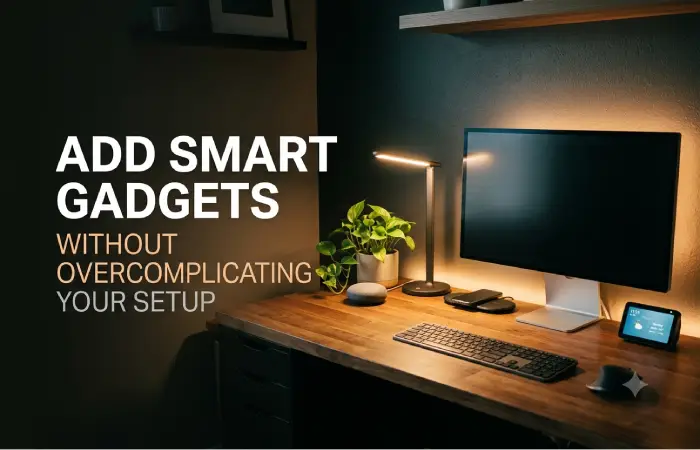
Smart devices can improve convenience, but not every workspace needs dozens of connected gadgets.
Choose technology that solves a specific problem.
Useful smart office additions include:
Smart Lighting
Automated lighting can help you:
- Adjust brightness
- Create work routines
- Reduce unnecessary energy use
- Control lights from your phone
Smart Plugs
Smart plugs can help manage equipment such as:
- Lamps
- Chargers
- Fans
- Desk accessories
Wireless Charging
A wireless charging pad can reduce cable clutter for compatible devices.
Multi-device charging stations are useful for people who use:
- Smartphone
- Smartwatch
- Wireless earbuds
For additional options, link to your Wireless Charging and Power Gadgets guide.
Smart Speakers
Smart speakers can support timers, reminders, music, and hands-free controls.
However, consider privacy and microphone placement when using always-listening devices in a professional workspace.
Home Office Setup by Budget
You can build a useful workspace at different price levels.
The most important step is spending money on the equipment that improves your daily experience.
Budget Setup
Best for students, beginners, and new remote workers.
Focus on:
- Existing laptop
- Basic desk
- Comfortable chair
- Laptop stand
- Keyboard and mouse
- Desk lamp
Priority
Improve comfort and functionality before purchasing premium accessories.
Mid-Range Setup
Suitable for full-time remote workers.
Consider adding:
- Quality ergonomic chair
- Larger desk
- External monitor
- Better headset
- Docking station
- Improved lighting
Priority
Create a long-term workstation that supports daily productivity.
Premium Setup
Designed for professionals who spend most of their working day at home.
Potential upgrades include:
- Premium ergonomic chair
- Adjustable standing desk
- Multiple monitors
- Monitor arms
- High-quality webcam
- Professional microphone
- Advanced networking equipment
- Dedicated lighting
Priority
Focus on long-term comfort, performance, and workflow efficiency.
Frequently Asked Questions
What is essential for a home office setup for remote work?
The basic essentials include a reliable computer, comfortable chair, suitable desk, stable internet connection, good lighting, and a quiet environment. An external monitor, keyboard, mouse, and headset can further improve productivity.
How can I create a home office in a small space?
Use compact furniture, wall-mounted storage, vertical organization, and multifunctional equipment. Keep the desk clear and create a dedicated work zone even if it is located in a bedroom or living room.
What is the best desk setup for remote work?
The best desk setup depends on your work, but most remote workers benefit from an ergonomic chair, properly positioned monitor, external keyboard and mouse, good lighting, and organized cables.
Do I need an external monitor for remote work?
An external monitor is not essential, but it can improve multitasking and provide a more comfortable viewing position. It is especially useful for spreadsheets, programming, design, and research.
How can I improve my home office lighting?
Use balanced natural light, reduce screen glare, and add adjustable task lighting. For video calls, use front or side lighting instead of placing a bright window directly behind you.
Final Thoughts
A successful home office setup for remote work is not about buying the most expensive desk or filling your workspace with smart gadgets. It is about creating an environment that helps you work comfortably, communicate clearly, and stay focused.
Start with the fundamentals: a supportive chair, functional desk, reliable technology, proper monitor placement, good lighting, and stable internet. Once those basics are in place, you can add smart office devices and accessories that improve your specific workflow.
The best home office is one that fits your space, budget, and work habits. Whether you have an entire room or a small corner, thoughtful planning can turn almost any area into a productive remote workspace.