
Last Updated: September 24, 2026
There are many reasons why a router has to be configured properly for a network to be fast, secure and reliable. A good router configuration provides Wi-Fi access, protects network devices, allows data transmission and provides other services like remote access or gaming.
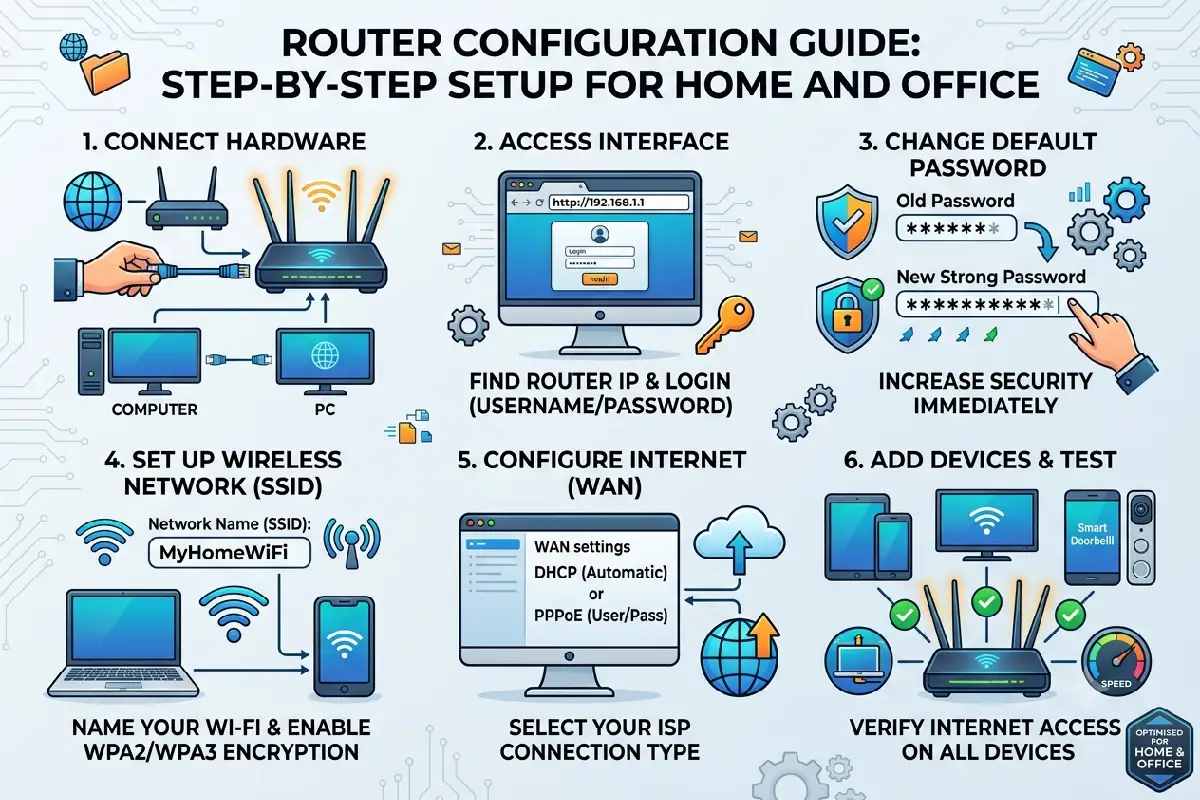
In this section we describe the configuration of a router. It applies to the configuration of a router in a home environment or a small office environment. We will need to access the administration panel of the router to enable the features. We also we configure the parameters for access to the Wi-Fi, NAT, port forwarding, traffic prioritization using QoS and the formation of a guest network.
What Is Router Configuration?
The router configuration is altering any network setting via the administration interface of any router. This setting can tell the router how to connect to the internet, allot IP addresses, control wireless connections, and manage traffic.
Common configuration tasks include:
- Changing the Wi-Fi network name and password
- Updating administrator credentials
- Configuring DHCP and IP addresses
- Selecting wireless security settings
- Setting up guest networks
- Configuring NAT and port forwarding
- Prioritizing applications with QoS
- Updating router firmware
These are commonly configured through a web admin interface or a vendor specific mobile application for most modern day routers.
Accessing the Router Admin Panel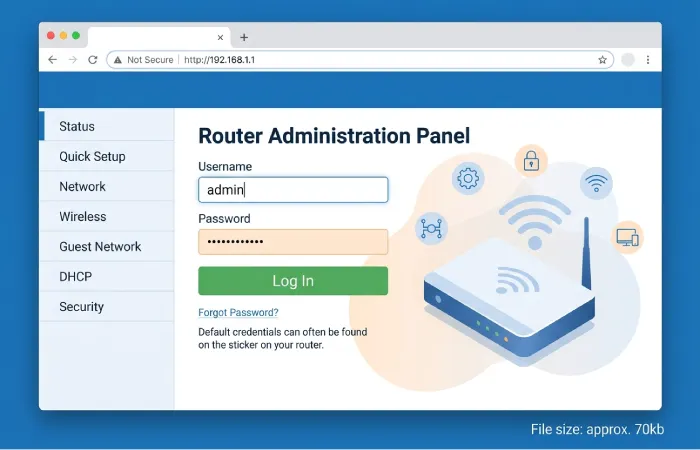
Before making changes to the configuration, ensure your computer or smart phone is logged-on/wired up using Wi-Fi or Ethernet to your router.
1. Find the Router‘s IP Address
Common router gateway addresses include:
- 192.168.1.1
- 192.168.0.1
- 10.0.0.1
The address itself is device and network structure dependent.
On Windows, open Command Prompt and run:
ipconfig
Look for Default Gateway. On macOS, check the network’s TCP/IP settings for the router address.
2. Open the Admin Page
Type the address of the gateway of the router in a web browser. This will open a login page
Enter the administrator username and password provided with the router. Change the administrator password to a new one if the router is new.
3. Change Administrative Credentials
Have an easy to remember, yet hard to guess Administrator password using something unique such as upper and lower case alpha numeric characters and special characters.
Enable the router two-factor login if it is available.
Basic Internet and LAN Configuration
Once connected to your router, review the internet and local network settings.
Your internet connection could be a DHCP, PPPoE, static IP, or other type of connection required by your Internet Service Provider (ISP).
The majority of broadband routers will have automatically received the WAN configuration data needed to access the Internet.
The LAN settings control your internal network. A typical home network uses a private IP range such as 192.168.1.x.
Configure DHCP
DHCP automatically assigns IP addresses to devices on the network.
For example:
| Setting | Example |
| Router IP | 192.168.1.1 |
| DHCP Start | 192.168.1.100 |
| DHCP End | 192.168.1.200 |
| Subnet Mask | 255.255.255.0 |
Do not change these values unless you know the network‘s internals or if your network needs a specific configuration.
Setting Up SSID and Password
The SSID is the name that a person who is searching for Wi-Fi saws in when in the presence of several networks.
Open the router‘s wireless settings and configure the following:
Choose a Clear SSID
Choose a distinct network name not containing additional personal details.
If your broadband router supports multiple bands you may notice that there are various choices such as 2.4 GHz, 5 GHz and 6 GHz.
As a summary, 2.4 GHz has the longer range but 5 or 6 GHz is capable of high performance when the situation allows.
Configure Wi-Fi Security
Use WPA3-Personal if all your important devices are compatible. Otherwise, the WPA2/WPA3 transition mode can help you work with older equipment.
Steer clear of obsolete security measures like WEP.
Choose a good, strong Wi-Fi password and don‘t use passwords reused from other accounts.
Additional Wireless Settings
Depending on the router, you can configure:
- Channel selection
- Channel width
- Transmit power
- Band steering
- Smart Connect
- Mesh settings
In general, the most users should try auto-channel and all the settings specified by the manufacturer.
Port Forwarding and NAT
Network Address Translation (NAT) is a method that enables several machines on a private network to connect to a public network.
Routers commonly perform NAT automatically.
Port forwarding: creates an exception to forward an incoming traffic on the opened port to a different device in the local network.
For example, a user could configure port forwarding on their self- hosted service, game server, remote-access software, etc.
A typical rule includes:
| Setting | Example |
| Service | Application name |
| Protocol | TCP, UDP, or both |
| External Port | Application-specific |
| Internal IP | 192.168.1.120 |
| Internal Port | Application-specific |
Use Port Forwarding Carefully
For example, opening ports to the Internet can increase security. Forward only the necessary ports, and keep the application‘s device up-to-date.
Always try to employ alternative secure solutions (e.g. VPN based remote access) rather than exposing admin interfaces directly to the Internet.
Never forward the administration interface for your router unless you have a well-understood, specific reason to do so.
Configuring QoS for Prioritization
QoS, which is an abbreviation for Quality of Service. is a feature which allows the a router to decide what network traffic takes precedence.
It can also be beneficial when a number of different devices are sharing a constrained capacity. For instance, QoS might be used if someone is making a video call (or playing games) while the other devices are performing tasks like uploading or downloading.
Depending on the router, you may be able to prioritize:
- Devices
- Applications
- Gaming traffic
- Video conferencing
- Voice traffic
- Specific network services
How to Configure QoS
Open the QoS section of the routers admin and turn on the feature.
If the router requests upload and download bandwidth, estimate a decent value based on what you actually receive, rather than the maximum advertised speeds.
Then give higher priority for the application or if on the hardware (i.e. mobiles) higher priority for that device.
For example:
| Traffic | Suggested Priority |
| Video meetings | High |
| Voice calls | High |
| Online gaming | High |
| Web browsing | Normal |
| Large downloads | Low |
QoS does not increase your internet connection’s maximum speed. It manages how available bandwidth is distributed during congestion.
Guest Network Setup
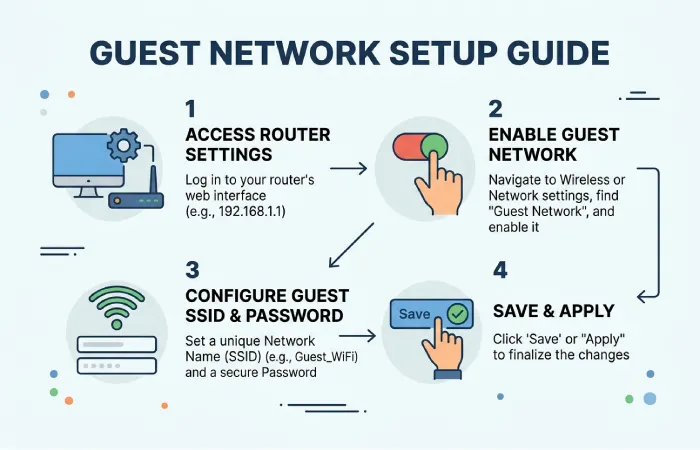
A guest network will allow internet access but will not give the internet users direct access to your primary LAN.
Good for apartments, offices, rentals and small businesses.
To set up a wifi, go into the wireless or guest-network section of your router and activate it.
Use a different SSID and password, if available turn on client isolation/network isolation.
A typical guest network should have:
- A separate SSID
- A separate password
- Internet access
- Client isolation
- No access to the primary LAN
For Office, the guest network can be setup for visitors. Employee systems, printers, storage servers and other internal devices should use the main network.
Router Security Settings
Basic security configuration should be part of every router setup.
Update Router Firmware
After installing, make sure your device is up to date with the latest firmware. Check for updates regularly.
Disable Unnecessary Features
Turn off services you do not use, such as remote administration, unused discovery services, or outdated wireless protocols.
Disable WPS When Appropriate
While Wi-Fi Protected Setup can make it easier to connect devices, you should turn it off if not needed, in order to minimize the attack surface of the router.
Review Connected Devices
Regularly look at the router‘s list of current clients. Determine if there are any unknown clients and change your Wi-Fi password if any malicious clients are found.
Recommended Router Configuration Checklist
Use this checklist after installing a new router:
| Configuration | Recommended Action |
| Admin password | Change the default |
| Firmware | Install current updates |
| Wi-Fi security | Use WPA3 or WPA2/WPA3 |
| Wi-Fi password | Create a unique strong password |
| SSID | Use a unique network name |
| Guest network | Enable when visitors need access |
| NAT | Leave enabled for typical home networks |
| Port forwarding | Use only when required |
| QoS | Configure when network congestion affects priority traffic |
| Remote administration | Disable unless specifically required |
| WPS | Disable if unnecessary |
Common Router Configuration Problems
If the devices are not able to connect after the configuration, check the ssid and wifi password, if not then:
Internet issues: make sure the WAN State of the router is up and that the connection with the ISP is up.
Just restart the one device if only one device has a problem. If a lot of devices can‘t connect then just reboot the router and make sure the Internet connection through the therouteris active.
For port forwarding issues, examine the internal IP, port, protocol, firewall rules and also determine whether your ISP is using carrier-grade NAT.
If the Wi-Fi is not working well, think about the position of the router, the wireless channels in use, what has been attached to and interfering before affecting advanced settings.
Final Thoughts
A good router is very important to build up the good home/office network. Put your mind at ease: administrator login protection, establish a powerful password for Wi-Fi, wireless security activated in 802.11n and the newest firmware update.
Set up the advanced options such as NAT, port forwarding, QoS, guest networks etc., as they would be needed in your live network. Don‘t enable and change anything just because the options are available. A straightforward, secure setup is often the easiest to keep running smoothly or to troubleshoot.