
Last Updated: September 22, 2026
A consistent home network is crucial for watching shows, working from home, gaming, using smart-home products, having video chats, and just normal browsing. If your connection is lagging, dropping, or not there at all, your issues could originate from your internet, modem, router, Wi-Fi signal, Ethernet cable, or device.
The home network troubleshooting enables you to find out where the problem origin is and directly solve it instead of replacing your network components.
The trick is to be systematic at troubleshooting. Begin with the basics, test different equipment, work your way from the Internet to your own devices.
Home Network Troubleshooting: Start With the Basics
Before fiddling with router settings or going for a factory reset, try the most trivial things.
Initially, check if the problem is local to the device (e.g. your computer won‘t connect to the Internet) or network-wide (e.g. your machine can connect but noone else‘s can).
Verify that devices are connected to the right Wi-Fi network. Some devices might connect automatically to a guest network or a different remembered network.
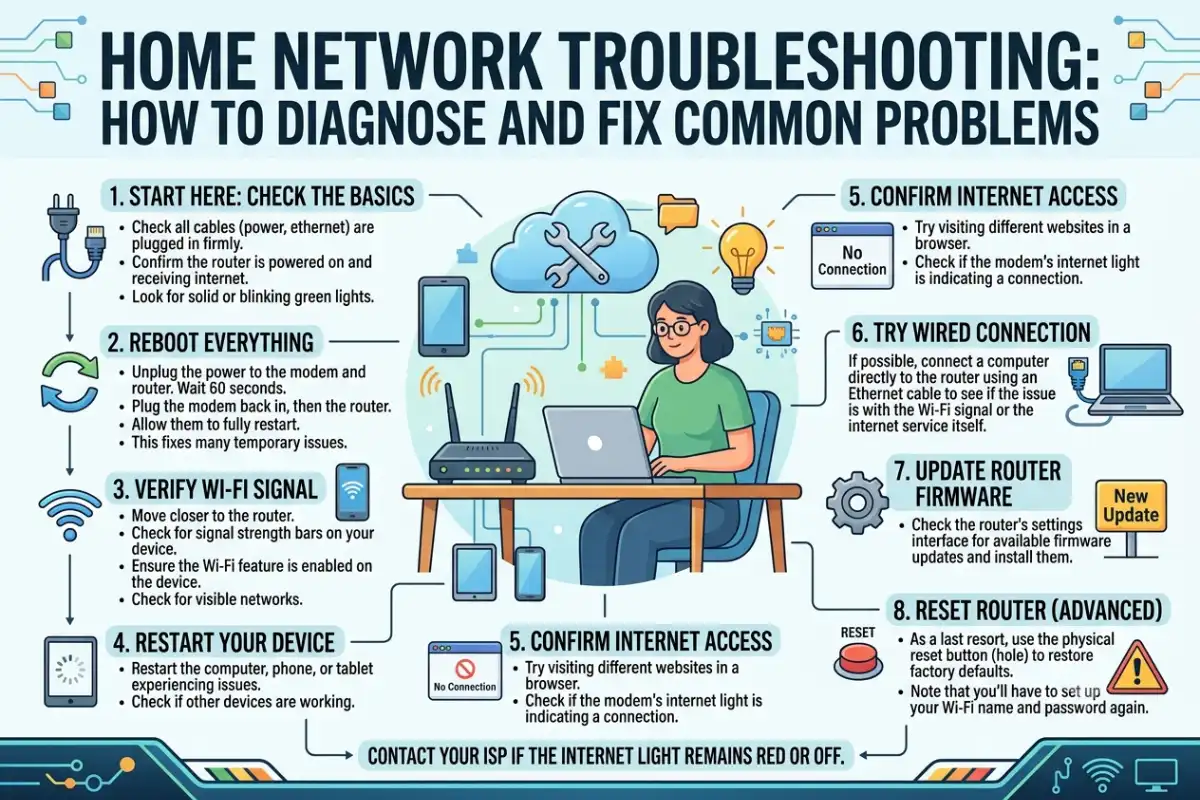
Use this quick sequence:
- Check whether multiple devices are affected.
- Check the router and modem indicator lights.
- Confirm that cables are securely connected.
- Restart the modem and router.
- Move closer to the router and test Wi-Fi.
- Test the connection using Ethernet if possible.
- Run a speed test.
- Check for an ISP outage if the problem continues.
This approach prevents unnecessary configuration changes.
Diagnosing No-Internet Issues
You may be experiencing one of the following reasons for not having an internet connection. You are connected to the Wi-Fi network, but there is no connection to the Internet or the router has lost its connection to the ISP.
Check Whether Wi-Fi Is Working
Check the Wi-Fi status on your device if it is reported as connected but no internet. It might mean there is operating a wireless connection between your device and router but the router itself can not reach the internet.
Experiment again on the same network by using another device.
In the unlikely event that all devices are experiencing the same problem check the router, modem, ISP connection, or the service outage.
If only one device is affected, simply restart its Wi-Fi connection and verify its network setup.
Check Modem and Router Connections
If you are using separate modem and router equipment, ensure the Ethernet connection from the modem to the router is secure.
Check the cable from wall socket to modem or gateway.
Loose or damaged Cables and incorrectly fitted cables.
Restart the Network Equipment
Wait few minutes then test again.
For a separate modem and router:
- Turn off the router.
- Turn off the modem.
- Wait about 30–60 seconds.
- Turn the modem back on.
- Wait until it establishes a connection.
- Turn the router back on.
- Wait several minutes before testing again.
Please do not turn the machine on/off every few seconds.
Check for an ISP Outage
If all devices are offline and a restart of the equipment doesn‘t resolve the issue, look for information on a outages from your ISP or contact their support.
If the ISP is reporting an outage, altering Wi-Fi configuration or swapping routers will not address the service issue.
Fixing Intermittent WiFi Drops
Intermittent Wi-Fi drops can be more difficult to diagnose than a complete outage because the connection may work normally for several minutes before failing.
Common causes include interference, weak signal strength, router placement, overloaded equipment, outdated firmware, or problems affecting a specific device.
Improve Router Placement
Where you place your router can significantly affect wireless coverage.
Keep the router:
- In a relatively central location
- Away from large metal objects
- Away from thick walls when possible
- Off the floor
- Away from appliances that may interfere with wireless signals
- In an open area rather than inside a cabinet
For larger homes, a mesh Wi-Fi system may provide better coverage than relying on a single router.
Test Near the Router
Move the affected device close to the router and test the connection.
If Wi-Fi becomes stable near the router but drops in another room, coverage or interference is a likely area to investigate.
If the connection still drops close to the router, look at router configuration, firmware, congestion, or the affected device.
Compare 2.4 GHz and 5 GHz Wi-Fi
Many modern routers support multiple Wi-Fi bands.
| Feature | 2.4 GHz | 5 GHz |
| Range | Generally longer | Generally shorter |
| Wall penetration | Better | Lower |
| Typical interference | Higher | Often lower |
| Speed potential | Lower | Higher |
| Best use | Longer-range connections | Nearby high-speed devices |
Newer Wi-Fi generations may also support additional bands, depending on the router and client device.
For a device far from the router, 2.4 GHz may provide a more stable connection. Devices close to the router can often benefit from faster 5 GHz connectivity.
Router Restart and Factory Reset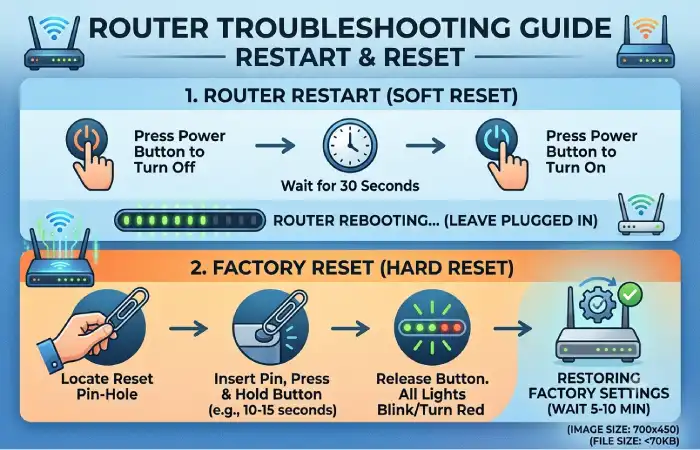
Restarting a router and resetting a router are not the same thing.
A restart simply turns the equipment off and back on. A factory reset removes customized configuration and returns the device to its default settings.
When to Restart Your Router
Restart the router when you experience:
- Temporary connection problems
- Slow or unstable performance
- Devices failing to reconnect
- A temporary wireless issue
- Problems after a network configuration change
A normal restart should be the first option.
When to Factory Reset
A factory reset may be appropriate when:
- Router configuration has become corrupted
- You cannot recover the administrator settings
- You are taking over a previously configured router
- Persistent configuration problems remain after other troubleshooting
- You need to completely rebuild the network
Before resetting, make sure you know the information required to configure the router again.
You may need the Wi-Fi network name, Wi-Fi password, ISP information, administrator credentials, and any custom settings such as port forwarding or VLAN configuration.
Do not factory-reset a router simply because the internet is temporarily slow. A reset can create additional work without addressing the actual cause.
Ping, Traceroute, and Diagnostic Tools
Built-in networking tools can help determine where a connection problem occurs.
Ping
The ping command tests whether a device or server responds over the network.
For example:
ping 8.8.8.8
You can also ping your router’s local IP address, such as:
ping 192.168.1.1
If you can consistently reach the router but cannot reach an external IP address, the problem may exist beyond your local network.
Ping results can also show latency and packet loss.
Traceroute
Traceroute shows the network path between your device and a destination.
On Windows, use:
tracert example.com
On macOS or Linux, use:
traceroute example.com
Traceroute can help identify where packets appear to stop responding, although individual hops may not respond to diagnostic traffic even when the overall connection is working.
IP Configuration
On Windows, the following command can display network configuration:
ipconfig
For more detailed information:
ipconfig /all
Look for the device’s IP address, default gateway, and DNS information.
A missing or unexpected IP configuration can indicate a DHCP or local network problem.
DNS Testing
Sometimes websites fail to load even though the internet connection itself is working.
You can test DNS resolution with:
nslookup example.com
If DNS resolution fails but direct IP connectivity works, DNS configuration may require further investigation.
Wired vs Wi-Fi Troubleshooting
Testing your network with an Ethernet cable is one of the most useful troubleshooting steps.
If Wi-Fi is unstable but a wired connection works normally, the internet service and router’s wired connection may be functioning while the wireless side needs investigation.
| Test result | Possible cause |
| Ethernet and Wi-Fi both fail | ISP, modem, router, or wider network issue |
| Ethernet works, Wi-Fi fails | Wireless coverage, interference, or Wi-Fi configuration |
| One device fails, others work | Device-specific issue |
| Only one website fails | Website, DNS, browser, or routing issue |
| Connection drops at specific locations | Coverage or interference |
| Speed is slow on all devices | ISP, router, congestion, or service issue |
This simple comparison can substantially narrow the troubleshooting process.
Run a Home Network Speed Test
A speed test can help determine whether your connection is delivering approximately the performance you expect from your internet plan.
Test your connection using a reputable speed-testing service such as Ookla Speedtest or Fast.com.
Run multiple tests rather than relying on a single result.
For more useful results:
- Test close to the router.
- Test again from the normal location of the affected device.
- Compare Ethernet and Wi-Fi.
- Test at different times of day.
- Disconnect unnecessary high-bandwidth devices temporarily.
Remember that the speed advertised by an ISP and the speed measured over Wi-Fi are not necessarily identical.
Wi-Fi performance can be affected by distance, interference, device capabilities, network congestion, and router configuration.
Common Home Network Problems and Solutions
| Problem | Likely causes | First troubleshooting step |
| No internet on every device | ISP, modem, router | Restart network equipment |
| Wi-Fi keeps disconnecting | Interference, weak signal, router issue | Test near router |
| One device cannot connect | Device configuration | Restart device and reconnect |
| Slow Wi-Fi | Distance, congestion, interference | Test Ethernet |
| Ethernet works but Wi-Fi does not | Wireless issue | Check Wi-Fi settings and placement |
| Websites do not load | DNS or browser issue | Test DNS resolution |
| High ping | Distance, congestion, routing | Test at different times |
| Dead zones | Poor coverage | Reposition router or consider mesh |
| Router frequently freezes | Firmware, overheating, hardware | Check firmware and ventilation |
| Connection remains unreliable | Aging or faulty hardware | Test with replacement equipment |
Check Router Firmware and Configuration
Router manufacturers periodically release firmware updates that can address bugs, improve security, and sometimes improve compatibility or stability.
Check your router’s official administration interface or manufacturer support page for available updates.
Avoid downloading firmware from unknown third-party websites.
After updating firmware, monitor the network to see whether the original problem has changed.
You should also review recent configuration changes. If the problem started immediately after changing a setting, reversing that change can be an efficient troubleshooting step.
Check for Overheating
Networking equipment can become unstable if it is operating in a poorly ventilated location.
Make sure the router has adequate airflow. Avoid placing it inside tightly enclosed cabinets or directly beside equipment that produces substantial heat.
If the router becomes unusually hot, frequently restarts, or becomes unstable after extended operation, hardware condition may need to be investigated.
When to Replace Networking Equipment
Not every network problem requires new equipment. Before replacing a router, determine whether the problem is actually caused by the router.
Replacement may be worth investigating when the equipment:
- Frequently crashes or restarts
- No longer receives manufacturer support
- Cannot support the Wi-Fi generation or speeds you need
- Has insufficient Ethernet ports
- Cannot handle your number of connected devices
- Has persistent hardware problems
- Does not provide adequate coverage despite reasonable placement
For example, replacing an old router may make sense if you have significantly increased the number of connected smart-home devices or upgraded to a much faster internet plan.
However, a new router will not fix an ISP outage, damaged cabling outside your home, or a problem with a single client device.
Home Network Troubleshooting Checklist
Use this checklist when your network stops working:
Step 1: Check whether one device or multiple devices are affected.
Step 2: Check the modem, router, and Ethernet cables.
Step 3: Restart the modem and router.
Step 4: Test Wi-Fi near the router.
Step 5: Test with an Ethernet cable if possible.
Step 6: Run a speed test.
Step 7: Check ping and DNS connectivity.
Step 8: Check router firmware and configuration.
Step 9: Check whether your ISP is experiencing an outage.
Step 10: Consider equipment replacement only after identifying a hardware limitation or failure.
This process helps prevent unnecessary factory resets and equipment purchases.
When to Contact Your ISP
Contact your ISP when the problem appears to be outside your home network.
You should consider contacting support if:
- Multiple devices lose internet access.
- The modem cannot establish a connection.
- Your service remains offline after restarting equipment.
- Your connection repeatedly drops despite stable local Wi-Fi.
- Ethernet and Wi-Fi both experience the same internet problem.
- Your service performance is consistently far below expectations.
- The ISP reports an outage or line problem.
When contacting support, record useful information such as the time the problem occurred, affected devices, speed-test results, and whether Ethernet worked.
This information can make troubleshooting with the ISP more efficient.
Frequently Asked Questions
Why does my Wi-Fi work but have no internet?
Your device may be connected successfully to the router while the router has lost its connection to the internet. Check the modem, router status, cables, and ISP connection.
Why does my Wi-Fi keep disconnecting?
Interference, weak coverage, router configuration, firmware problems, congestion, and client-device issues can all cause intermittent Wi-Fi drops. Test the device close to the router to distinguish coverage problems from other causes.
Should I restart or reset my router?
Restart the router first. A factory reset should generally be reserved for persistent configuration problems because it removes customized settings.
How do I know if my router is causing slow internet?
Compare wired and wireless performance and test multiple devices. If Ethernet performance is normal but Wi-Fi performance is consistently poor, investigate the wireless network before replacing the router.
Does a factory reset make Wi-Fi faster?
A factory reset does not automatically increase internet speed. It may resolve certain configuration problems, but it also removes customized settings and requires the router to be configured again.
When should I replace my home router?
Consider replacement when the router has persistent hardware problems, lacks necessary features, cannot handle your network requirements, or is no longer adequately supported by its manufacturer.
Final Thoughts
Effective home network troubleshooting starts with identifying where the failure occurs rather than immediately changing equipment.
Check whether the issue affects one device or the entire network. Then compare Wi-Fi with Ethernet, restart the networking equipment, run performance tests, and use tools such as ping, traceroute, and DNS lookup to narrow down the problem.
Factory resets and hardware replacements should come later in the process.
With a systematic approach, many common home networking problems can be identified without unnecessary equipment changes or complicated configuration work.