
Last Updated: September 21, 2026
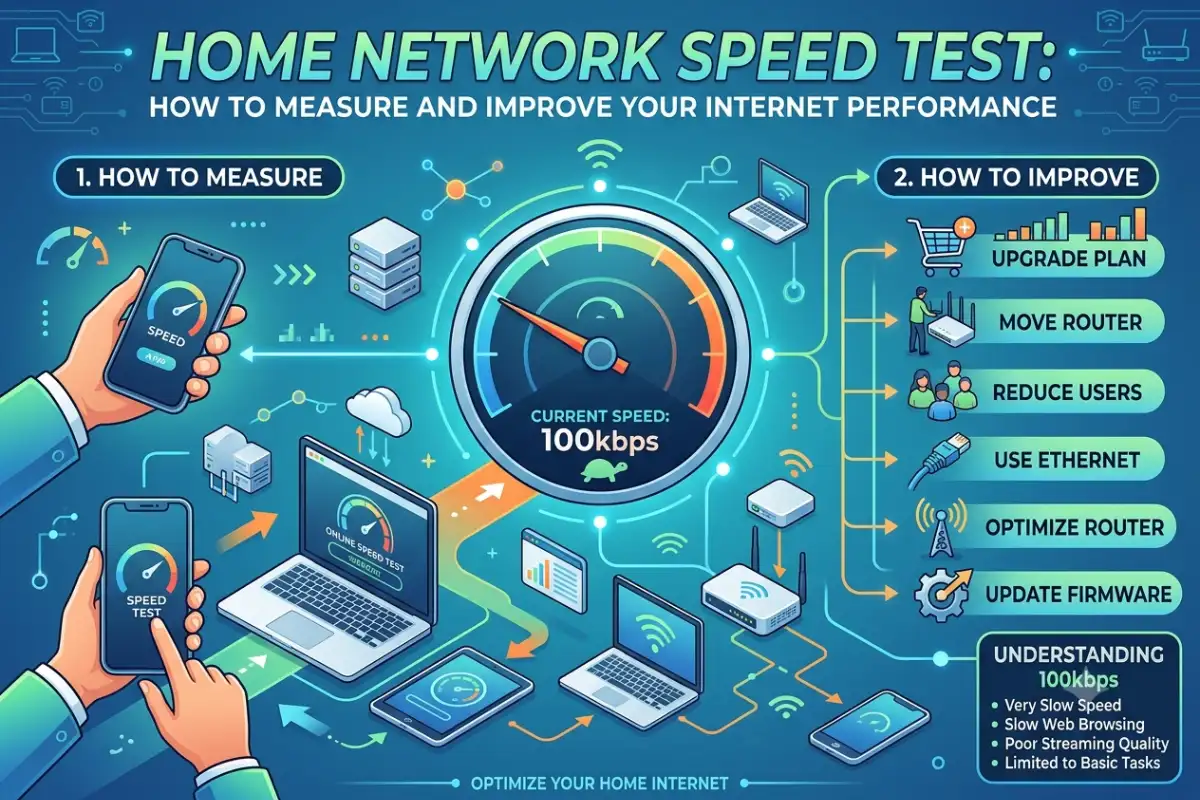
A home network speed test is an easy way to see if you are getting the bandwidth you are paying for. All of these tests can reveal problems with slow download speeds, bad upload speeds, ping, and wireless fragility.
Test whether my internet connection is slow with a speed test How do you check if internet is slow? – You open a website and it takes ages – Your video chat is frozen – Your Streaming service is buffered – Your video game doesn’t respond …You can check whether it’s your Internet Service Provider (ISP), Wi-Fi, router, or device that is creating a delay or lag with a speed test.
In this guide: How to test your Internet speed at home, analyze the results, compare wired to wireless speeds, and correct for common speed problems.
What Is a Home Network Speed Test?
Home network speed test indicates the rate at which information is transmitted between your computer and a server on the internet.
Most tests report three important measurements:
- Download speed: The rate at which your device receives data.
- Upload speed: The rate at which your device would upload information.
- ping / latency: how long it takes for data to make a round trip to a server.
Speed is traditionally measures in Mbps (megabits per second). The higher the number, in Mbps, the more data that can be transferred in a given time.
But speed isn‘t everything when it comes to the network. Latency, packet drops, Wi-Fi signal strength, contention and reliability all play their roles.
How to Run a Home Network Speed Test
Stop downloads, cloud backups, streaming and anything else that may eat up bandwidth.
If feasible, conduct the test while other devices at home are not consuming the network capacity.
Open an established speed-test service and begin the test. To get a more accurate image of the upload and download speed of your connection perform several tests at different times rather than one measurement
For example, test:
| Test Condition | Why It Matters |
| Morning | Provides a less congested baseline |
| Evening | Shows performance during busy periods |
| Wired Ethernet | Helps measure the connection without Wi-Fi limitations |
| Near the router | Shows maximum practical Wi-Fi performance |
| Far from the router | Reveals Wi-Fi coverage limitations |
| Different devices | Helps identify device-specific problems |
Write down the speed for download, upload, the ping, and the test server if the service displays one.
Best Speed Test Tools: Ookla and Fast.com
Several services can measure internet performance. We have also two options which are quite popular. They are: Speedtest (speedtest by Ookla) and Fast.com.
Speedtest can help analyze download speed, upload speed and delay.
Fast.com provides a simple way to check download performance and can also display latency and upload information through its additional results.
Speed test is managed by Ookla; Netflix manages Fast.com.
Use the same test service when comparing results over time. Changing test servers or services can produce different results.
Speed Test Tool Comparison
| Feature | Speedtest by Ookla | Fast.com |
| Download speed | Yes | Yes |
| Upload speed | Yes | Yes |
| Latency | Yes | Yes |
| Interface | Detailed | Simple |
| Best use | Detailed troubleshooting | Quick performance check |
| Multiple measurements | Yes | Yes |
Instead of taking one outcome as truth to diagnose the whole system, run a few tests to see if they give you a better picture of the problem when troubleshooting a home network.
Interpreting Download, Upload, and Ping
There are several figures when you do a speed test, they don‘t all do the same thing to your connection.
Download Speed
Download speed measures how quickly information reaches your device.
It affects activities such as:
- Streaming video
- Downloading files
- Loading websites
- Installing software
- Downloading games
A household with many people streaming, gaming and downloading at the same time requires more availability of bandwidth than a single user household.
Upload Speed
Upload speed is the rate at which your device uploads data to the internet.
It matters for:
- Video conferencing
- Cloud backups
- Uploading videos
- Sending large files
- Live streaming
- Remote work
A connection can have excellent download performance but relatively poor upload performance.
Ping and Latency
Pingping measures time of response of a network. Usually its value is given in ms.
A lower latency is preferable for activities that need fast responses such as online gaming, video conferencing and more interactive application.
The connection can be at a low latency even if there is a high speed of download.
What About Jitter and Packet Loss?
Some advanced tests also report jitter and packet loss.
Jitter refers to variation in packet delivery time. Jitter, particularly when excessively high or unpredictable, can be problematic for real-time applications like voice and video calls.
Packet loss is when packets do not arrive at their destination. Even if you have high speed internet, packet loss can slow you down.
Wired vs Wireless Speed Test Differences
Same internet plan a wired Ethernet connection and Wi-Fi connection can show different results in speed-test results.
Ethernet offers a more reliable connection due to its immunity to wireless jamming from a WiFi making it more reliable:
Wi-Fi performance depends on factors such as:
- Distance from the router
- Walls and floors
- Wireless interference
- Wi-Fi standard
- Router capabilities
- Client device capabilities
- Network congestion
- Connected devices
For this reason, testing over Ethernet can help establish whether the internet connection itself is slow or whether Wi-Fi is reducing performance.
Wired vs Wi-Fi Testing
| Factor | Ethernet | Wi-Fi |
| Connection stability | Generally consistent | Can vary |
| Interference | Very low | Possible |
| Mobility | Limited | High |
| Troubleshooting value | Excellent baseline | Shows real wireless experience |
| Performance variation | Usually lower | Can be higher |
If your Ethernet test is close to the expected service speed but your Wi-Fi test is much slower, the ISP connection may not be the primary problem.
How Fast your Home Network Should Be?
No one internet speed is right for all households.
To determine your requirements, you must consider how many users, related devices, online activities and quality of service requirements you expect.
| Activity | Performance Consideration |
| Web browsing | Usually requires relatively little bandwidth |
| HD streaming | Requires more consistent bandwidth |
| 4K streaming | Requires substantially more bandwidth |
| Video calls | Depends on video quality and stability |
| Online gaming | Low latency is particularly important |
| Cloud backups | Higher upload speed can help |
| Large downloads | Higher download speed reduces transfer time |
| Multiple simultaneous users | Requires more total bandwidth |
Don‘t decide on a speed solely by looking at the advertised maximum, think about what your household really needs.
Fixing Slow Home Network Issues
If your speed test results are not as high as expected, methodically work the problem.
Restart Your Router and Modem
Use of very basics. An obvious but neglected solution: try restarting the device. Easy solution, not always viable.
Power off the modem/router, wait briefly, then power them back on following the manufacturer‘s instructions.
Then run another speed test.
Test With Ethernet
Connect your computer directly to the router using, or.
Repeat the speed test from the same machine.
If your wired result is significantly cleaner than your Wi-Fi result, troubleshoot your wireless connection.
Move Closer to the Router
Run a Wi-Fi test near the router and another from the location where you normally experience slow performance.
A large discrepancy between the two different results implies not only an issue with coverage of either result, but also a possible interference.
Reduce Wi-Fi Interference
Interference from wireless networks is common. Electronic devices near your Wi-Fi can interfere too.
Experiment with changing the wireless channel of the router when the signal is weak, try using the less congested band, and keep the router in an open area.
Check Connected Devices
Other devices may be consuming significant bandwidth.
Look for:
- Cloud synchronization
- Large downloads
- Streaming video
- Game updates
- Security-camera uploads
- Background software updates
If your router has traffic monitoring features or quality-of-service controls, utilize them to detect any abnormal bandwidth consumption.
Update Router Firmware
Router manufacturers release firmware updates infrequently that can resolve bugs, security issues, compatibility, and performance issues.
See the documentation supplied by the manufacturer concerning your model of router.
Consider Your Wi-Fi Standard
Some older routers and client devices can support the latest Wi-Fi features.
A high speed Internet plan with aging wireless hardware might be more salvageable with a faster client device or Wi-Fi router.
Why Is My Speed Test Slow Compared to My Internet Plan?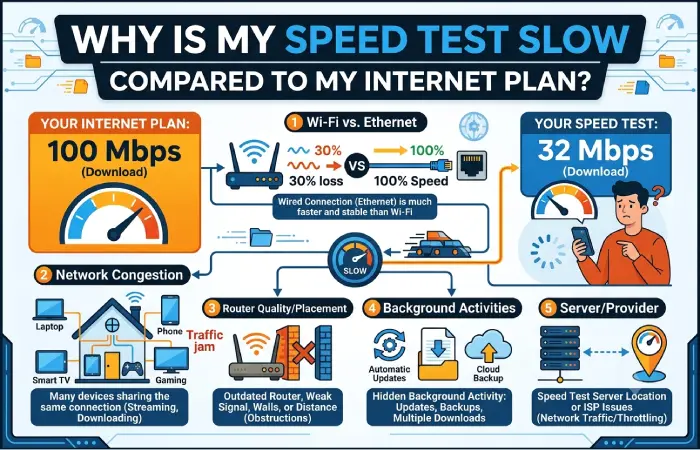
An ISP can promise 300 Mbps, but that speed will not translate to identical results across all devices in every situation.
Several factors can reduce measured performance.
These include Wi-Fi limitations, network congestion, router performance, device limitations, Ethernet hardware, background traffic, and the test server.
Your ISP may also advertise a maximum or plan-level speed rather than a guaranteed speed under every condition.
So it appears the most equal comparison is any combination of the experiments and not simply one.
When to Contact Your ISP
If troubleshooting does not resolve the ongoing performance problem, call your ISP.
You should consider contacting them if:
- Wired speeds are consistently far below your subscribed service level.
- Your connection repeatedly disconnects.
- Performance drops dramatically at particular times.
- You experience persistent packet loss.
- Multiple devices show the same problem.
- Your modem or ONT reports connection errors.
- Restarting your network equipment does not help.
- The problem continues across different test servers.
Attempt a few speed-tests multiple times before getting support.
Include Date, Time, Connection, the Download speed, the Upload speed, the latency and the device, that were used.
So, it is more clarifying for ISP.
How to Get More Accurate Speed Test Results
Be consistent, if you want your data to be reliable.
Where you are comparing results we suggest using the same device and test service. When testing the baseline internet connection, use an Ethernet cable if possible.
Avoid any requirements of large download and streaming during the period of test.
Multiple testing to get multiple results.
A useful testing process is:
Test with Ethernet → Test near the router → Test from the problem location → Compare results → Check for patterns → Troubleshoot the identified area.
This approach can help separate ISP performance problems from local Wi-Fi problems.
Home Network Speed Test Checklist
Before concluding that your internet connection is slow, check the following:
| Check | What to Look For |
| Download speed | Compare repeated results |
| Upload speed | Check whether uploads are unusually slow |
| Ping | Look for consistently high latency |
| Wired test | Establish a baseline |
| Wi-Fi test | Compare with wired performance |
| Router location | Check distance and obstructions |
| Background traffic | Look for downloads and backups |
| Multiple devices | Determine whether the problem is widespread |
| Different times | Identify possible congestion patterns |
| ISP plan | Confirm the advertised service level |
Frequently Asked Questions
How can I determine the speed of my home network?
Measure the four parameters of (use a dedicated speed-test from a trustable internet speed-test site) using download speed, upload speed, and latency. Troubleshooting: repeat the four parameters using Ethernet and Wi-Fi.
Is Wi-Fi Speed the Same as Internet Speed?
No. Wi-Fi and internet speed are not the same thing, and are related to one another. Several factors can degrade Wi-Fi speed, such as distance, internal and external signal interference, router specifications, and hardware specifications of the machine receiving the Wi-Fi signal.
How come my wireless network is slower than wired (Ethernet)?
There are factors that affect wireless connectivity like strength of signal, interference, congestion, placement of the routers and limitations of the devices. Ethernet connection is more reliable and consistent.
What is considered a good ping when using your home internet?
Same applies here: Latency should be application specific. Usually, it‘s better to have smaller amount of latency for interactive applications like gaming and video conferencing.
Is it worth trying the internet speed at various times?
Yes. Testing at different times will show whether there is any performance degradation during periods of high network utilization or congestion.
So, why does my speed test change between my devices?
Devices might have different Wi-Fi Hardware, Ethernet Chipset, Processors, Software Setup and background network traffic. All these things can affect the result of the test.
Could a router be the culprit in slowing down my internet?
Yes. A broken, poorly configured, black holes, overloaded and/ or borderline router acts as a bottleneck on the whole network. This remains true even more so when using a wireless connection.
Final Takeaway
A home network speed test is more useful when treated as a troubleshooting tool rather than simply a number on a screen.
Start with the repeated tests. Then compare the wired and wireless performance. And then study the download speed, upload speed and latency separately.
Ethernet is quick and Wi-Fi is slow. Inspect the wireless network. If multiple devices are slow even on Ethernet, investigate other factors such as the modem/router/ISP.
With a systematic test, you can find where the bottleneck is and take the action needed to optimize your home network.