Last Updated: September 22, 2026
Introduction
A home server and NAS setup gives you a central place to store files, back up computers, stream media, and access your data across your home network. Instead of relying entirely on cloud storage or keeping files scattered across multiple devices, you can create your own private storage system.
A NAS (Network Attached Storage) is designed specifically for network-based file storage, while a home server can handle broader workloads such as media streaming, virtual machines, websites, applications, and network services.
The right choice depends on how much storage you need, how many users will access the system, whether you want media streaming, and how much configuration you are comfortable managing.
What Is a Home Server and NAS?
A NAS is a specialized computer connected to your network that provides shared storage to computers, smartphones, TVs, and other devices.
A home server is more general-purpose. It can provide storage but can also run applications and services such as:
- Media servers
- File-sharing services
- Backup systems
- Home automation platforms
- VPN services
- Virtual machines
- Containers
- Personal websites
For many beginners, a NAS is easier to deploy because the hardware and operating system are designed specifically for storage and network management.
NAS vs Home Server Explained
The biggest difference is flexibility.
| Feature | NAS | Home Server |
| Main purpose | Network storage | General-purpose computing |
| File sharing | Excellent | Excellent |
| Backup | Excellent | Excellent |
| Media streaming | Yes | Yes |
| Applications | Many built-in options | Very flexible |
| Virtual machines | Some models | Excellent |
| Power consumption | Usually lower | Depends on hardware |
| Setup difficulty | Beginner-friendly | Moderate to advanced |
| Hardware flexibility | Limited to NAS platform | Very high |
| Maintenance | Generally easier | Usually more hands-on |
Choose a NAS if:
You primarily need centralized storage, backups, file sharing, and media streaming with relatively simple management.
Choose a home server if:
You want to experiment with containers, virtual machines, self-hosted applications, development environments, or more advanced networking services.
How to Choose the Right NAS for Your Home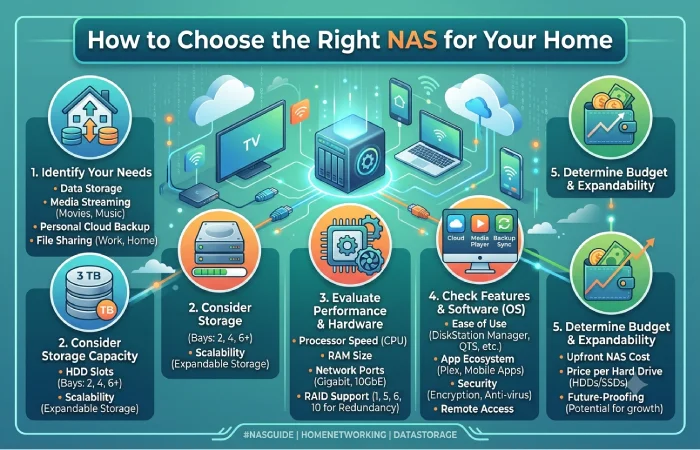
Before buying a NAS, consider storage capacity, drive bays, network connectivity, CPU performance, RAM, expansion options, and software support.
A two-bay NAS can be sufficient for a small household, while users managing large media libraries or multiple backups may benefit from four or more drive bays.
Important NAS specifications
Drive bays: More bays provide greater storage flexibility and allow more RAID configurations.
Network connection: Gigabit Ethernet is suitable for many homes, while 2.5GbE or faster networking can make a major difference when transferring large files.
RAM: More RAM can help when running additional applications or multiple services.
CPU: Processor performance becomes more important for media transcoding, virtual machines, containers, and demanding applications.
Expansion: Check whether the NAS supports additional storage, memory upgrades, expansion units, or faster networking.
Best NAS Devices for Home Use
Two major NAS ecosystems worth researching are Synology and QNAP.
Synology
Synology NAS systems are widely used for home storage, backups, file sharing, surveillance, and personal cloud applications. Their software ecosystem is particularly important when comparing models.
QNAP
QNAP offers NAS hardware across a wide range of performance levels and provides extensive software and expansion capabilities.
When comparing NAS devices, don’t select a model based only on storage capacity. Consider the number of drive bays, CPU, RAM, networking, operating system features, backup capabilities, and long-term expansion.
How Much Storage Do You Need?
Estimate your storage requirement before buying the drives.
For example:
| Usage | Suggested Starting Capacity |
| Documents and basic backups | 2–4 TB |
| Photos and personal files | 4–8 TB |
| Family media library | 8–16 TB |
| Large video collection | 16–40 TB+ |
| Multiple users and backups | 16 TB+ |
These figures are starting points rather than strict requirements. Your actual usable capacity will depend on the number and size of drives and whether you use RAID.
RAID Configurations for Storage
The (Redundant Array of Independent Disks) combines multiple drives to provide different combinations of capacity, performance, and redundancy.
| RAID | Minimum Drives | Main Benefit | Drive Failure Protection |
| RAID 0 | 2 | Performance/capacity | None |
| RAID 1 | 2 | Mirroring | 1 drive |
| RAID 5 | 3 | Capacity + redundancy | 1 drive |
| RAID 6 | 4 | Higher redundancy | 2 drives |
| RAID 10 | 4 | Performance + redundancy | Depends on failed drives |
RAID is not a backup
This is one of the most important concepts in a NAS setup.
RAID can help keep a system operational when a drive fails, but it does not protect your data from accidental deletion, ransomware, theft, fire, or other disasters.
A good home server should therefore follow a backup strategy such as the 3-2-1 backup approach.
How to Set Up a Home NAS
A typical home NAS installation involves these steps:
- Choose the NAS hardware.
- Select compatible hard drives.
- Install the drives.
- Connect the NAS to your router or network switch.
- Power on the system.
- Install or configure the NAS operating system.
- Create a storage pool.
- Select an appropriate RAID configuration.
- Create shared folders.
- Configure user accounts and permissions.
- Enable automatic backups.
- Configure remote access only when necessary.
For better performance, connect the NAS to your router or network switch using Ethernet rather than Wi-Fi.
Setting Up Remote Access
Remote access allows you to reach your NAS when you’re away from home.
However, exposing NAS services directly to the public internet can increase security risks.
Safer approaches can include:
- Vendor-provided secure remote-access services
- VPN access
- Private networking solutions
- HTTPS-protected services
- Strong authentication
- Multi-factor authentication where supported
Avoid exposing unnecessary NAS administration interfaces directly to the internet.
How to Secure a Home Server
Security should be part of the initial setup rather than something added later.
Use a strong administrator password, keep the NAS operating system and applications updated, disable unused services, create separate accounts for users, and enable MFA where available.
You should also configure automatic security updates when appropriate and maintain offline or otherwise isolated backups of important data.
Home Media Server: Plex vs Jellyfin
A NAS or home server can also become a home media server.
Two popular options are Plex and Jellyfin.
| Feature | Plex | Jellyfin |
| Media streaming | Yes | Yes |
| Local network streaming | Yes | Yes |
| Remote streaming | Yes | Yes |
| Open source | No | Yes |
| Transcoding | Supported | Supported |
| Server platforms | Multiple | Multiple |
| Best suited for | Easy media management | Open-source/self-hosted setup |
Your hardware matters when transcoding video. If several devices need different video formats or resolutions, choose hardware capable of handling your expected transcoding workload.
Home Server vs Cloud Storage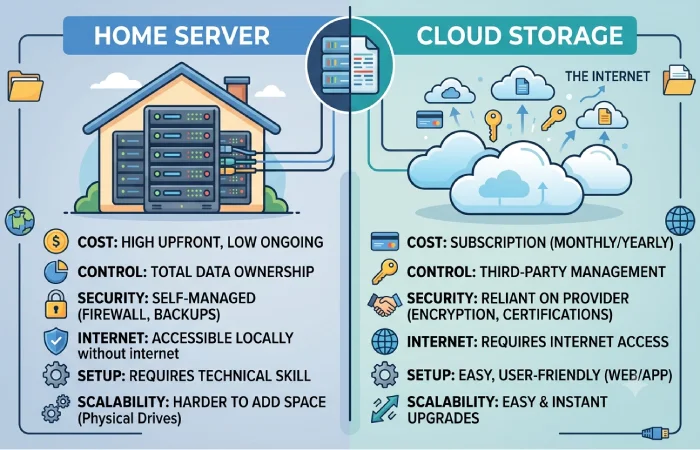
A home server doesn’t necessarily replace cloud storage.
| Factor | Home Server/NAS | Cloud Storage |
| Physical control | High | Low |
| Monthly subscription | Usually none | Usually required |
| Initial cost | Higher | Low |
| Remote access | Requires configuration | Usually simple |
| Internet dependency | Lower for local access | High |
| Maintenance | User responsibility | Provider responsibility |
| Storage expansion | Hardware required | Usually subscription-based |
A hybrid approach can also work well: use a NAS for local storage and backups while keeping critical files backed up to a separate cloud or off-site location.
Common Home Server and NAS Mistakes
Avoid these common mistakes:
Using RAID as the Only Backup
RAID provides redundancy, not complete backup protection.
Buying Too Little Storage
Plan for future growth instead of purchasing a system that will immediately approach its maximum capacity.
Using Wi-Fi for the NAS
A wired Ethernet connection generally provides more reliable and consistent performance.
Exposing the NAS Directly to the Internet
Only expose services that are genuinely required, and use secure remote-access methods whenever possible.
Ignoring Drive Health
Monitor drive health and NAS alerts so that potential drive failures can be addressed early.
Forgetting Power Protection
A UPS can help protect the NAS from unexpected power interruptions and provide time for a controlled shutdown.
How Much Does a Home NAS Setup Cost?
The total cost depends heavily on storage capacity and hardware.
| Setup | Typical Configuration | Approximate Budget |
| Basic | 2-bay NAS + 2 drives | $300–$600 |
| Mid-range | 4-bay NAS + multiple drives | $600–$1,500 |
| Advanced | High-performance NAS/server + large storage | $1,500+ |
Drive prices, NAS hardware, networking equipment, UPS systems, and backup storage can significantly change the final cost.
Recommended Home Server Network Setup
A simple architecture looks like:
Internet → Router → Ethernet Switch → NAS/Home Server
Then connect:
NAS → PCs / Laptops / Smartphones / Smart TVs / Media Players
For larger networks, you can separate services using VLANs or dedicated network segments.
For example:
- Main devices
- IoT devices
- Guest devices
- NAS/server infrastructure
This can improve network organization and security.
Home Server and NAS Maintenance Checklist
Once your system is running, maintenance should include:
- Check drive health regularly.
- Install operating system updates.
- Update applications.
- Review user accounts.
- Test backups.
- Monitor storage capacity.
- Check system temperatures.
- Review security alerts.
- Replace failing drives promptly.
- Test remote access periodically.
- Keep at least one backup separate from the NAS.
Frequently Asked Questions
Is a NAS the same as a home server?
No. A NAS primarily focuses on network storage and file management, while a home server can perform a much wider range of computing tasks.
Is NAS better than cloud storage?
They solve different problems. NAS provides local control and storage, while cloud storage offers convenient off-site access and provider-managed infrastructure.
Can I use a NAS for Plex?
Yes. Many NAS systems can run Plex, although the available performance depends on the NAS hardware and the type and number of streams.
How many drives should a home NAS have?
Two drives are enough for a basic mirrored setup, while four or more drives provide additional options for capacity and redundancy.
Does RAID protect my files?
RAID can protect against certain drive failures, but it is not a substitute for a separate backup.
Can I access my NAS remotely?
Yes, provided the NAS and network are configured for secure remote access. VPN-based or secure vendor-supported methods are preferable to unnecessarily exposing administration services to the public internet.
Should I build a home server or buy a NAS?
A NAS is generally simpler for users primarily interested in storage and backups. A custom home server provides greater hardware and software flexibility for advanced workloads.
Final Takeaway
A well-planned home server and NAS setup can provide centralized file storage, automatic backups, media streaming, and private access to your data. Start by calculating your storage requirements, choosing appropriate hardware, selecting a suitable RAID configuration, and designing a reliable backup strategy.
For beginners, a dedicated NAS can provide a simpler starting point. Users who want to run containers, virtual machines, media services, and other self-hosted applications may prefer a more flexible home server.
The most important principle is simple: storage redundancy is not the same as backup. Build your NAS around both reliability and a separate backup strategy.