
Last Updated: September 24, 2026
A slow WiFi connection can ruin the ability to stream, game, video chat, download or simply browse the net. But remember, the speed your internet provider shows isn‘t necessarily the speed your machine actually receives over WiFi.
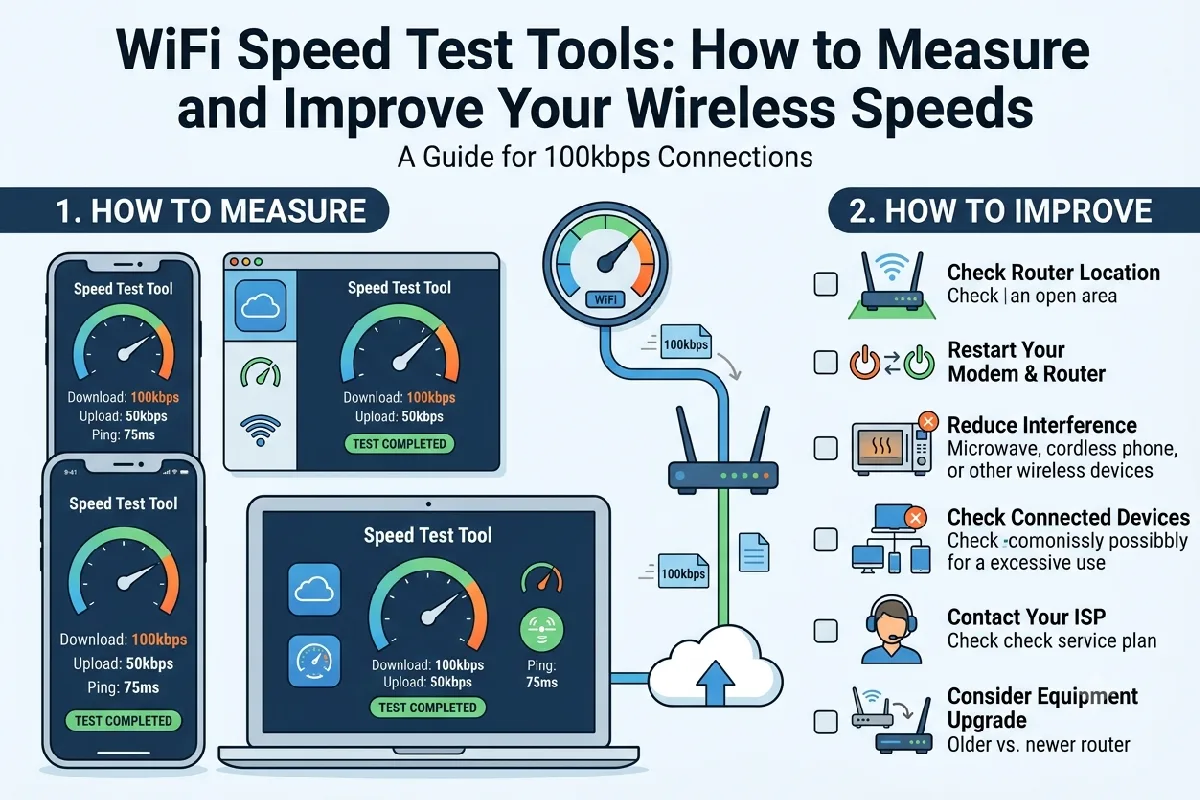
WiFi speed test tools assist you in testing various internet connections metrics, including but not limited to download speed, upload speed, latency and occasionally, jitter or packet loss. By performing tests in various locations and comparing wired and wireless results, the source of the issue can be identified: internet connection, router, WiFi coverage, specific device.
This guide describes how to perform a WiFi test properly and what actions to take once you have the results of your performance test in the event it fails.
Definition of a Wifi Speed Test
A WiFi Speed Test measures the speed at which information travels over your wireless network and the internet between your computer and a designated test server.
Most tests report three important measurements:
| Metric | What It Measures | Why It Matters |
| Download speed | Data received by your device | Streaming, browsing, downloads |
| Upload speed | Data sent from your device | Video calls, cloud backups, file uploads |
| Ping/latency | Response time in milliseconds | Gaming, calls, real-time applications |
| Jitter | Variation in latency | Voice and video stability |
| Packet loss | Data that fails to arrive | Connection reliability |
Speed typically indicated in Mbps (megabits per second) Although a higher number obviously means more bandwidth, the lower latency the better.
An essential point to note is that a speed test results are only an indicator at the point in time. Variations are could be prevalent depending on network congestion, server location, WiFi interference, device hardware and the number of devices on the network.
Best WiFi Speed Test Apps
There are plenty of popular services for testing wireless internet speed. Most are accessible via a web browser; others have their own mobile/desktop programs.
Ookla Speedtest
One of the most frequently used implementations of Speedtest is Ookla Speedtest. It provides information such as download speed, upload speed, ping, and others about the connection.
It is also convenient if you need to compare results taken in different rooms or from different devices, as its interface makes repetitive testing easy.
Fast.com
Fast.com, operated by Netflix, provides a simple speed measurement primarily focused on download performance. Selecting the additional information option can show upload speed and latency.
Its simple interface makes it convenient for a quick check.
Google Internet Speed Test
Google can also provide a basic internet speed measurement through search in supported locations. It is useful when you want a quick test without installing an application.
Cloudflare Speed Test
Cloudflare provides a more detailed network performance test that can help examine latency and other characteristics beyond basic download speed.
For troubleshooting, using two different testing services can be useful. If one service consistently reports unusual results, another test can help determine whether the difference is related to the testing server.
How to Test WiFi Correctly
Close bandwidth hogs like cloud sync, large downloads and streams, auto-software update before testing.
Then:
- Connect to the WiFi network you wish to analyze with the tablet.
- Stop unnecessary downloads and uploads.
- Run the test three times.
- Record download, upload, and latency.
- Repeat the test at different locations.
- Compare results at different times of day.
Testing only once can give you a misleading picture. Multiple measurements provide a better indication of normal performance.
For the most useful comparison, keep the same device and test server where possible.
Testing WiFi at Different Locations
The quality of the WiFi signal can vary greatly within a house or office. Walls, floors, furniture, appliances and being far away from a router can all cause the signal to weaken.
Begin with a test near the router. Then move to areas where you normally experience slow connectivity.
A simple test plan might look like this:
| Location | Download | Upload | Ping | Signal |
| Next to router | 450 Mbps | 40 Mbps | 8 ms | Excellent |
| Bedroom | 300 Mbps | 35 Mbps | 12 ms | Good |
| Home office | 180 Mbps | 30 Mbps | 18 ms | Moderate |
| Far room | 55 Mbps | 12 Mbps | 35 ms | Weak |
The above numbers are just some examples, don‘t quote those as recommended speeds.
If your performance suddenly plummets in outer areas all around your house, then it‘s probably more of a WiFi coverage/ interference problem rather than a limitation of your existing internet plan.
This kind of test is especially relevant for finding dead spots such as WiFi death zones.
Interpreting Speed Test Results
Do not focus only on the largest download-speed number.
Download Speed
Download speed- determines the time taken to stream, browse, transfer files, and downloads data.
An amount of bandwidth that is good to have for all devices connected at the same time (vs. just the highest possible speed).
Upload Speed
Upload speed is relevant in the context of participating in video meetings, uploading files, backing up pictures, or streaming.
Having a link with outstanding download speed, however, but abysmally low upload speeds, can still be a source of issues to the remote employee.
Ping and Latency
Latency is in milliseconds (ms). The lower the latency, the quicker your device responds to the remote server.
Latency is likely to be apparent for gaming, videoconferencing, remote desktop access and other similar activities.
Jitter and Packet Loss
Jitter: Jitter is defined as variation in the latency. Packet loss happens due to data packets not reaching the destination.
If you get stuck while videocalling or playing games, but your download speeds, latency, jitter or packet loss aren‘t bad, maybe you should focus more on latency, jitter and packet loss.
Wired vs WiFi Speed Comparison
One of the best diagnostic to do is a wired Ethernet test.
Connect your computer directly to your router via an Ethernet cable and run another speed test. Again, disconnect the cable and test via WiFi from the same position.
| Test | Download | Upload | Ping |
| Ethernet | 500 Mbps | 45 Mbps | 6 ms |
| WiFi | 280 Mbps | 38 Mbps | 12 ms |
Again, these are illustrative figures.
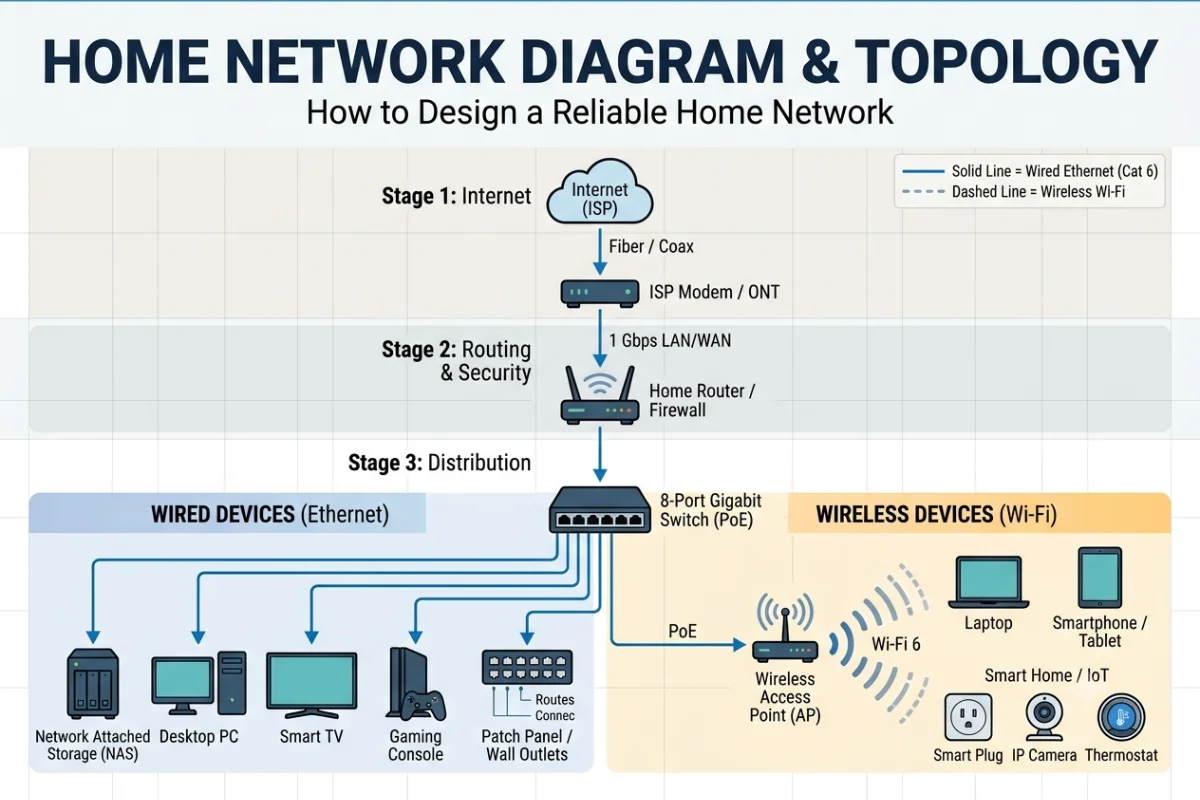
In the event Ethernet works consistently well, but WiFi is noticeably slower than a possible issue with your ISP service. Examine router location for optimal WiFi coverage, interference issues, selecting the right WiFi band, channel overcrowding, hardware limitations or coverage.
If both tests for Ethernet and WiFi are slow, then you should check the modem, the router, the whether the ISP is connected, or the plan from the ISP.
Why WiFi Speed Can Be Lower Than Your Internet Plan
Your internet provider’s advertised speed does not guarantee that every wireless device will achieve that speed.
Several factors can reduce WiFi performance:
- Distance from the router
- Thick walls and floors
- Wireless interference
- Congested WiFi channels
- Older WiFi standards
- Low-quality or outdated router hardware
- Device limitations
- Too many simultaneous connections
- Background downloads
- Poor router placement
For instance, a state of the art laptop close to a good router will behave very differently to an older PDA located many rooms away.
Fixing Slow WiFi After Testing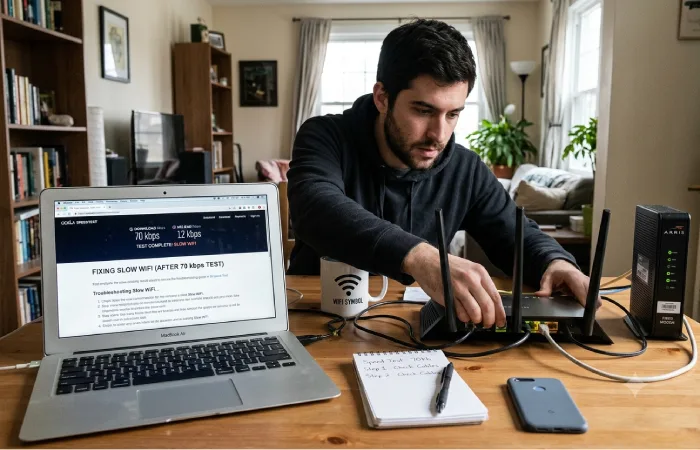
Once you have completed your speed tests, use the results to identify the likely cause instead of immediately replacing your equipment.
Improve Router Placement
Position the router in a relatively central, high and open area. Do not cover the unit inside cupboards and keep away from large metal objects and sources of interference.
Use the Right WiFi Band
2.4 GHz band: Has a slightly longer range but slightly congested. 5 GHz: Higher speeds but greatly reduced range.
Choose the band according to the distance, device compatibility, and network environment.
Change Congested WiFi Channels
Changing the channel can be beneficial if there are neighboring networks that are trying to use the same wireless channels. A WiFi analyzer can show which channels are busy.
Update Router Firmware
Often, manufacturers of routers will issue an update to their firmware that may enhance security, functionality, stability, and reliability.
Reduce Unnecessary Network Traffic
Verify if another machine is using the majority of your bandwidth to download files, perform backups, watch streams or update software.
Consider Mesh WiFi
If the tests indicate good speeds close to the router, but sub-par speeds in even remote rooms, then improving coverage may be more beneficial than upgrading your internet plan.
A correctly setup mesh WiFi system or access point can give less fluctuations of coverage in a larger house.
What is the recommended frequency to you should run a WiFi Speed Test?
Test for my connection every day is not necessary.
- Your WiFi suddenly becomes slower.
- You upgrade your internet plan.
- You install a new router.
- A particular room has poor performance.
- Video calls or gaming become unreliable.
- You wish to make a comparison of WiFi versus Ethernet.
- You are experiencing an ISP or router issue.
Log the results if the problem is intermittent. Checking at different times can indicate if there is a change in performance when the network is under high load.
Final Takeaways
WiFi speed test tools can give valuable evidence when diagnosing wireless performance issues but one test is hardly ever going to reveal the cause.
Multiple tests on various locations with WiFi and Ethernet connection. Know the upload speed apart from downloading speed. Pay attention to the latency, jitter and packet loss.
If one connection is fast and the other is slow then use techniques to improve WiFi coverage, reduce interference, reposition the router, change channels and ensure PC‘s are capable. If both connections are slow look at the router, modem, ISP connection or service plan.
It is not about reaching the highest speed-test number. It is about creating a stable and consistent WiFi connection that simply works well in your real-life environment where you normally use your devices.