
Last Updated: July 18, 2026
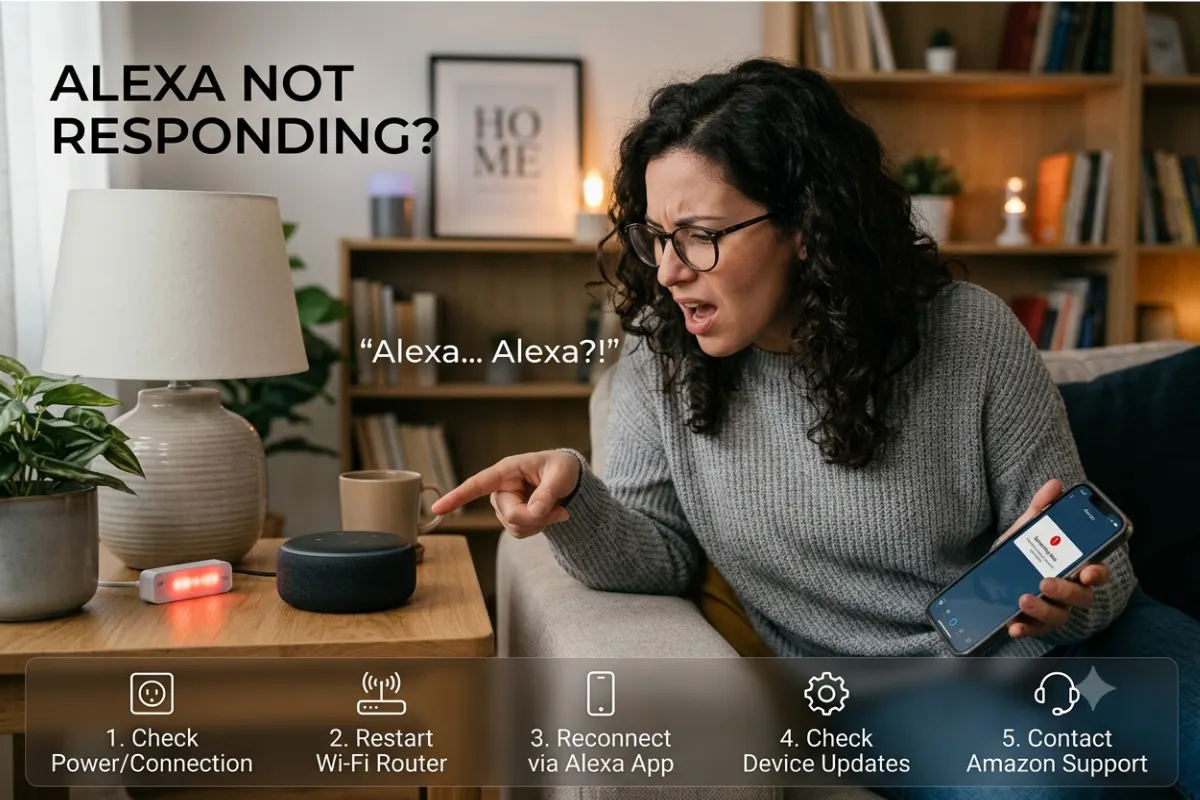
Alexa has become a very essential element in smart home systems. Alexa takes care of everything from illuminating your house and playing music to reminding you about anything and assisting you in answering questions. However, sometimes it becomes annoying when you encounter problems like Alexa not working.
However, if you are having this problem, do not worry because most of the Alexa problems occur due to easy-to-fix problems like disturbances in Wi-Fi connection, microphone settings, software updates, and many more.
In this comprehensive guide in fixing your Alexa that doesn’t respond, you will get to learn what causes this problem, its solutions, how issues with the network affect your device’s performance, and when you have to reset your device and call Amazon customer support.
Reasons for Not Working of Your Alexa Device
First of all, it is important to know what exactly can lead to your problem because your device requires the following to work: microphone, internet access, Amazon servers, and Alexa app.
Failure of any of them will result in Alexa’s lack of response.
Internet Connection Problems
The most frequent cause of Alexa becoming unresponsive is an unstable or even non-existent internet connection. Since your Alexa works on the servers of Amazon and processes your voice commands on the servers, she must always have internet access.
In case you get disconnected from the Internet from time to time or your router stops working for some reason, Alexa will hear your request but will not react.
Some of the signs:
- Alexa says, “I’m having trouble connecting to the internet.”
- Commands take a long time.
- Smart home devices stop responding.
- Music streaming suddenly stops.
Microphone Muted
All Alexa-enabled devices feature a button that can mute the mic. Therefore, if by mistake this button is pressed, then Alexa will not be able to receive any voice commands.
The vast majority of Echo devices show a solid red ring or red light in case of microphone muting.
This is frequently forgotten as the device seems to be powered on yet does not respond to any voice commands.
Device Too Distant
Alexa’s microphones are made to pick up voices in the room; however, factors such as distance, ambient noise, and obstacles may hinder its performance.
Some problems that occur are:
- Loud televisions
- Running fans
- Kitchen appliances
- Multiple people talking
- Echo placed inside cabinets
Improper positioning decreases Alexa’s capacity to recognize the wake word.
Software Glitches
Similar to smartphones and computer systems, Echo devices can occasionally suffer from temporary software problems or freezes.
Symptoms are as follows:
- Alexa lights up but says nothing.
- Alexa freezes during commands.
- Random disconnects.
- Device becomes unusually slow.
Fortunately, such glitches will normally fix themselves after the device restarts.
Amazon Service Outages
Sometimes, however, the problem might not actually lie within your device.
At times, the Amazon cloud servers are down, meaning that voice functions are disrupted worldwide even when you have a great Wi-Fi connection.
In case several of your devices suddenly stop working at the same time, this may be the cause.
Simple Fixes for Non-Responding Alexa Devices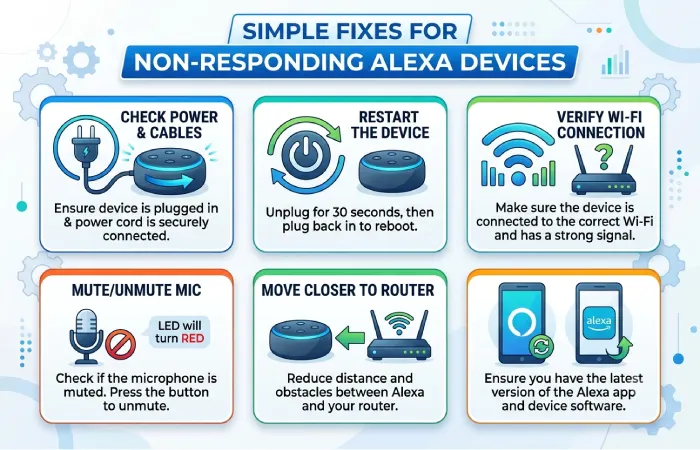
Here’s some great news – almost all problems with Alexa devices can be solved within several minutes.
Before you resort to resetting your device, try out these simple fixes.
Restart the Alexa-Echo Device
A reboot will clear the temporary cache and reconnect the device to Amazon’s server.
Simply:
- Unplug the echo device.
- Wait for about 30 seconds.
- Plug it back in again.
- Wait until Alexa reconnects properly.
Most software problems can be solved through system restart.
Check the Microphone Button
Look at the top part of your Echo device.
If there is a red ring of lights, simply press the microphone button once to restore voice recognition capabilities.
Then say:
“Alexa, how is the weather?”
If Alexa answers the question, the problem is solved.
Test Another Command
Sometimes Alexa misunderstands one request but responds normally to others.
Try simple commands like:
- “Alexa, what time is it?”
- “Alexa, tell me a joke.”
- “Alexa, volume five.”
- “Alexa, play relaxing music.”
If only a single skill or voice command isn’t working, it could have something to do with the particular service and not Alexa herself.
Move Closer to the Device
Just stand within a few feet of the Echo and speak clearly.
Do not yell.
Alexa understands natural speech better than yelling.
If Alexa works close to the device, but does not work further away, then try moving the speaker in order to cover the microphone with the sound.
Update Alexa Software
Echo devices normally update automatically, but updates may occasionally be delayed.
Software updates improve:
| Improvement | Benefit |
| Voice recognition | Better wake word detection |
| Security | Fixes vulnerabilities |
| Smart home compatibility | Supports new devices |
| Stability | Reduces crashes |
| Performance | Faster responses |
Leaving your Echo plugged in overnight usually allows updates to install automatically.
Issues with Wi-Fi That May Impact Alexa
A stable Wi-Fi connection is necessary for all Alexa devices.
Even the smallest issues within the network can affect voice recognition, control over the smart home, and even streaming.
Check Router Status
Check whether your router works properly.
In case other devices like smartphones or laptops are also not able to connect to the internet, reset the router first instead of fixing Alexa.
Resetting the router is how one can restore normal connectivity.
Steps to Boost the Wi-Fi Signal
Poor signal will cause delays and disconnects.
Consider moving your Echo:
- Closer to the router
- Away from thick walls
- Away from microwaves
- Away from cordless phone bases
- Away from large metal objects
Correct positioning can assist with speeding up and increasing connectivity.
Make Sure You Are on the Correct Wi-Fi Network
Many modern routers broadcast both:
- 2.4 GHz
- 5 GHz
Alexa is able to connect to both bands on numerous new Echo devices, but it will be necessary for you to connect again after changing the settings.
It is important that your Echo connects to the correct network via the Alexa application.
Minimizing Network Traffic
Homes filled with smart devices may overload older routers.
High-bandwidth activities such as:
- 4K streaming
- Video conferencing
- Online gaming
- Large downloads
can affect Alexa’s responsiveness.
Dual-band or mesh Wi-Fi network can distribute the traffic effectively.
Alexa Disconnection Fix
If your device tends to disconnect from the Internet regularly, you should try to connect it manually.
You need to use the Alexa application and access Echo device settings. Connect Wi-Fi again.
The method is effective for cases where connection problems occurred because of router upgrade or password change.
Alexa Factory Reset and Reregistration
In some cases, basic troubleshooting is not effective enough and requires resetting the device.
A factory reset implies restoring settings to their default positions, which includes all the Wi-Fi information and account information.
When Should You Reset Your Alexa?
Factory resetting should be considered only after trying the simpler solutions.
Resetting is useful when:
- Alexa freezes constantly.
- Device won’t connect to Wi-Fi.
- Setup repeatedly fails.
- Alexa ignores all commands.
- You’re giving the device to someone else.
Factory Reset Steps
The reset procedure depends on the Echo model.
Most devices allow you to:
- Hold the Action button for around 20 seconds.
- Wait until the light ring changes color.
- Follow the setup instructions in the Alexa app.
Alexa will function like a new device after resetting.
Re-Register Your Echo
Sometimes, problems occur due to syncing issues between accounts and Alexa.
In order to solve such an issue:
- Disconnect your Echo device from the Amazon account.
- Reset the device.
- Open the Alexa app.
- Register the device again.
- Complete the setup process.
Re-linking re-establishes the device’s link with Amazon services.
Re-link Smart Home Devices
Once you have reset Alexa, your smart home devices may require discovery.
Scan for the following using the Alexa app:
- Smart lights
- Smart plugs
- Cameras
- Thermostats
- Switches
- Door locks
Once rediscovered, routines and voice commands usually begin working again.
When to Contact Amazon Support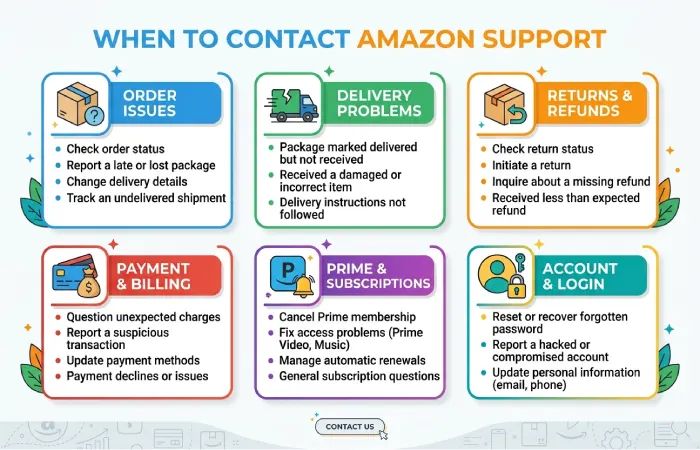
In case Alexa does not respond even after trying all the troubleshooting techniques, then the problem might lie within a hardware failure or a complex account issue.
The experts at Amazon support can diagnose problems which cannot be detected by the user.
Contact support when:
- Alexa won’t power on.
- Device repeatedly resets itself.
- Wi-Fi setup always fails.
- Microphones never detect your voice.
- The light ring behaves abnormally.
- Factory reset doesn’t solve the issue.
Should the Echo still be under warranty, then Amazon would repair or exchange the device based on the diagnosis.
Prior to contacting support, ensure you have the following information handy:
| Information | Why It’s Helpful |
| Echo model | Identifies device-specific issues |
| Serial number | Confirms warranty and registration |
| Amazon account email | Verifies ownership |
| Router model | Helps troubleshoot connectivity |
| Description of the issue | Speeds up diagnosis |
| Troubleshooting steps already tried | Avoids repeating basic solutions |
This will help make the process faster and efficient.
Tips for Handling Alexa Problem
It is through regular maintenance that you can keep your device responsive and avoid encountering problems in the future.
Some advice includes the following:
- Keep your Wi-Fi network stable and secure.
- Place Alexa in an open area with minimal interference.
- Restart your router occasionally.
- Allow automatic software updates to install.
- Avoid unplugging the Echo unnecessarily.
- Use quality internet equipment if you have many smart devices.
- Keep the Alexa app updated on your smartphone.
Following this advice will help make your smart home device more efficient.
FAQs
Why is Alexa blinking but not talking?
This is caused by poor internet connection, software problem, or misunderstanding the voice command. This can be solved through rebooting of the device and maintaining a good Wi-Fi connection.
Does a bad Wi-Fi connection influence the responses from Alexa?
Indeed, Alexa needs the internet to operate properly. Bad or unstable Wi-Fi leads to delayed responses, lack of response or inability to execute voice commands.
Will resetting Alexa delete everything?
Factory reset clears all the Wi-Fi settings and connected accounts from your device. You will have to go through the setup process once more via the Alexa app.
Why is Alexa reacting slowly?
Delayed responses can be attributed to poor network connection, weak Wi-Fi signal, outdated software and any issues that are connected to Amazon’s cloud computing service.
How often should I reset the Echo device?
Resetting is not an activity you need to do regularly; however, you can always reset your device to fix minor problems.
Conclusion
Whenever your Alexa device stops working, one might automatically conclude that there is something wrong with the device. But then, the issue may be very easy to deal with like a bad Wi-Fi connection, mic mutes, or old software versions. Just by spending some time on this guide, you will make sure that your gadget works perfectly fine.
However, should these instructions not help you, it may mean that a factory reset is required or that you need to contact Amazon Support. If you have the device properly placed, access to the Internet, and software updates, then Alexa can serve as a voice assistant well into 2026 and even longer.